
Alarms are the heart of system management as they contain key information to potential problems or current problems. Administrators have to analyze each and every alarm and acknowledge the same. It is common in current business environment to receive large number of messages from various sources (Event log, Syslog, SNMP Trap) and administrator need to go through each and every message before deciding about the action.
Certain systems need privileged attention and it needs to be attended to with highest priority. For example, event message generated from the gateway system about the consecutive failure login attempts indicates a potential attack and Syslog message about large mail queue indicates degradation in mail server performance.
SapphireIMS provides a powerful capability for handling the events from heterogeneous sources in a unified manner. This feature is called as Alarm Unification. This lets the administrator configure a unification rule and the event logs, Syslog messages or traps can be converted into unified format (SapphireIMS alarms) using this feature. Administrators can just analyze the alarms and then decide upon the course of action they have to under-take.
To define the alarm unification rule follow the steps mentioned below
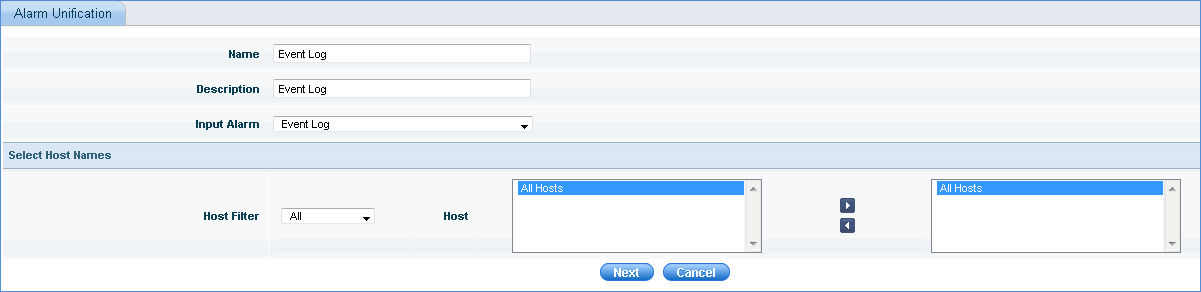
1. Click the 'Settings' tab. In the 'Fault and Notifications' section click 'Alarm Unification'. This will list the currently configured rules if they are defined. Click ‘Add’ to define a new rule. As shown below the alarm unification screen will be displayed
|
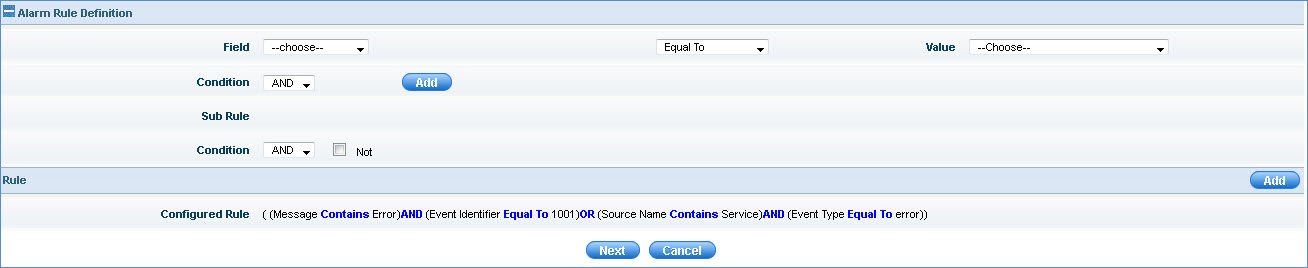
2. Define the alarm unification rule parameters
|
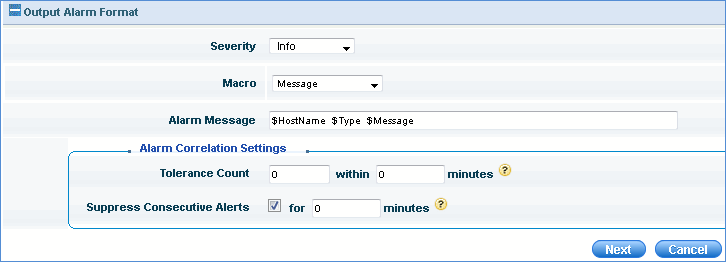
3. Define the output alarms for the unification rule
| |||||||||||||||||||||
4. To define the notifications, select the notification profile. This definition will allow notification of an alarm whenever it is generated to the users as defined in the selected profile.
5. To define the service request parameters for the rule, select the service desk integration profile. This definition will allow auto submission of a service request into the SapphireIMS service desk module as defined in the selected profile.
6. If any of the rules needs to be edited, then click the rule name listed in 'Alarm Unification' screen and it will display the edit screen
7. To delete a Rule, select the configuration listed in 'Alarm Unification' and click 'Delete'
 Important: The rules will be taken into effect from the subsequent data
collection and corresponding log analyzer alarms will get generated. The
generated alarms can be viewed by clicking 'Fault' and 'Event Logs/Sys
Logs/SNMP Traps'
Important: The rules will be taken into effect from the subsequent data
collection and corresponding log analyzer alarms will get generated. The
generated alarms can be viewed by clicking 'Fault' and 'Event Logs/Sys
Logs/SNMP Traps'