
Creation of assets can be done in bulk by importing the asset details from a source like an Excel file. This is a two step process where an Excel template is created with all the attributes of the asset defined. The Excel sheet is then populated with the asset data and imported into SapphireIMS. You have an option to import the entire data (the first time) or update (incremental changes).
Click on  on the top menu. The asset import
screen is displayed.
on the top menu. The asset import
screen is displayed.
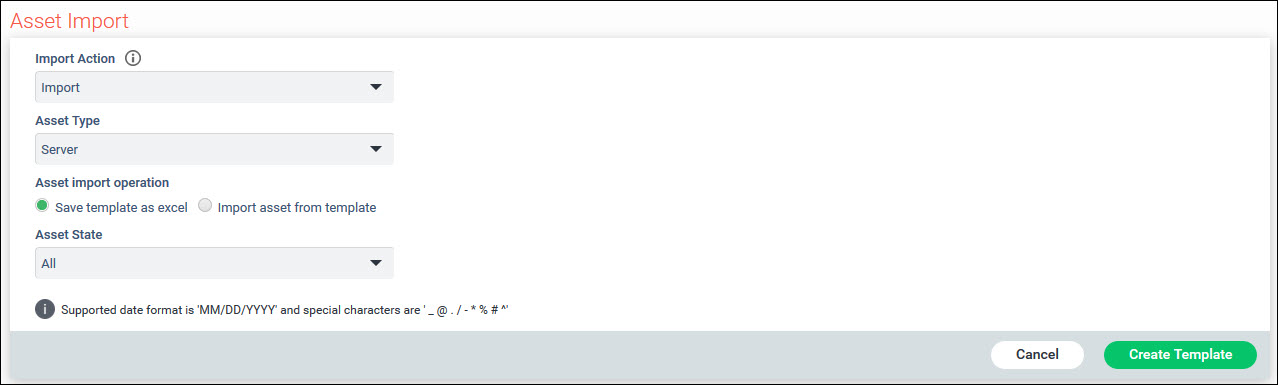
Select 'Import Action' as 'Import'.
Select 'Asset Import operation' as 'Save template as excel'.
Select the 'Asset type'.
Click on 'Create template'. An excel sheet is created with all the attributes for the asset type in columns. Mandatory fields are marked with an '*'.
Update the data in the excel and save in CSV format.
Click on on the top menu. The asset import
screen is displayed.

Select 'Import Action' as 'Import'.
Select 'Asset Import operation' as 'Import Asset from Template'.
Select 'Username format'. While importing assets, an option is provided to import either the Username, Full name or the Email address of the user to map the asset to the user. Username is the user login name.
Select the 'Inventory Linking format' which is either the name of the host or IP address of the host discovered through inventory. This value will be used for linking the inventory resource with the asset.
Select the 'Link with Inventory' option. If the option is 'Yes', the Inventory is checked for the corresponding resource. If the resource is found, the asset is linked with the inventory resource, else the asset is considered as a bad record. If the option is 'No', the asset is added without an inventory resource check.
Select the action to be performed on old asset records. You can either 'Preserve all old records' or 'Purge all old records'.
Select the action to be performed on import of a bad record. If an error occurs while importing a record, the record is termed as a ‘bad record’.
Click 'Asset File' to select the asset template file which should be in CSV format.
Click on 'Upload'.
Click 'Validate' to validate the asset data in the uploaded Asset Import Template File. If any Bad Record is found then an Excel File will be automatically downloaded with the bad record cells highlighted in “Red” color.

Click 'Execute' to complete the asset import process.
Click on on the top menu. The asset import
screen is displayed.
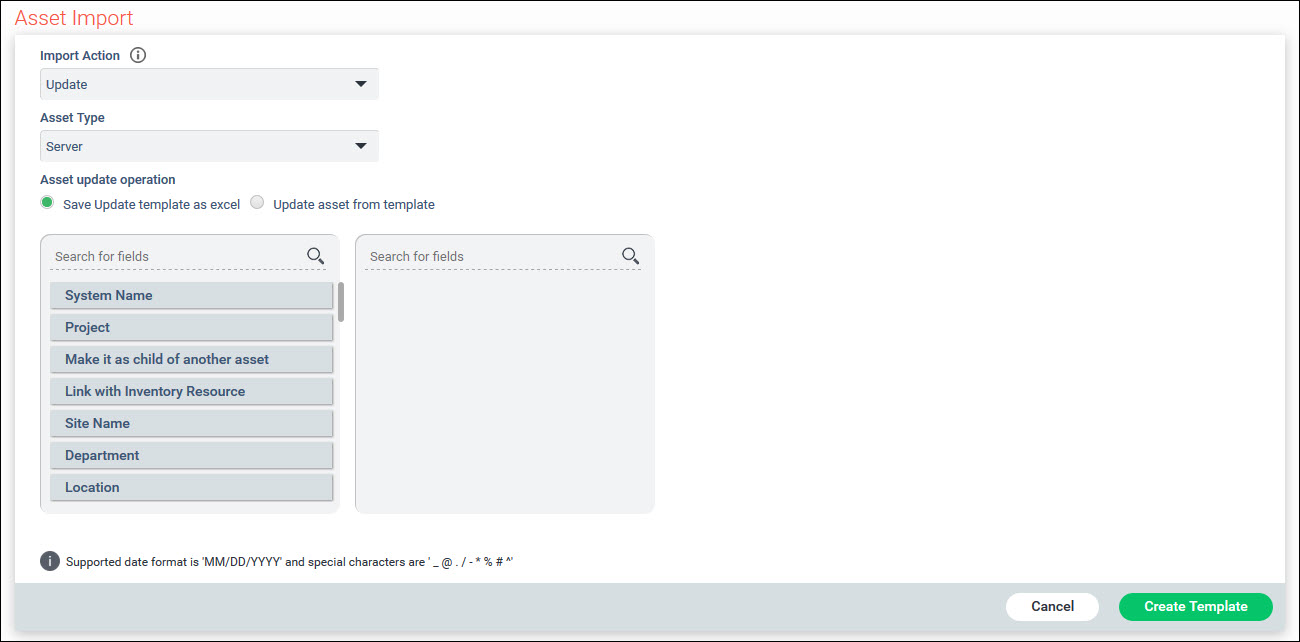
Select 'Import Action' as 'Update'.
Select 'Asset Import operation' as 'Save template as excel'.
Select the 'Asset type'.
Select the 'Fields' of the Asset which need to be imported by moving it to the right side.
Click on 'Create template'. An excel sheet is created with the selected attributes for the asset type in columns. Mandatory fields are marked with an '*'.
Update the data in the excel and save in CSV format.
Click on on the top menu. The asset import
screen is displayed.
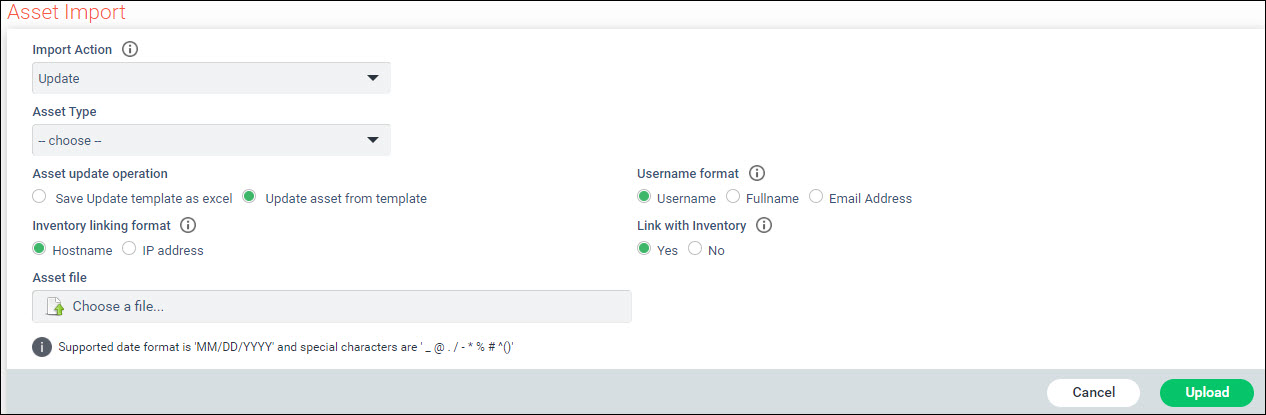
Select 'Import Action' as 'Update'.
Select 'Asset Import operation' as 'Update Asset from Template'.
Select the 'Asset type'.
Select 'Username format'. While importing assets, an option is provided to import either the Username, Full name or the Email address of the user to map the asset to the user. Username is the user login name.
Click 'Asset File' to select the asset template file which should be in CSV format.
Click on 'Upload'.