Serial No |
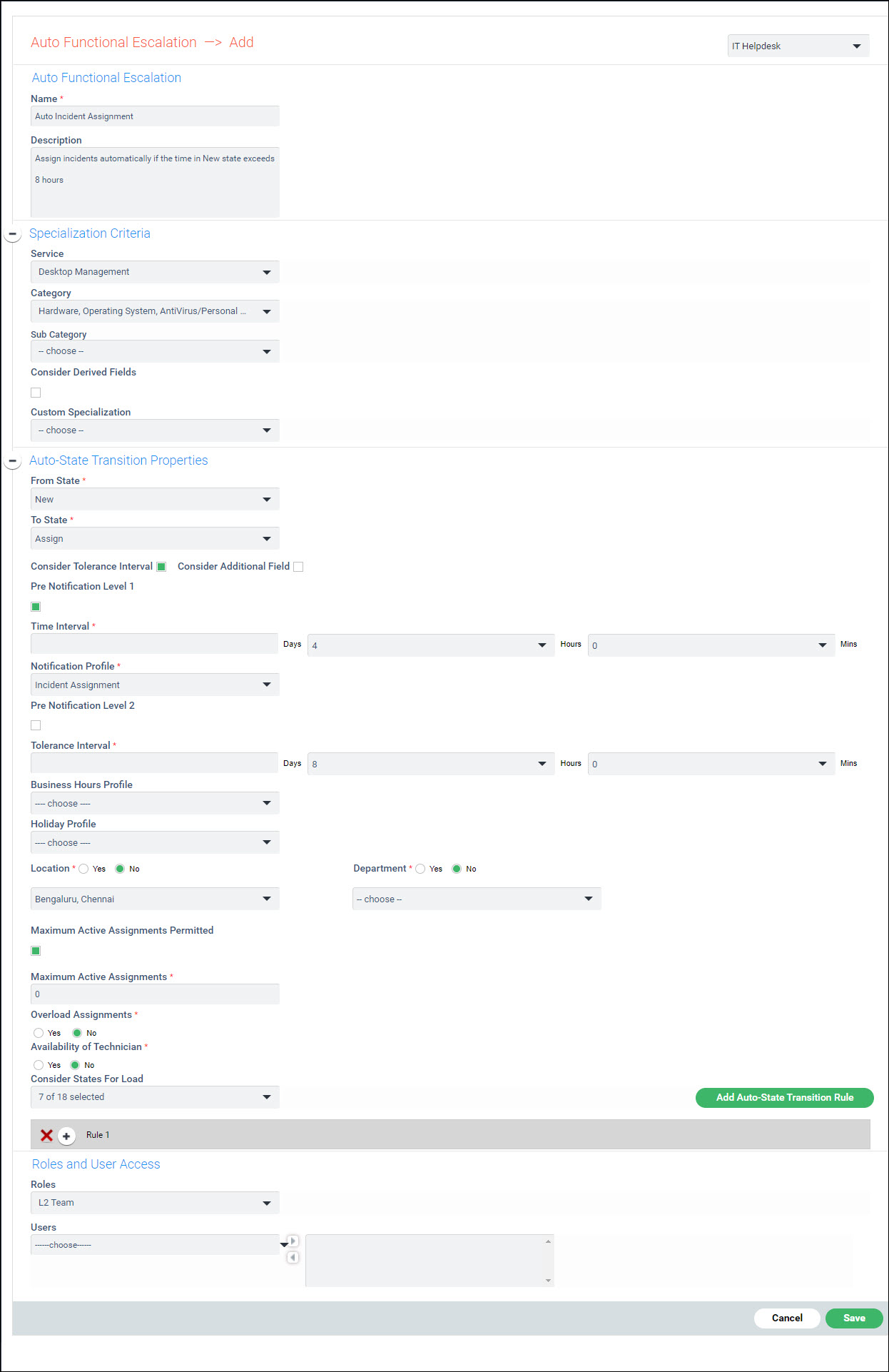
Field
Name |
Description
|
1 |
Name
|
Enter
the 'Name' for the rule. |
2 |
Description |
Enter
the 'Description' for
the rule. |
|
Specialization
Criteria |
Input
the criteria against which the record will be matched in order
to apply the rule. |
3 |
Service |
Select
the 'Service' for all
those where the rule is applicable. |
4 |
Category |
Select
the 'Category' for all
those where the rule is applicable. |
5 |
Sub
Category |
Select
the 'Sub Category' for
all those where the rule is applicable. |
6 |
Consider
Derived Fields |
Check
this box if 'Derived Fields'
need to be considered. Select the 'Derived
Field 1', 'Derived Field
2' and 'Derived Field
3'. |
7 |
Custom
Specialization |
Select
the 'Custom Specialization'
for all those where the rule is applicable. |
|
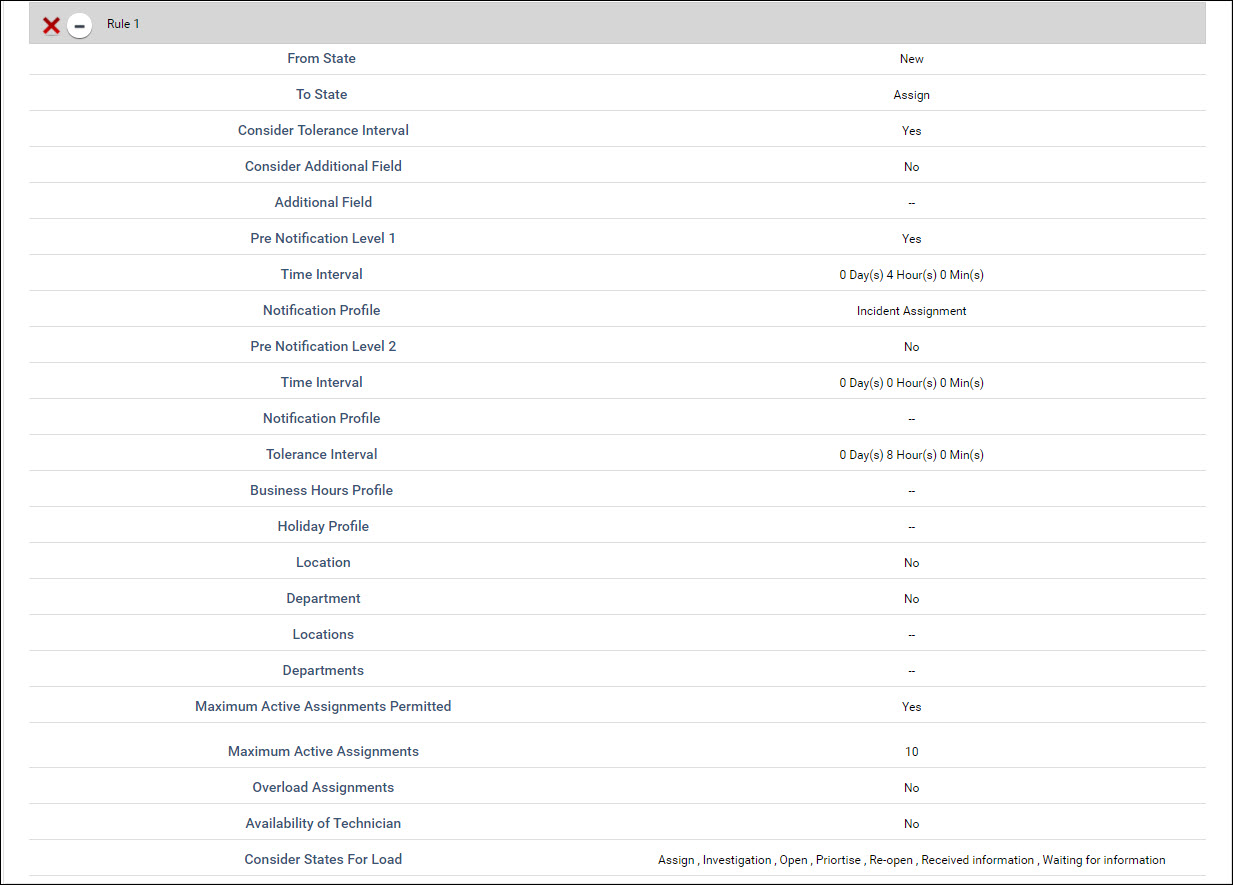
Auto State Transition Properties |
Input
the criteria which would cause the state to be changed. |
8 |
From
State |
Select
the 'From State' from
which the transition should happen. |
9 |
To
State |
Select
the 'To State' to which
the transition should happen. |
10 |
Consider
Tolerance Interval |
Check
this box if a 'Tolerance Interval'
has to be specified before the state change is done. Pre-notifications
can be enabled such that notifications are sent out at pre-determined
times informing about the state change required and if that does
not happen, then the state is automatically changed at the end
of the Tolerance Interval. |
11 |
Consider
Additional Field |
Check
this box if an 'Additional Field'
has to be considered. This field appears if there are Date Fields
defined as Additional Fields. You can select an Additional Field.
When the record is created, the additional field is updated. If
the date specified in the Additional Field is crossed, once the
record reaches the 'From State' it automatically transitions to
the 'To State'. |
12 |
Pre Notification Level 1 |
Select
this option to add the first level of notification. This will
send a notification to the users prior to the automatic state
change. It is not mandatory to select this option.
|
13 |
Time Interval |
Enter
the time in days, hours and minutes.
This time interval should be specified
such that it is less than the tolerance interval specified as
it gives users some more time to perform the state change
|
14
|
Notification Profile |
Select
the profile that will be used for this level of notification.
|
15
|
Pre Notification Level 2 |
Select
this option to add the second level of notification. It is not
mandatory to select this option.
|
16
|
Time Interval |
Enter
the time in days, hours and minutes.
This time interval should be specified
such that it is less than the tolerance interval specified and
more than the time interval specified in 'Pre-Notification Level
1' as it gives users some more time to perform the state change
|
17 |
Notification Profile |
Select
the profile that will be used for this level of notification. |
18 |
Tolerance Interval |
Enter
the time in days, hours and minutes. This is the interval after
which an automatic state transition is done.
Tolerance interval is calculated
from the time record reaches the 'From State'. Despite sending
pre-notification 1 and pre-notification 2, if the user is unable
to perform state transition, then SapphireIMS automatically performs
the state transition.
|
19 |
Business Hours Profile |
Select
a business hours profile which will be taken into consideration
while calculating the tolerance time interval.
|
20 |
Holiday
Profile |
Select a holiday profile which
will be taken into consideration while calculating the tolerance
time interval.
|
21 |
Location
& Department |
Select
these option as 'Yes' to denote if the state transition
has to be based on the record submitter’s location or department.
For e.g., if a record is submitted from Bangalore Location and
if the check box “Yes” is selected, the rule will assign
records to
the engineer who belongs to Bangalore location. |
22 |
Maximum
Active Assignments Permitted
Maximum Active Assignments
Overload Assignments |
Check
the box 'Maximum Active Assignments
Permitted' to define the maximum active assignments
for the technician. Enter
the number of 'Maximum Active
Assignments' for the technician. Select
option 'Overload Assignments'
'as “Yes”
if the maximum active assignments can be overridden for the technician.
The records are assigned in a round
robin fashion subject to other specialization criteria being met.
|
23 |
Availability
of technician |
This
option can be selected to assign records to technicians who have
signed-in only.
|
24 |
Consider
States for Load |
Select the states
which records should be in to be considered as load for active
assignments.
|
25 |
Role
/ User |
Select
the Role and Users for auto assignment.
 Note: This
field is mandatory and even for simple state transition without
auto assignment, a role or user needs to be selected to proceed.
However this has no bearing on the state transition. Note: This
field is mandatory and even for simple state transition without
auto assignment, a role or user needs to be selected to proceed.
However this has no bearing on the state transition.
|