IT Automation Reports


IT Automation reports provide details on the IT Automation jobs. The IT Automation Summary Reports gives the details while the IT Automation Analytical Reports provides the analysis of Automation jobs.


IT Automation Task Summary Reports

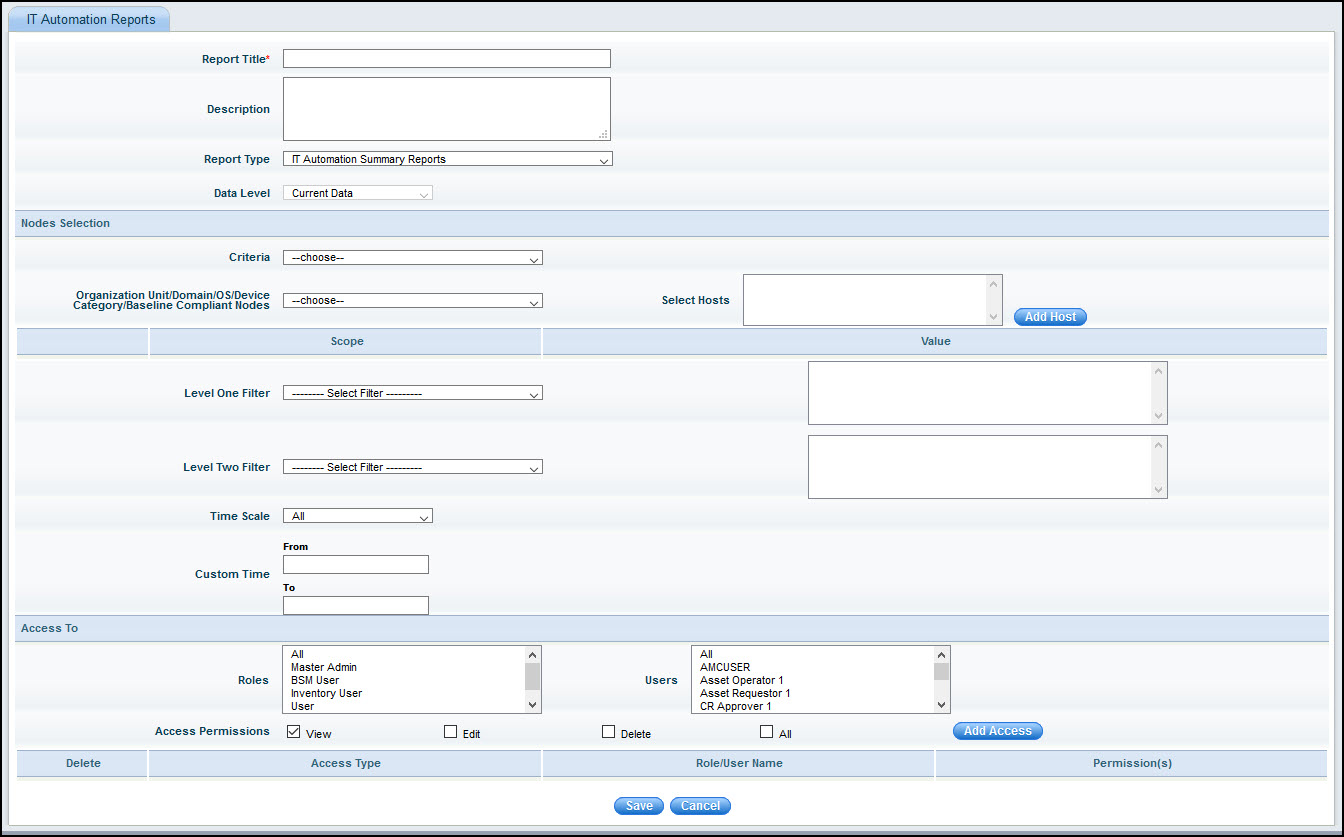
IT Automation Task Summary reports provide a list of automation tasks based on the filter conditions. There are some in-built reports available. To add a new automation task summary report follow the steps below.


Reports-Auto-ITSummary.jpg


Serial No

Field Name

Description

    1  

   Title

Enter the title of the report.


    2

   Description

Brief description of the report to be created.


    3

   Report Type

Select the type of the report as Automation Summary Reports.


    4

Data Level

Not editable

    5

Node Selection


Criteria

Select the appropriate filter criteria (OU/domain/OS/Device Category/Baseline Compliant Nodes) to be displayed in the report.


Organization Unit/Domain/OS/Device Category/Baseline Compliant Nodes

Select the corresponding criteria.


Select Hosts

By default ‘All Hosts of Bangalore OU’ will be selected (If 'Bangalore’ is the OU selected). If only specific hosts needs to  be selected then click on the sign ‘binocular.gif’ to select the hosts from the ‘Search Hosts’ window.

    5

Level One Filter

Select one of the Automation jobs to filter the report. On the right you can further select one or more options for the job which further filters the report. For example, if you select 'Disk Management', you can further filter to select Disk De-fragmentation to report all Disk De-fragmentation jobs.

    6

Level Two Filter

Select the next level of filter based on the status of the job. Further filtering can be done based on individual jobs. For example, you can filter the report for Jobs which have successfully completed.

    7

Time Scale

Select the appropriate time scale for which the report details are required. You can also enter a custom time period in the boxes.

    8

Access To

The Access control permissions for the Report can be set here.


Role

Select one or more Roles for which the permission has to be given.


Users

Select one or more Users for whom the permission has to be given.


Access Permissions

Check one or more boxes to give permission to 'View', 'Edit', 'Delete' reports or check on 'All' if all permissions are to be given.


IT Automation Analytical Reports

IT Automation Analytical reports provide analysis of automation jobs in terms of counts. There are some in-built reports available. To add a new automation analytical report follow the steps below.


Reports-Auto-ITAnaly.jpg

Serial No

Field Name

Description

    1  

   Title

Enter the title of the report.


    2

   Description

Brief description of the report to be created.


    3

   Report Type

Select the type of the report as Automation Summary Reports.


    4

Data Level

Not editable

    5

Node Selection


Criteria

Select the appropriate filter criteria (OU/domain/OS/Device Category/Baseline Compliant Nodes) to be displayed in the report.


Organization Unit/Domain/OS/Device Category/Baseline Compliant Nodes

Select the corresponding criteria.


Select Hosts

By default ‘All Hosts of Bangalore OU’ will be selected (If 'Bangalore’ is the OU selected). If only specific hosts needs to  be selected then click on the sign ‘binocular.gif’ to select the hosts from the ‘Search Hosts’ window.

    5

Level One Filter

Select one of the Automation jobs to filter the report. On the right you can further select one or more options for the job which further filters the report. For example, if you select 'Disk Management', you can further filter to select Disk De-fragmentation to report all Disk De-fragmentation jobs.

    6

Level Two Filter

Select the next level of filter based on the status of the job. Further filtering can be done based on individual jobs. For example, you can filter the report for Jobs which have successfully completed.

    7

Time Scale

Select the appropriate time scale for which the report details are required. You can also enter a custom time period in the boxes.

    8

Access To

The Access control permissions for the Report can be set here.


Role

Select one or more Roles for which the permission has to be given.


Users

Select one or more Users for whom the permission has to be given.


Access Permissions

Check one or more boxes to give permission to 'View', 'Edit', 'Delete' reports or check on 'All' if all permissions are to be given.