
Automation Tasks module provides a list of handy features that the administrator can perform from the Sapphire console which would otherwise require the administrator a desktop visit or a complete control of the remote system via standard remote connectivity options (like remote desktop / VNC etc). The following remote management tasks are supported on the devices.
1. Click the 'Settings' tab. In the 'IT Automation' section, click 'Automation Tasks'
2. This will display the main remote management console listing screen
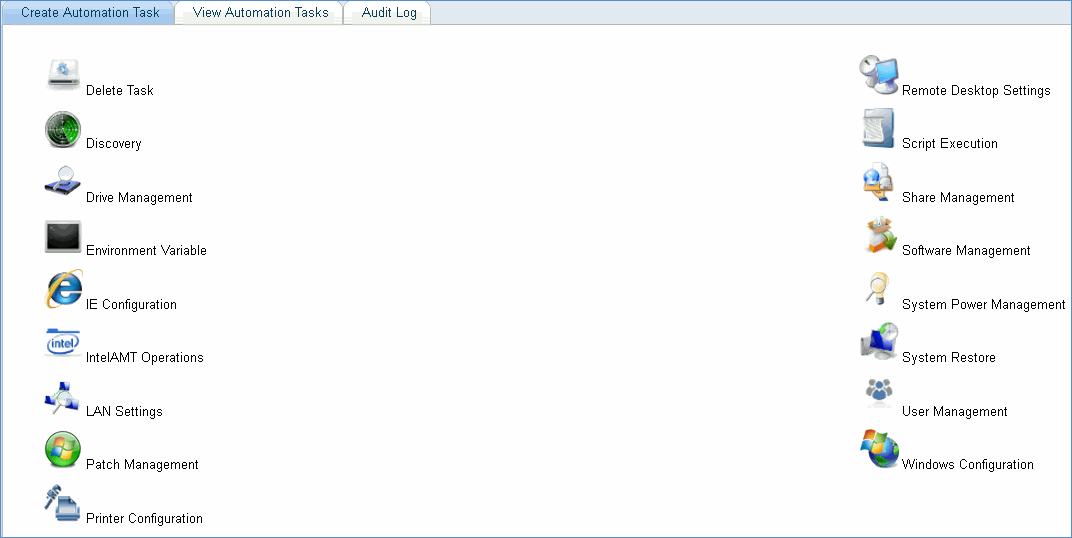
3. Select the remote management option to be performed (for instance Drive Management). This will list the system management options available for this category. Click the link 'Disk De-fragmentation'
4. Selection based on hosts: Each system management operation is specific to the data collection type that is used to manage the device (For instance disk de-fragmentation is supported only for WMI devices, hence only this tab will appear).
Select the 'Nodes' radio button.
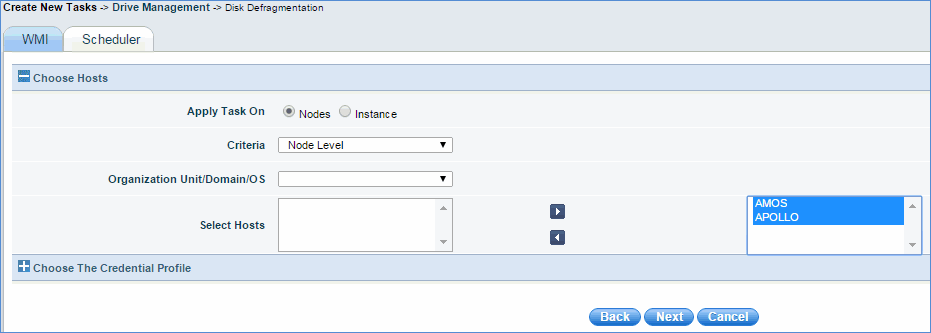
5. Selection based on instance: Each system management operation is specific to the data collection type that is used to manage the device (For instance disk de-fragmentation is supported only for WMI devices, hence only this tab will appear).
Select the 'Instances' radio button.
6. Select the criteria: You can use the criteria filter to select the hosts of your choice based on the node or instance. If you select 'Domain','Organization Unit' or 'Operating Systems', the automation task is posted to all the hosts which match the criteria selected. Similarly, if a host is removed from the criteria, the job is no longer posted for the host.
Note: Instance selection option will be applicable only for system management activities which depend on the instance (for e.g. if disk de-fragmentation is selected you need to select the logical disk instance on which this needs to be applied on)
7. Select Hosts and Drives: Select the host names and drives on the host which need to be de-fragmented.
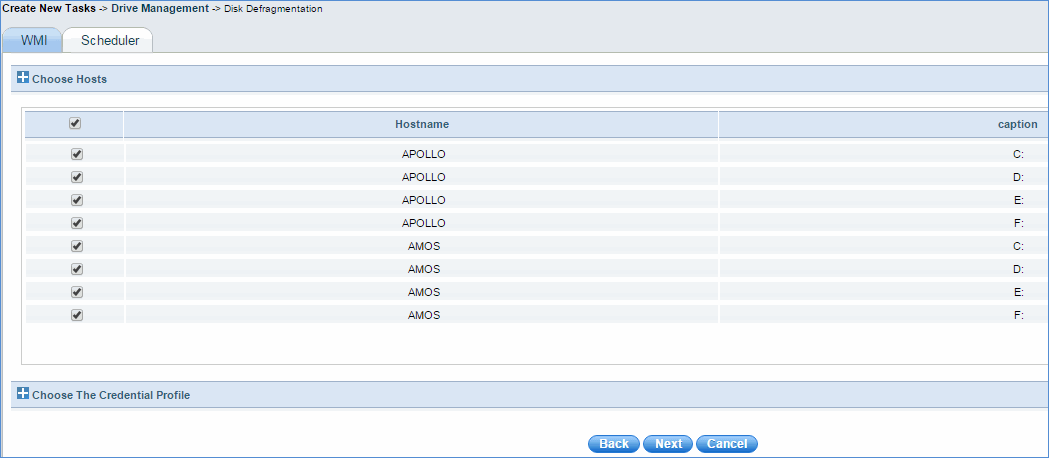
Note: Sometimes, additional input parameters are required for specific system management tasks. The above screen is specific to the type of the system management task that is selected. For tasks which do not require additional inputs this option will not be displayed
8. Choosing Profiles: As part of the host selection, the system will by default attempt the operation with the profile (data collection type and the credentials associated with it). However in the above specific situation you can override this by attaching a secondary profile applicable only for this operation.

Note: As part of discovery the system will tag a data collection profile and this will be in use across all data collection and system management operation. However you can tag an additional profile for specific operation.
For example a device could have got discovered with the SNMP profile. If you want a system management operation which is possible only through WMI (assuming the device supports WMI data collection type), then as part of the system management activity you can choose the device and tag the WMI profile to it. This will be used only for this system management operation
9. You can schedule the system management task as per your needs. The configuration will be saved with the name as provided in the 'Save Configuration As' control. This can be edited in the future from the automation task listing page.
If Two Factor authentication is enabled, then a 'Send OTP' button and box to enter OTP is displayed. Click on 'Send OTP' to initiate the OTP. Upon receiving the OTP, enter it into the box. Upon validation of the OTP, you are allowed to save the configuration.
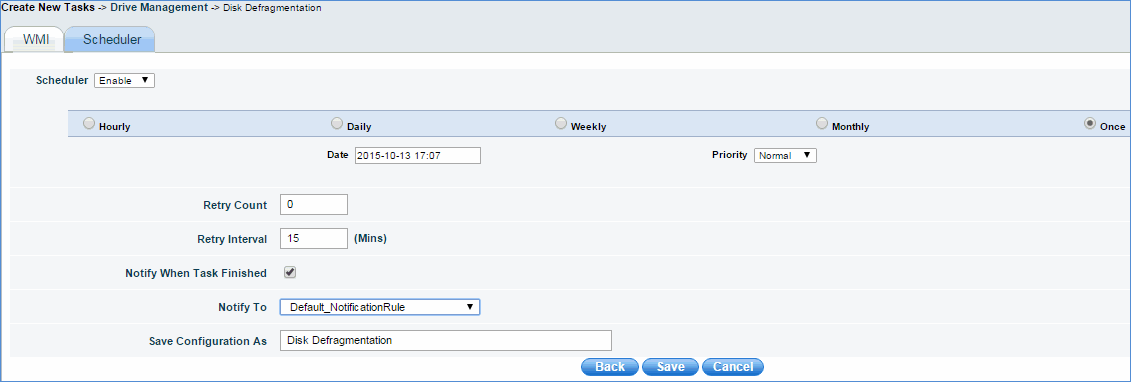
Note: 1. Select the ‘Notify when Task Finished’ option and select the notification rule from the 'Notify To' drop down. The users and the role selected in the notification rule will be notified on completion of the task
2. Retry Count specifies the number of times the job will be posted for failed automation tasks
3. Retry Interval specifies the time interval after which the failed automation task is re-posted
4. Default value of retry count is 0 and maximum value is 50. Default value of retry interval is 15 minutes and maximum value is 720 minutes
To view and edit the configured system management task use the 'View Automation Tasks' tab in the main listing screen. You can click any of the tasks and edit the configured information.