
SapphireIMS follows a method of differential backup for agent as well as agent less nodes.
Differential backup is a type of data backup that preserves data saving only the difference in the data since the last full backup. The rationale is that, since changes to data are generally few compared to the entire amount of data in the data repository, the amount of time required to complete the backup will be smaller than if a full backup was performed every time that the organization or data owner wishes to back up changes since the last full backup.
In addition, you can select the schedule for data backup to occur.
Option to perform user defined backup with approval is also provided
SapphireIMS also supports differential backup for uploading files to FTP server.
1. Click the ‘Settings’ tab. In the ‘IT Automation’ section, select ‘Backup Configuration’
2. Click 'ADD' to create a new file/folder backup configuration
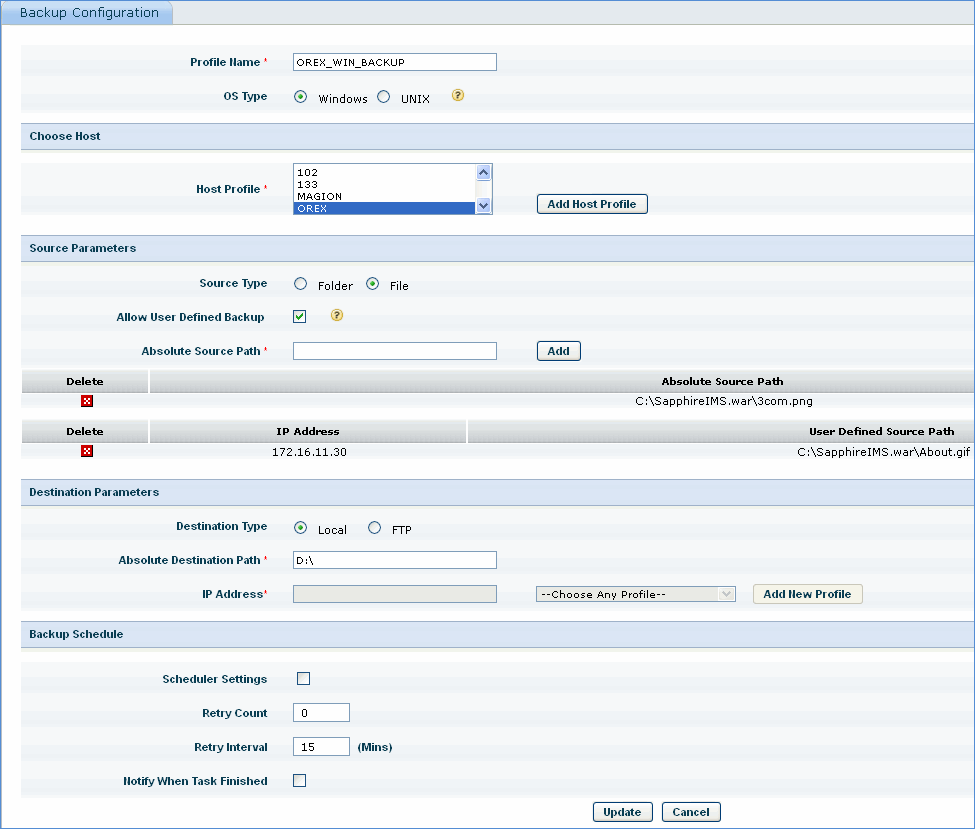
Click the link below to view the screen shot for FTP Backup parameters

Sr. No |
Field Name |
Description |
1 |
Profile Name |
Enter a profile name for the backup configuration
|
2 |
OS Type |
Select the type of operating system for which backup has to be performed
|
3 |
Host Profile |
Select the host profile name or click 'Add Host Profile' to add a new host profile Note: 1. You can select hosts by selecting IP Range, individual IP, node level (host names), domain or organization unit 2. You can create host profiles under 'Settings' > 'Software Management' > Profile Manager > Select Rule Type drop down value as 'Client Task Agent Profile' |
Source Parameters |
||
4 |
Source Type |
Select the Source Type option as 'File' or 'Folder |
5 |
Allow user defined backup |
Select this check box to allow the users of the target host(s) selected in the host profile to specify their files/folders of interest for backup Note: This option is currently available only for Windows operating system
|
6 |
Absolute Source Path |
Enter the source path of the file or folder. For folder backup, the source path should end with '/' for Unix machines and '\' for Windows machines Note: The user defined source path is listed for approved user defined backup paths |
Destination Parameters |
||
7 |
Destination Type |
Select the backup destination type as local or FTP Enter the 'Absolute Destination Path' for local backup or enter the IP Address of the FTP server and select the host FTP profile Note: Click 'Add New Profile' and enter the login credentials as well as the port for connecting to the FTP server. Click the 'Test' button to validate the FTP credentials |
Backup Schedule |
||
8 |
Scheduler Settings |
Select this check box to enable the scheduler and select the schedule for the backup
|
9 |
Retry Count Retry Interval |
Enter the count for backup retries Enter the time interval for backup
|
10 |
Notify when task finished |
Select this check box to send notifications to users as specified in the notification rule |
Click the below topics to view detailed information on the same
Click the 'Backup Details' tab to view the list of hosts that have SapphireIMS agent installed
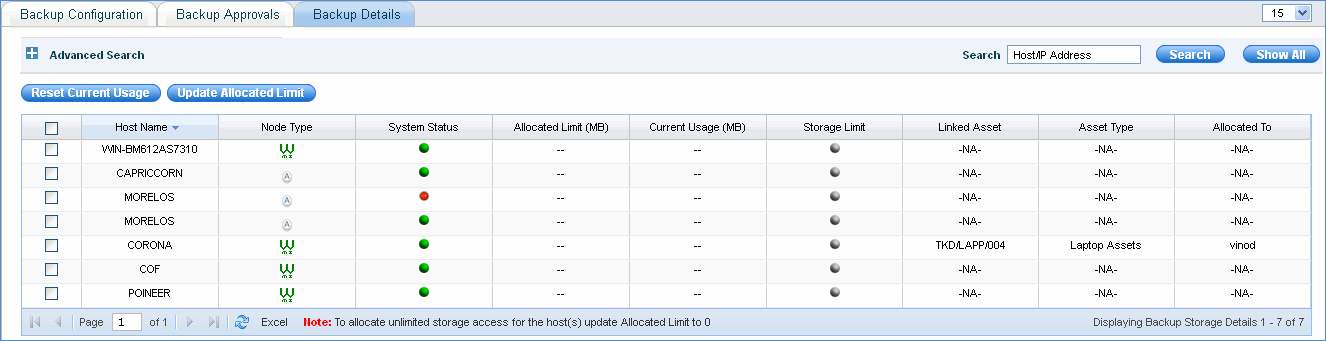
In case of FTP backup, you can set a storage limit for the user against the hostname, there are also notifications enabled when the configured storage limit is reached. The notification can be set to the administrator and (or) user based on the backup configuration. The storage will stop after the configured limit is reached.
On demand back up does not have this quota definition and is always incremental
Select the host and click 'Update Allocated Limit' to enter the allocated storage limit for the host.
Select the host and click 'Reset Current Usage' to reset the current storage usage to 0.
User defined backups need to be approved by the system administrator and these backup configurations will be visible under the 'Backup Approvals' tab

Click the 'Approve' link to approve the data backup
For profiles available under user defined backup with 'Source Type' as 'Folder', if a request comes from the system with the same pattern (Source Type - folder) the backup profiles will be displayed as follows
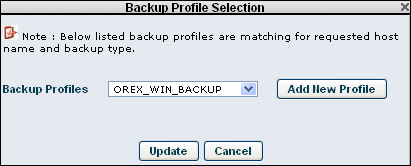
Note: If SapphireIMS agent machines are listed in the host profile for user defined backup, a backup tray icon will be visible. Right click the icon to display the following image
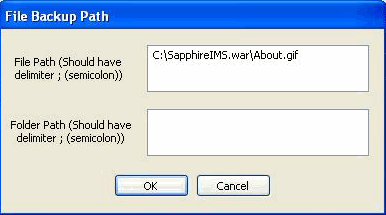
You can change the file or folder path for backup here.
In the IT Automation menu, click Backup Details
Backup Dashboards are available based on
1) Backup Status 2) Last Backup Time 3) Organization Unit
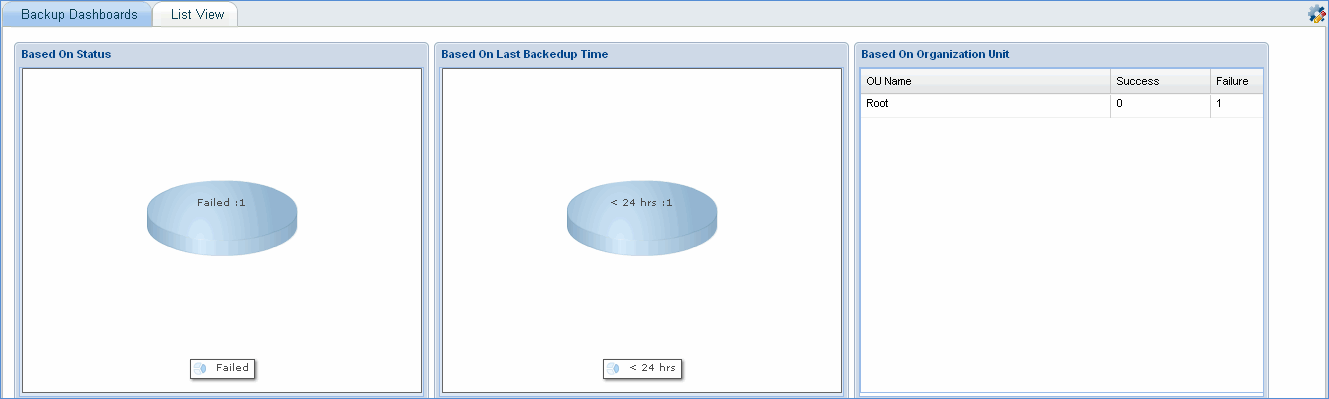
Click the List View tab to view the backup details in a list format

Note: You can select filters based on Backup Status, Backup Profile, Hostname/IP Address and Last Backed Up Time