
SapphireIMS Business SLA helps the organization to monitor the compliance to a configured business rule through Business SLA monitoring feature. Using this, the organization can effectively monitor compliance to the business rule.
Click the ‘Settings’ tab. In the ‘Business Service Monitoring’ section, click ‘Business SLA’
Click ‘Add’ to add a new Business SLA
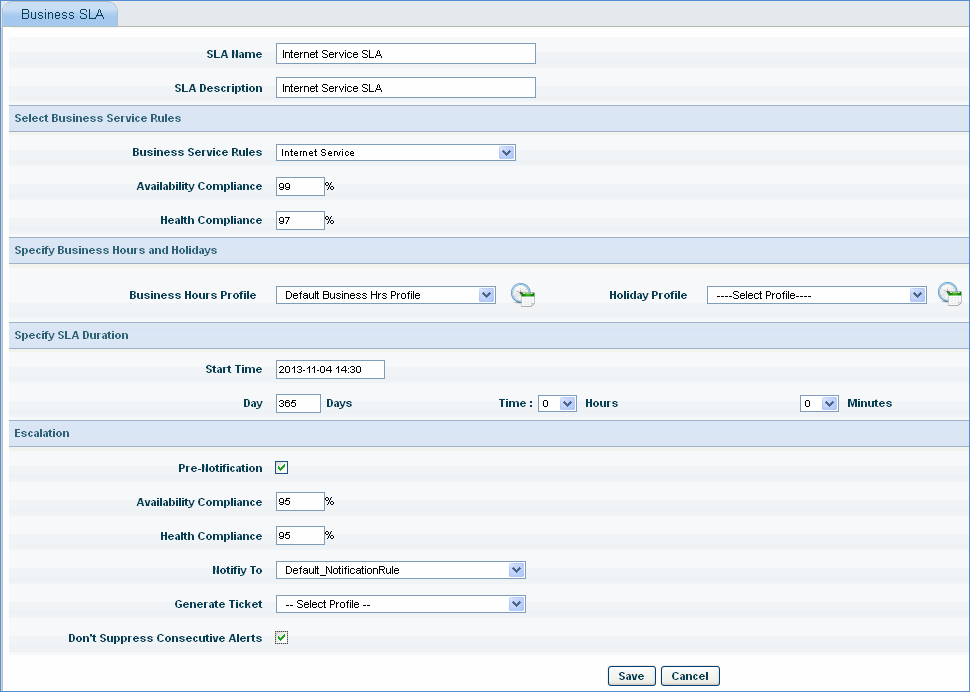
1. SLA Name: Enter the business SLA name
2. SLA Description: Enter a description for the business SLA rule
3. Select a configured business service rule.
 Notes:
1. Only one business rule can be configured for one business SLA.
2. The number of business SLA’s defined depends on the Number of Licensed Business SLA
4. Enter the Availability Compliance, against which the availability of the business service rule is measured.
5. Enter the Health Compliance, against which the health of the business service rule is measured.
6. Select the Business Hours Profile and Holiday profile
7. Specify the Start Time of the SLA and select the duration of the SLA
8. Check Pre-Notification box.
9. Enter the Availability Compliance of the business SLA, failing which a notification is sent as warning.
10. Enter the Health Compliance of the business SLA, failing which a notification is sent as warning.
11. Notify To: Select the notification profile to be sent.
12. Generate Ticket: Select the configured profile for the service desk project to map the SLA to the service desk project.
13. Click ‘Save’
In
the Business SLA listing page, click  to view
the SLA audit log or history of changes made to the business SLA
to view
the SLA audit log or history of changes made to the business SLA
