
Wake-on-LAN (WOL) is an ethernet computer networking standard that allows a computer to be turned on or awakened by a network message. A computer that has an Internet connection and is Advanced Configuration Power Interface (ACPI) compliant can be turned on remotely from anywhere in the world.
The message is usually sent by a program executed on another computer in the same local area network. It is also possible to initiate the message from another network by using subnet directed broadcasts or a WOL gateway service.
On computers with interfaces prior to PCI 2.2 and specifically where the network interface is a plug-in card, a special cable is required to connect the motherboard and the network adapter card in order to support the Wake-on-LAN feature. However motherboards which have an embedded ethernet controller and which support Wake-on-LAN do not need a cable.
Enabling Wake-on-LAN Feature on the computer
This section details the settings need to be done on the computer to enable the Wake-on-LAN feature. Wake-on-LAN must be enabled in the desktop board BIOS and then configured in the operating system.
Most computers will have Wake-on-LAN disabled by default. The exact procedure for enabling Wake-on-LAN will be different with each computer manufacturer. The general procedure is as follows:
Enter the BIOS setting screen during the computer’s power-on self-test.
Within the BIOS screen, navigate to the 'Power' settings.
Within the 'Power Settings' screen look for settings related to 'Power Up Control'.
Enable settings related to Power Up on PCI card, LAN, or Network.
Save and exit the BIOS settings.
Go to Device Manager.
Expand the Network Adapters section.
Right-click the adapter in use and click Properties.
Click Advanced tab.
Select Wake on Magic Packet from the Property list.
Expand the Value section and select Enabled.
Click Power Management tab.
Select the check box for Allow this device to wake the computer.
Click OK.
If you are going to be sending WOL packets from remote networks, the routers must be configured to allow directed broadcasts. This must be done for two reasons. The first is since the PC is asleep it will not have an IP address and will not respond to ARPs from the router so only a local subnet IP broadcast packet is going be transmitted on the segment without an ARP. Secondly, if there is a layer two switch between the router and the PC, which is true for most networks today, the switch does not know to which port the PC is physically connected. Only a layer two broadcast packet will be sent out all switch ports. All IP broadcast packets are addressed to the broadcast MAC address.
A Cisco router has IP broadcast packets enabled by default. If IP broadcast packets have been disabled, the interface configuration will have the line 'no IP directed-broadcast'. If IP broadcasts are enabled, the line 'no IP directed-broadcast' will not be present.
Configuring Wake-on-LAN Feature in SapphireIMS
SapphireIMS allows you to perform Wake on LAN as an IT Automation task.
1. Click Automation Tasks > System Power Management > Boot Device
2. Under the 'IntelAMT' tab, click 'Skip'
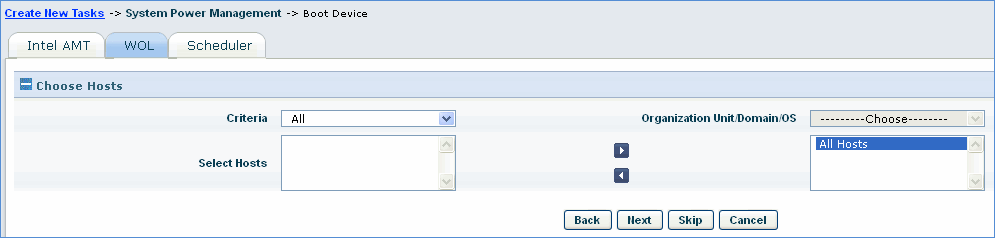
3. Select the hosts on which WOL has to be configured and click 'Next'

|
 Notes:
1. WOL feature is supported only for agent less or standalone machines and for slave agents.
2. To view reports on WOL, go to Automation summary reports, select Report Type as 'Automation Summary Reports', Level One Filter as 'System Power Management' and select value as 'Boot Device' and save the report