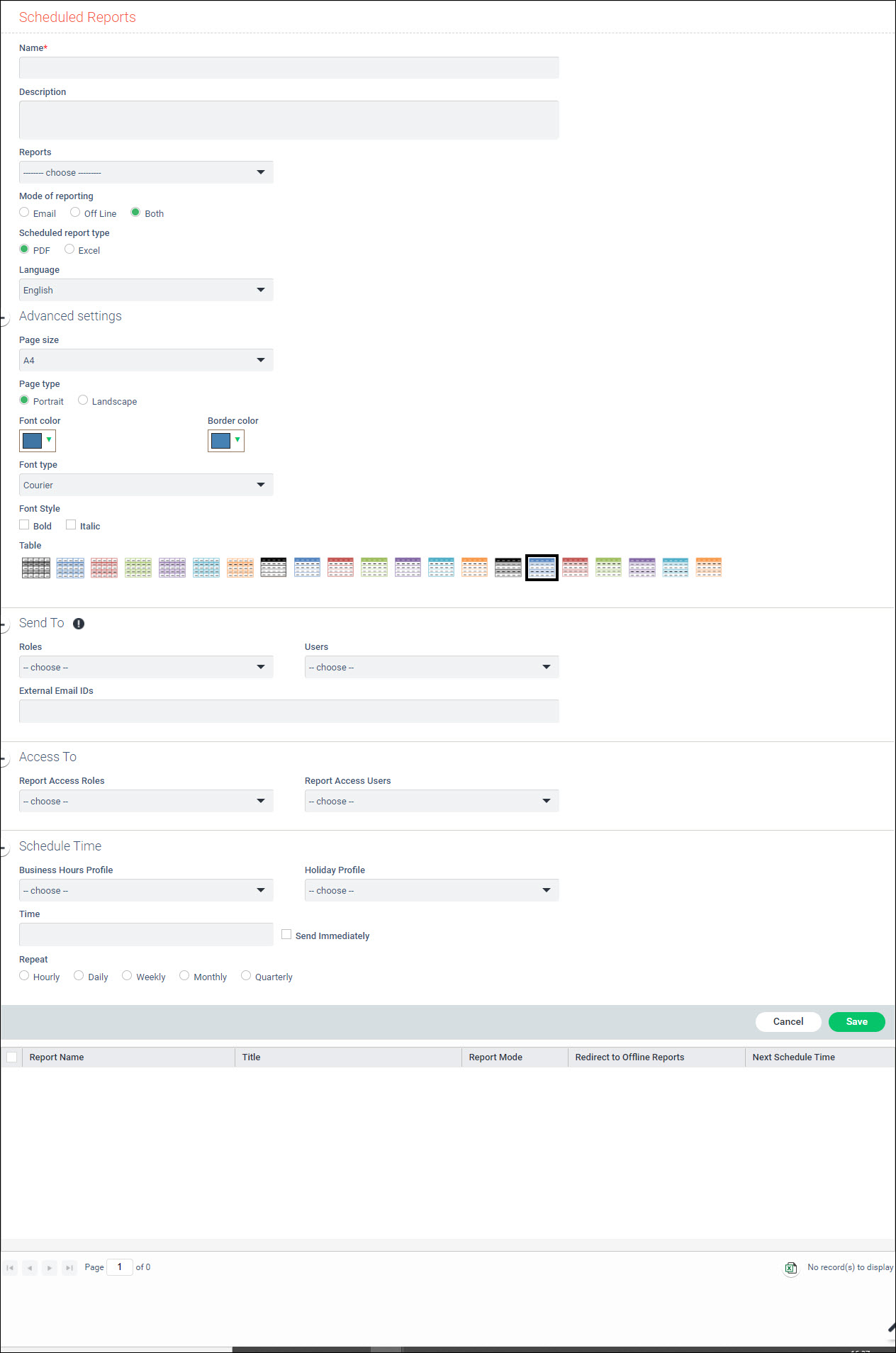
Serial
No |
Field
Name |
Description |
1 |
Name |
The
title with which the report would be referred
|
2 |
Description |
Brief
description of the report to be created
|
3 |
Reports |
Provides
a listing of all the Custom reports that are available. Select
the report that needs to be scheduled
|
4 |
Mode of Reports |
You
can select the mode for sharing the scheduled report as either
e-mail, off-line or both
E-mail
- If this option is selected, the scheduled reports are sent
to all recipients through e-mail Off
Line - The users who have been given access to the
reports can view the reports when they login to the system.
By default, the reports are stored as PDF files. Both
- The reports are sent via e-mail as well as available for
offline viewing. |
5 |
Scheduled report type
|
Select
the report format as PDF or Excel. The report will be generated
in the selected format. |
6 |
Language |
Select
the Language in which you want the report to appear. |
7 |
Advanced Settings |
This
block appears when you select PDF as the report type. You can
change the settings of the PDF including font, colors and table
design. |
8 |
Send To
|
This
block appears when mode of reporting is either 'Email' or 'Both'.
Select the roles and users to whom the report should be sent via
e-mail. You can also enter external e-mail ids (user account not
present in SapphireIMS) to whom the report has to be sent. The
report is sent as an attachment in the e-mail. |
9 |
Access To
|
This
block appears when mode of reporting is either 'Offline' or 'Both'.
Select the roles and users who should have access to the offline
report. |
10 |
Business Hours Profile |
Select
the Business Hours Profile during which the scheduling of reports
should be restricted.
|
11 |
Holiday Profile |
Select
the Holiday Profile during which the scheduling of reports should
be restricted. |
13 |
Time |
Specify
the date and time at which the report should be first generated.
|
14 |
Repeat |
Specify
the interval at which the report should get sent periodically.
This can be 'Hourly',
'Daily', 'Weekly',
'Monthly' or 'Quarterly'.
|
15 |
Send Immediately |
Use
this option to generate the report on-demand.
|