
Custom Views allows profiles to be defined with custom filters which can be applied while displaying the listing of records.
Select 'General Settings' option on the right hand side panel.
Click on 'Custom Views'. The Custom Views listing screen is displayed.
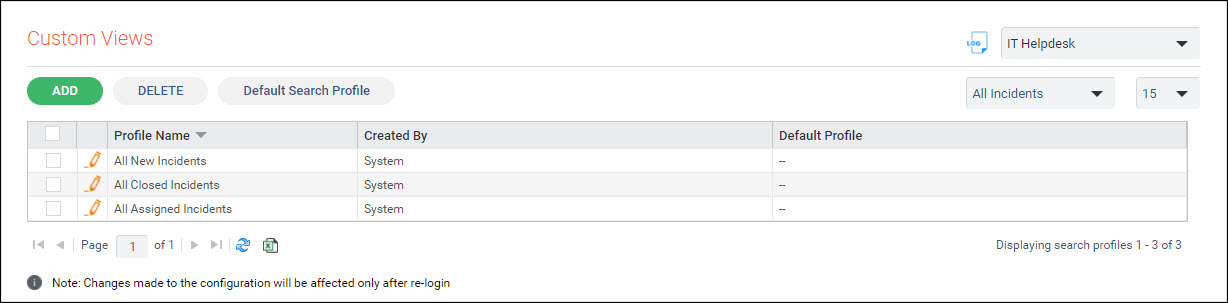
To edit an existing profile click on  or to
add a new profile click on 'ADD'.
or to
add a new profile click on 'ADD'.
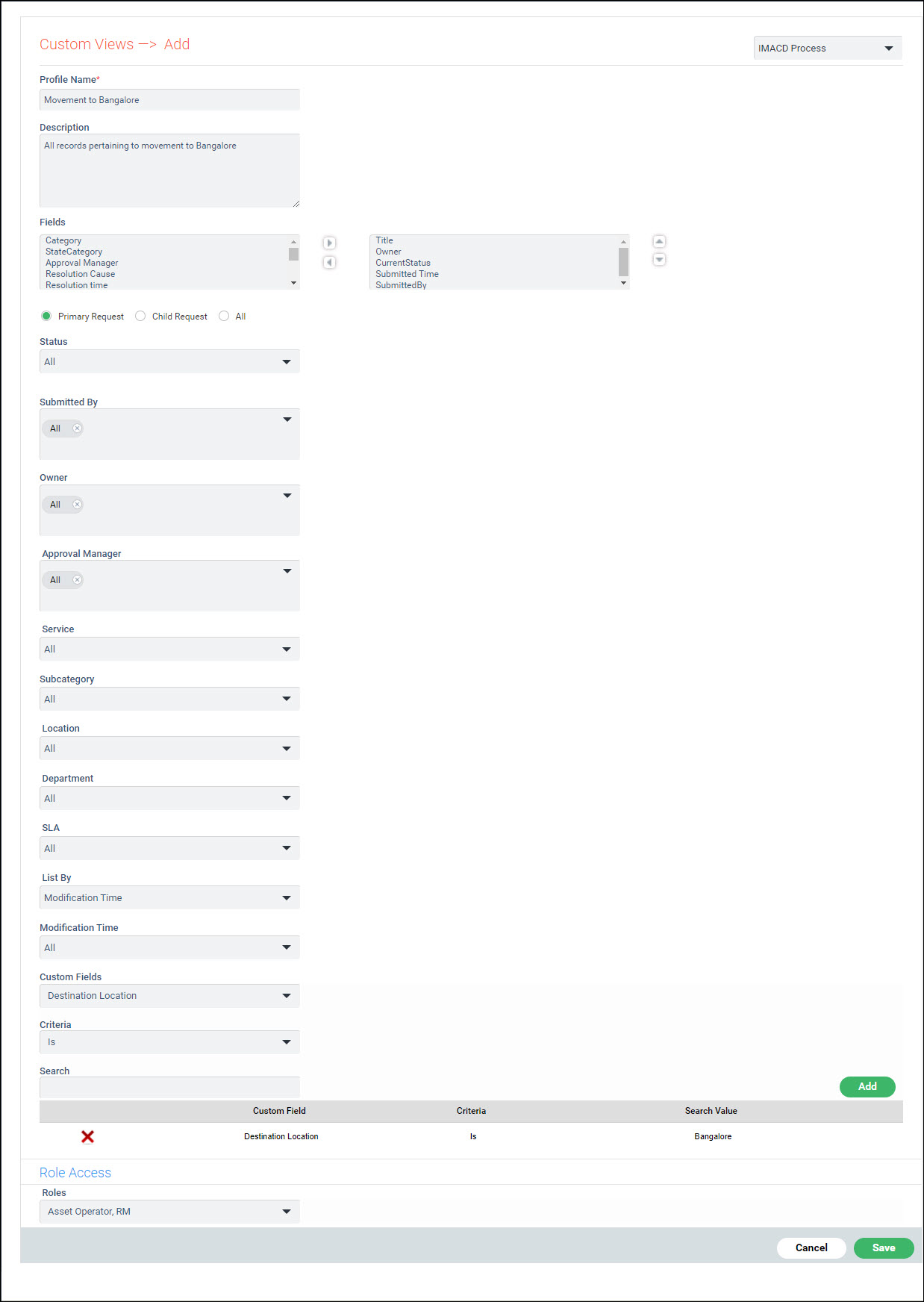
Enter a 'Profile Name'.
Enter the 'Description' of the profile.
Select all the 'Fields' which should be displayed and move to the right hand box.
Select one of 'Primary' or 'Child' or 'All' to list only Primary or Child records or all records.
Select the filters for the fixed fields.
Add filter values for 'Custom'
fields. Select a 'Custom'
field. Select a 'Criteria'.
Enter the 'Search' value.
Click on 'Add' to add the
criteria. Only records which match the criteria are displayed in the
view. Repeat the steps to add multiple criteria. To delete a criteria
click on  against the criteria.
Select one or more 'Roles' to which the access for the custom view should be given.
Click on 'Save' or 'Update'.
A profile can be set as default so that it is applied when the user logs in and views 'My Queue' or 'Overall' groups.
Click on 'Default Search Profile' button. The setting screen pops-up.
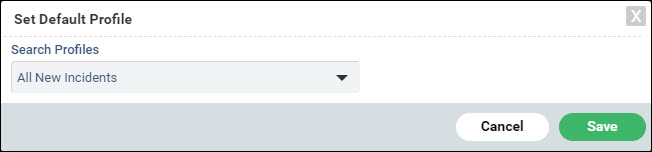
Select a Search Profile and click on 'Save'.