
This feature allows you to perform client and server side validations for any user specific action by writing scripts that are dynamically executed. The validations can be performed for fixed fields or additional fields. This facility is also used to perform actions on page loading for key pages like ticket submission, edit page and left menu panel.
 Note: This section has been
provided more for information as developing and configuring customized
scripts needs software development expertise as well as knowledge of the
product. For any requirements on customization scripts, please contact
SapphireIMS Support.
Note: This section has been
provided more for information as developing and configuring customized
scripts needs software development expertise as well as knowledge of the
product. For any requirements on customization scripts, please contact
SapphireIMS Support.
Click on 'Fields & Forms' option on the right hand side panel.
Click on 'Customization Scripts'.

Click on 'ADD' to add a new script. The script addition screen is displayed.
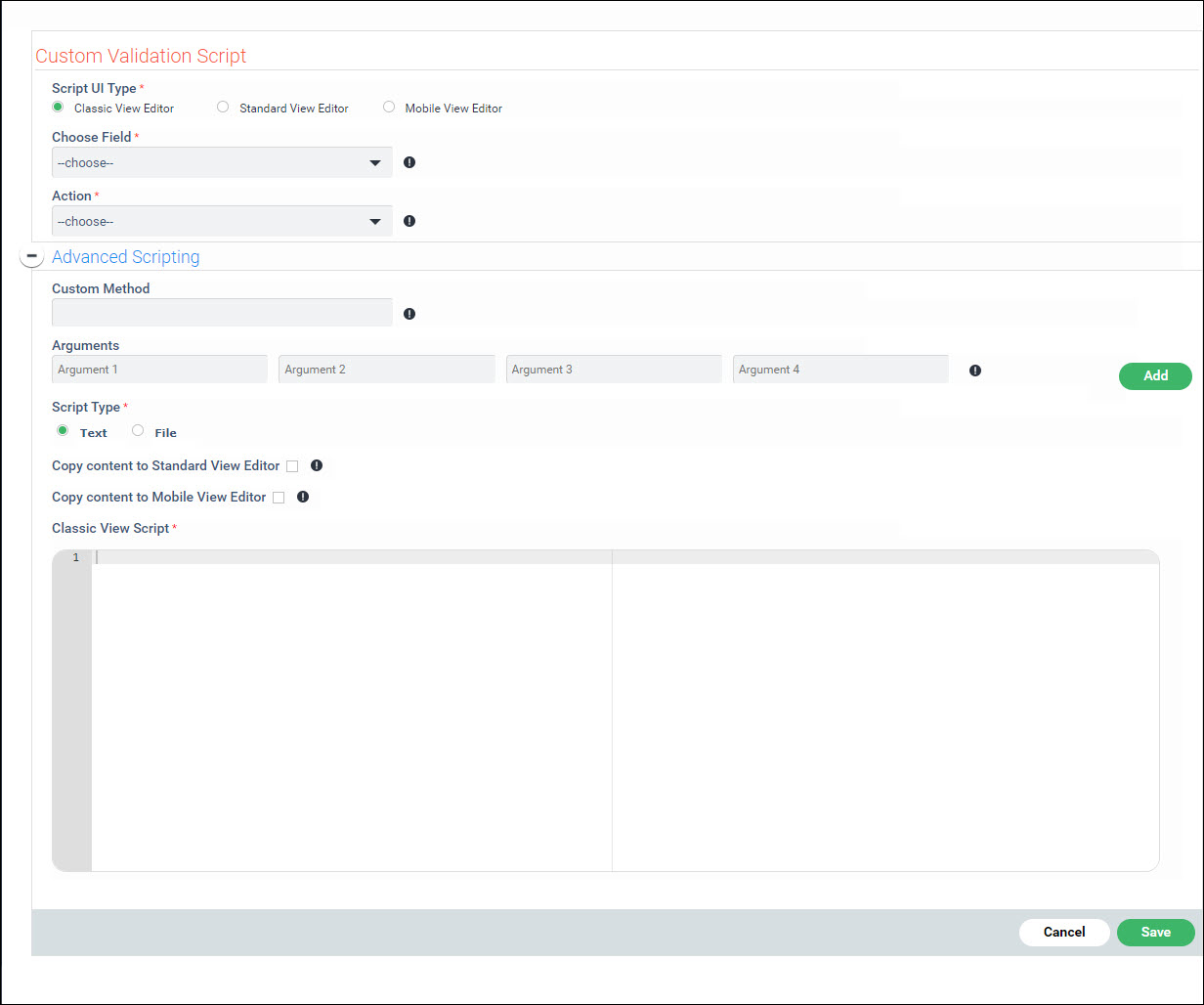
Select the 'Script User Type' depending on whether it is being used with the 'Classic UI', 'Standard UI' or 'Mobile UI' which accordingly change the editor settings.
Select the field which needs to be validated. In case of additional field, the field ID is added to the field name to make it easier to refer.
Select the 'Action'
which is the method/event on which the script should be executed.
If there are any in-built scripts the icon  is displayed.
Click on this icon to select the in-built scripts to be either appended
or populated in the script editor. The in-built script configuration
screen is displayed.
is displayed.
Click on this icon to select the in-built scripts to be either appended
or populated in the script editor. The in-built script configuration
screen is displayed.
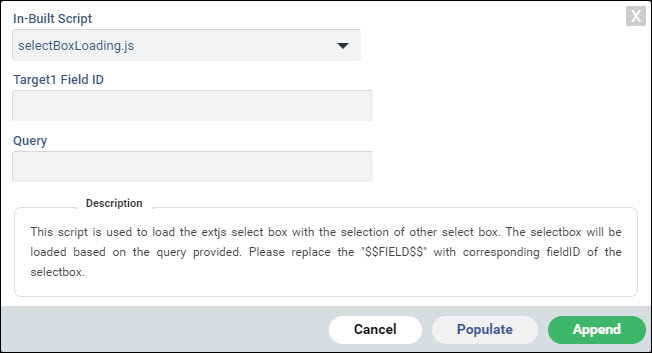
Select a script from the list. The Description of the script is displayed in the box. Based on the script the Field ID and Query can be filled in.
Click on 'Populate' to add the script in the script editor window or click on 'Append' to append the script in the window.
Select the 'Script Type' as 'Text' to edit the script in the editor of select 'File' if the script is in a file. Enter the file name to upload the file.
Click on 'Save'.
There is an optional feature which helps you to add different actions for the same field. For example, if you want to add a mouse over message to a text field, and you want to display a message to alert the user for entering invalid data, this feature can be used. Click the '+' sign against 'Advanced Scripting' to expand to define the custom method and arguments. You can add the custom method and the arguments for the method.