
SapphireIMS gives you an option to customize the appearance of the application. If you want to change the Login Screen appearance proceed to the section Changing the Login Screen.
Click the 'Settings' tab. In the 'Advanced System Settings' section, click 'Customize Appearance'
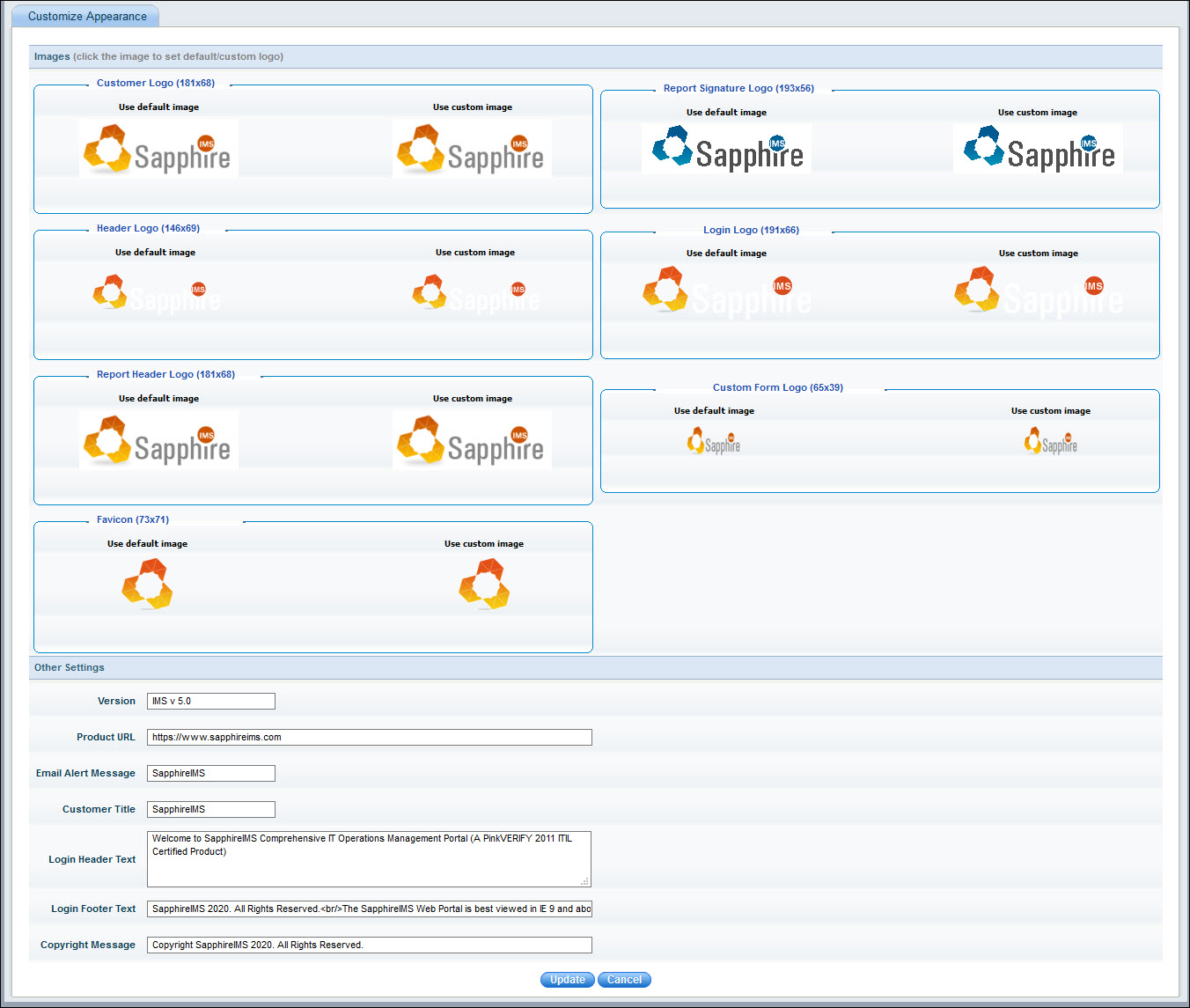
All parameters listed below can be customized
|
Click on 'Update' to save the changes.
When you first install SapphireIMS and invoke the URL, the older Login Screen is displayed. In order to change this to a more modernized screen, do the following
Click on 'Settings', followed by 'Global Settings' which is under 'Advanced System Settings'.
Search for the setting 'Login Page Design Type' which controls the login page display.
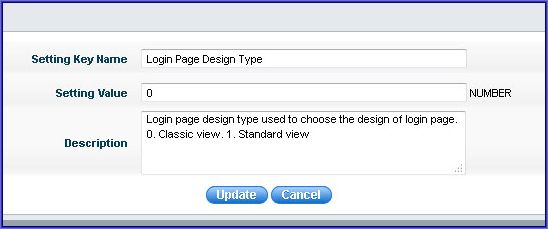
Change the setting value to '1' and click on 'Update'.