
Once a service desk record reaches the end state for example 'Close' state it reaches the end of its cycle and hence can be archived. Such service desk records can be automatically archived and moved to 'My Archived Requests' tab. These service desk records are archived after retaining it for a specified period.
Service Desk Records can be archived only if 'Data Archival Scheduler' is enabled. Archived records can be viewed in 'All Archived Requests' link only if the logged in role is granted access for 'Archived Requests' at the time of creating the role. (Check the section Project Configuration > Roles)
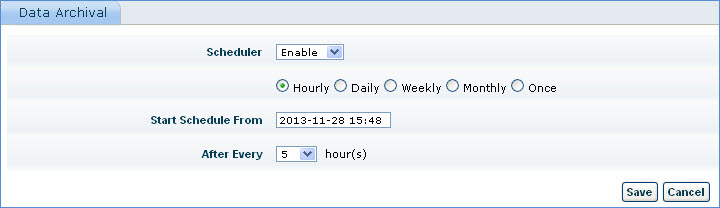
Before you start configuring data archiving details enable the data archiving scheduler by following the steps listed below.
1. Click the 'Settings' tab. In the 'Service Desk Configuration' section, click 'Data Archival'
2. In the 'Scheduler' drop down list box, select 'Enable'
3. The option buttons for time scheduling will be displayed. Select 'Hourly' for example
4. In the 'Start Schedule From' text box, enter the date and time to begin the archive
5. In the 'After Every' drop down list box, select the number of hours the archival needs to be frequented
6. Save the settings
In the 'Settings' panel, click on the '+' sign to expand 'General Settings'. Click on 'Data Archive Configuration'.

Sr. No. |
Field |
Description |
1 |
Enable Scheduled Data Archiving
|
Select this check box to enable the controls |
2 |
Last Archived Time |
Displays the time of last archival
|
3 |
Record Status |
Displays the state that has been defined as the 'End Sate' while configuring 'States'
|
4 |
Retention period |
Type the number of days you want to retain the service request in 'My Requests' or 'All Requests' page
|
5 |
Override Retention Period |
Select this check box and select the range of dates in 'From' and 'To' text box. All the service records that reaches the end state within this specified period will be archived
|
6 |
Allow Exception |
Select this check box to allow selection of fields. Service records matching this criteria will be excluded from the archiving process 1. Parameter: Select the field name 2. Criteria: Select the operator 'Equals' or 'Not Equals' 3. Value: select the desired value for the selected parameter
|
Note: If any attachments are present for the service desk record, they can be stored in a user defined path. Provide the path for archived requests in the setting value of the global settings variable 'Archived Requests Attachments Path' . If the path is incorrect, the attachments will be saved in the default SapphireIMS upload path.