
Third Party (Applications) Patch Management module scans and assesses the application patches that are deployed or missing in the Windows and Mac systems in the network. This helps make sure that all the Windows and Mac systems on the network are up to date with the critical or recent patches that are released for the applications and there are no security vulnerabilities in the network. The following sections provide details on configuring settings for scanning the network for missing patches and deploying the same.
This feature uses patch catalogs hosted by Chocolatey (for Windows) and Homebrew (for Mac) to discover the missing patches by scanning all the software on the specified systems and reconciling between the application versions installed and the versions given in the catalog to identify the missing patches.
Click the 'Settings' tab. In the 'Software Management' section, click 'Patch Management Wizard'. This will list the current patch configurations that are defined if any.

Click on the link to turn the feature on and off. The indicator shows if the feature is active.
To add a new patch configuration, in the 'Third Party Patch Management Wizard' tab, click the ‘Add’ button. The first step is to select the hosts that are to be included as part of the patch configuration. You can select an inclusion profile that is created or create a new profile using the ‘Add New Profile’ button. Make sure you select a correct profile.
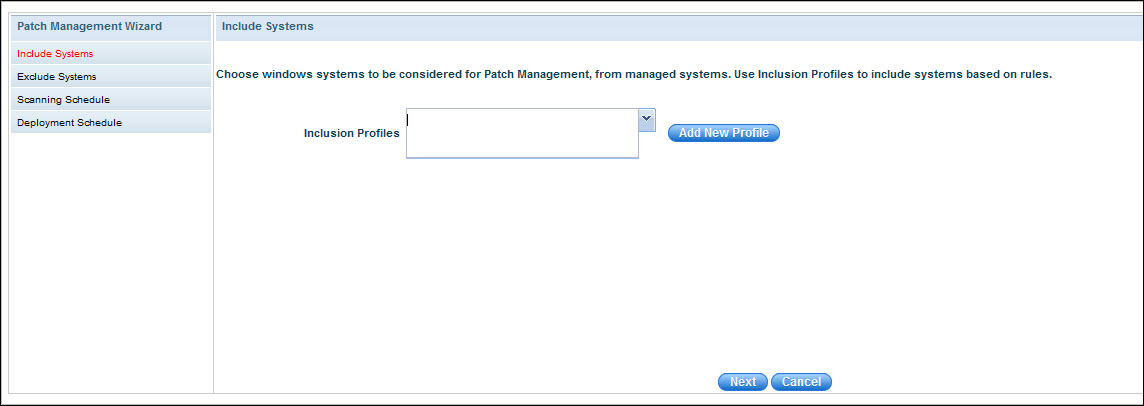
Click 'Next'.
Exclude Systems: The next step is to select the exclusion profile. Devices which are part of this profile will be excluded from the patch scanning activity. In case there are no exclusion profiles click 'Add New profile' button to add an exclusion profile.
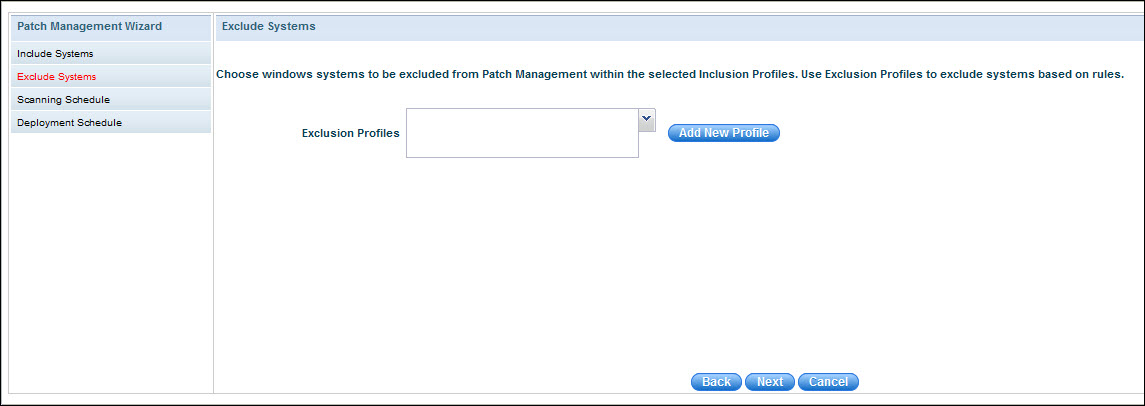
Click 'Next'.
Scheduling Patch Scan. Select the schedule interval as per your choice. The devices part of the rule will be scanned only as per the schedule mentioned here.
Select 'Patch Type Mode' as 'Windows' or 'Mac' to consider either.

Click 'Next'.
Scheduling Patch Deploy. Select the schedule interval as per your choice. The patch deployment will be attempted only during the time interval that is selected here.
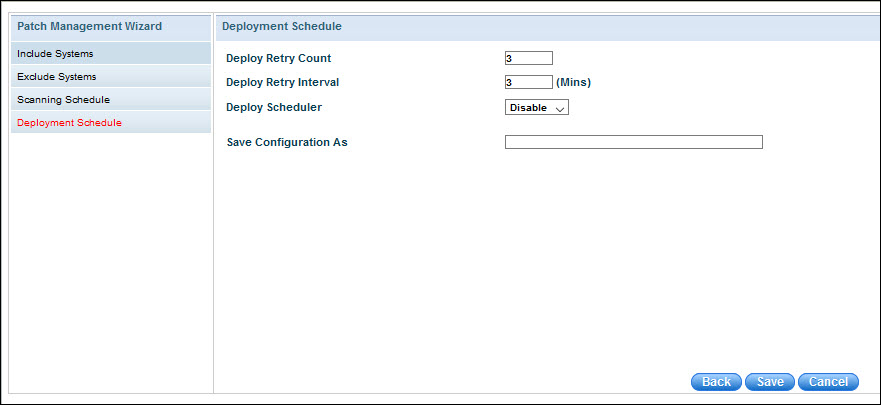
Select the Deployment Schedule. Enter a name in 'Save Configuration As' field. Click on 'Save'.
 Notes:
1. Patch deployment will be performed only when the ‘Deploy Scheduler’
is enabled. Patch deployment will not be performed automatically or on
demand.
Notes:
1. Patch deployment will be performed only when the ‘Deploy Scheduler’
is enabled. Patch deployment will not be performed automatically or on
demand.