
The next screen in the wizard allows you to select the credentials that are required to collect data for the devices that will be discovered as part of the rule. By default IMS provides the following in-built credential profiles:
SNMP Default Credentials (for SNMP v1)
SNMP Default Credentials (for SNMP v2)
WMI credentials for the local system (which needs to be edited as per the setting, appropriate for the system where SapphireIMS is installed)
Data Collection Types supported in SapphireIMS:
WMI data collection type is used for collecting data from Windows systems.
To use this data collection type you need to specify the credentials with administrative privilege on the domain level (this will ensure data collection for all systems under that domain) or local system level (this will ensure data collection for all systems for which the credentials match).
Following are the key parameters to be specified when a new WMI credential is to be defined.
Click the 'Settings' tab. In the 'Asset and Inventory Management' section, click 'Profile Manager' > ADD
Select 'Credential Type' as WMI
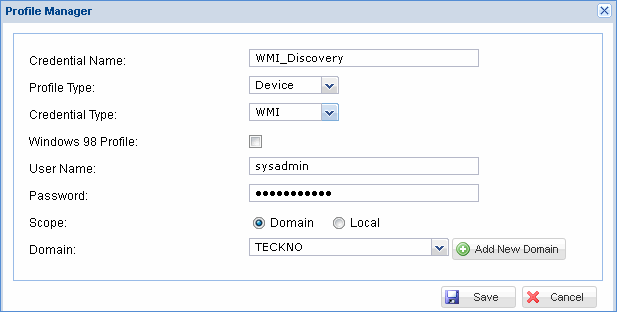
User Name – User account with administrative privilege
Password – Password for the user account specified
Scope – Select domain/local as per the user name defined
Domain - If domain level scope is specified, select the domain for which the credentials are defined. If the domain that you need to select is not listed, then use the ‘Add New Domain’ button to define a new domain account
Click ‘Add’ to save the defined credential profile. The new credential profile defined is listed in the ‘Credentials Profiles’ list box. If you need to add one more WMI profile, repeat the above process.
SNMP data collection type is used for collecting data from systems (and devices like routers/switches) where SNMP service is enabled.
To use this data collection type you need to specify the SNMP credentials (‘Read’ and ‘Write’ community strings)
Following are the key parameters to be specified when a new SNMP credential profile is defined.
Click the 'Settings' tab. In the 'Asset and Inventory Management' section, click 'Profile Manager' > ADD
Select 'Credential Type' as SNMP
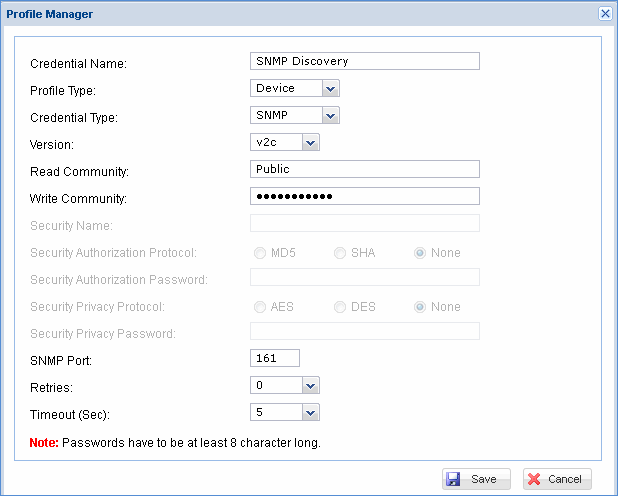
Version – Select the required version of SNMP(v1,v2,v3)
Read Community – Read community string (by default this will be ‘public’)
Write Community – Write community string (by default this will be ‘private’)
Security Name – String used later for security purposes
Security Authorization Protocol – This is enabled only if the version selected is V3 Select any one option: MD5, SHA, None
Security Authorization Password – Enter the password Security Privacy Protocol – This is enabled only if the authorization protocol selected is 'MD5' or 'SHA'. Select 'AES', 'DES' or none
Security Privacy Password – Enter the privacy password.
SNMP Port - Port on which SNMP agent listens (by default this will be 161)
Retries - Specify the retry attempts for data collection
Timeout - Specify the time out value within which the data collection is attempted
Click ‘Add’ to store the defined credential profile. The new credential profile defined is listed in the ‘Credentials Profiles’ list box. If you need to add one more SNMP profile, repeat the above process.
WBEM data collection type is used for collecting data from UNIX systems where WBEM service is enabled. WBEM is also the protocol on which SMI-S (Storage Management Interface Specification) is based and is used for collecting data from storage devices which use SMI-S.
To use this data collection type you need to specify the WBEM credentials
Following are the key parameters to be specified when a new WBEM credential is to be defined.
Click the 'Settings' tab. In the 'Asset and Inventory Management' section, click 'Profile Manager' > ADD
Select 'Credential Type' as WBEM
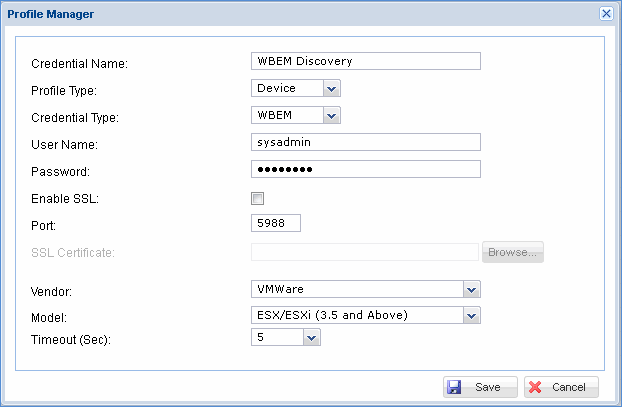
User Name – User account with administrative privilege
Password – Password for the user account specified
Enable SSL - Check this box to enable SSL for secure communication using WBEM. Browse and select the certificate used for WBEM authentication.
Port – Port in which the WBEM service is running
Vendor - Select the vendor for the WBEM service
Model - Select the corresponding model
Timeout - Specify the time out value within which the data collection is attempted
Click ‘Add’ to store the defined credential profile. The new credential profile defined is listed in the ‘Credentials Profiles’ list box. If you need to add one more WBEM profile,repeat the above process.
Note: WBEM is available as an in-built package on Operating systems like Solaris HP raid array. SapphireIMS system also provides pre-compiled WBEM agents for other operating systems like Linux. Refer to the Appendix for more details
SSH data collection type is used for collecting data from UNIX systems (Fedora, Ubuntu, Debian, Solaris, AIX and MAC operating systems) where SSH service is enabled.
To use this data collection type you need to specify the SSH credentials.
Following are the key parameters to be specified when a new SSH credential is to be defined.
Click the 'Settings' tab. In the 'Asset and Inventory Management' section, click 'Profile Manager' > ADD
Select 'Credential Type' as SSH
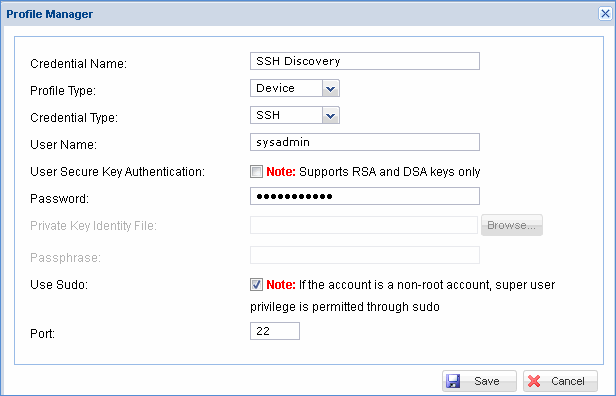
User Name – User account with administrative privilege
Password – Password for the user account specified
Port – Port in which the SSH service is running
Click ‘Add’ to store the defined credential profile. The new credential profile defined is listed in the ‘Credentials Profiles’ list box. If you need to add one more SSH profile, repeat the above process.
Note: To use the advance feature of SSH profile like Authentication using key (RSA/DSA keys), the SSH profile needs to be defined as follows.
Go to 'Settings' - 'Advanced System Settings' - 'Global Settings' click 'Add' to add the new SSH profile.
If secure key authentication (RSA/DSA keys) is required, then the checkbox 'User Secure Key Authentication' needs to be enabled. The 'Private Key Identity File' needs to be uploaded using the 'Upload' button. This file needs to be in putty format (.PPK)If the key is created using a Passphrase then the same has to be provided in the 'Passphrase' field.
If the account is non root account and superuser privilege is permitted through 'sudo' then select the checkbox 'Use Sudo' to activate this mode. Please refer to Appendix > Pre-requisite file settings for 'Sudo' account access
If SSH data collection type is used, the default location where the SSH script is installed (/opt/SapphireIMS) can be modified by following the steps given below:
Click ‘Settings’ and from ‘Advanced System Settings’ section click ‘Global Settings’
Click ‘SSH scripts install path’. In the ‘Setting Value’ box please enter the path where you need the SSH script to be copied. Click ‘Update’.
SapphireIMS will automatically install the SSH script to this location.
Note: SapphireIMS service will need a restart once the install path has been modified. Editing the installation path is not mandatory
Intel AMT data collection type is used for collecting data from systems which have the Intel AMT processor built-in. This is used as an additional data collection type on top of WMI/WBEM/SSH/SNMP to leverage the additional inventory and automation features provided by Intel AMT hardware.
To use this data collection type you would need to specify the Intel AMT credentials
Click the 'Settings' tab. In the 'Asset and Inventory Management' section, click 'Profile Manager' > ADD
Select 'Credential Type' as Intel AMT
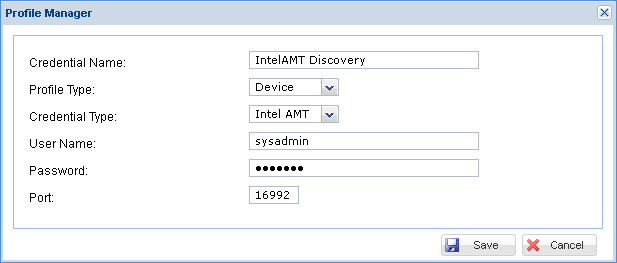
User Name – User account with administrative privilege
Password – Password for the user account specified
Port – Port in which the Intel AMT web service is running
Click ‘Add’ to store the defined credential profile. The new credential profile defined is listed in the ‘Credentials Profiles’ list box. If you need to add one more Intel AMT profile, repeat the above process.
VM data collection type is used for collecting data from virtual machine systems. This includes VM ware, Hyper V and Xen OS and VMWare cluster inventory data collection - VMWare vCenter server formerly known as VirtualCenter virtual machine servers. To use this data collection type you need to specify the VM credentials.
Notes: 1. The following services should be running and the services should be configured to start automatically after system restart.
VIM Service for VM ware server
Microsoft Hyper-v services for Hyper V server
2. Please check that the virtual machine URL is accessible from SapphireIMS server and provide the virtual machine credentials accordingly.
Following are the key parameters to be specified when a new VM credential is to be defined.
Click the 'Settings' tab. In the 'Asset and Inventory Management' section, click 'Profile Manager' > ADD
Select 'Credential Type' as VM
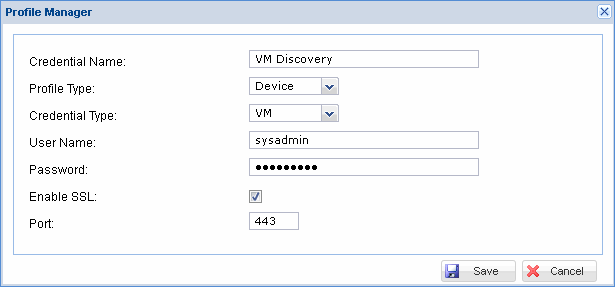
User Name – VM User account with administrative privilege
Password – Password for the user account specified
Port – Port in which the virtual machine service is running
Enable SSL - Check this box if the virtual machine server has to be accessed through secure socket layer
Click ‘Add’ to save the defined credential profile. The new credential profile defined is listed in the ‘Credentials Profiles’ list box.
LDAP data collection type is used to connect to the active directory (AD) domain controller to obtain the host names or workstations in the specified domain. Appropriate workstation profiles (WMI) also need to be selected to access the respective workstations for data collection.
Following are the key parameters to be specified when a new LDAP credential is to be defined.
Click the 'Settings' tab. In the 'Asset and Inventory Management' section, click 'Profile Manager' > ADD
Select 'Credential Type' as LDAP
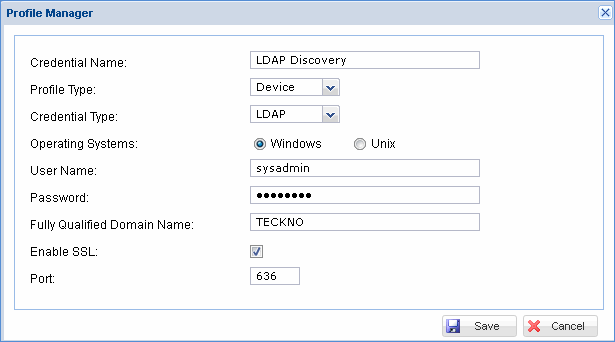
LDAP credentials type for Windows operating systems
User Name – LDAP User account with administrative privilege
Password – Password for the user account specified
Fully qualified domain name – is the domain name that specifies its exact location in the tree hierarchy of the Domain Name System (DNS) of the AD domain controller
SSL - Check this box to enable secure communication to the active directory domain controller
Port - Port in which the AD domain controller is listening
CLI data collection type is used to collect data from the following set of storage devices:
1. EMC VNX Block
VNX Series
VNX 5100
VNX 5300
VNX 5500
VNX 5700
VNX 7500
2. EMC Clariion
CX Series
CX 3-10
CX 3-20
CX 3-40
CX 3-80
CX4
CX4-960
CX45
CX300
CX400
CX500
CX600
CX700
CX800
FC Series
FC4700
AX 4
3. IBM - DS
Following are the data collection parameters to be specified when a new CLI credential is defined
Click the 'Settings' tab. In the 'Asset and Inventory Management' section, click 'Profile Manager' > ADD
Select 'Credential Type' as CLI
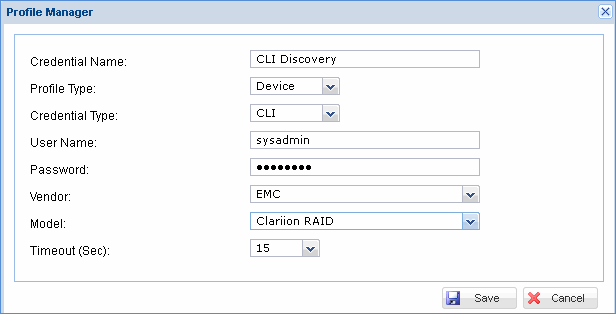
User Name – CLI user account with administrative privilege
Password – Password for the user account specified
Vendor - Select the vendor for the storage device
Model - Select the corresponding model
Timeout - Specify the time out value within which the data collection will be attempted
SapphireIMS support collection of data from thin clients. This could be collected in one of two ways:
Using WMI or SSH and directly collecting the information from the target system.
For Dell thin clients, data can be collected from the Dell Wyse Device Manager using REST API. SapphireIMS supports Dell Wyse Device Manager Version 5.7.2. The configuration is described below.
There are certain pre-requisites before enabling Dell Wyse Manager
Dell Wyse Device Manager (Version 5.7.2) must be installed and the REST API enabled.
Dedicated credentials for SapphireIMS to access Dell Wyse Device Manager needs to be available and cannot be shared by other applications.
The Key and Initialization Vector (IV) must be supplied for CBC mode AES encryption.
The thin client machines must be reachable from SapphireIMS if the option to get the device status from the clients directly using 'ping' is enabled.
 Note: If the Global Setting
'Ping based on Dell Wyse Server' is set to 0 (default), then the status
of the devices is obtained directly using 'ping' else the status is
obtained from Dell Wyse Device Manager.
Note: If the Global Setting
'Ping based on Dell Wyse Server' is set to 0 (default), then the status
of the devices is obtained directly using 'ping' else the status is
obtained from Dell Wyse Device Manager.
Following are the data collection parameters to be specified when a credential for Dell Wyse Manager is defined
Click the 'Settings' tab. In the 'Asset and Inventory Management' section, click 'Profile Manager' > ADD
Select 'Credential Type' as 'Dell Wyse'.
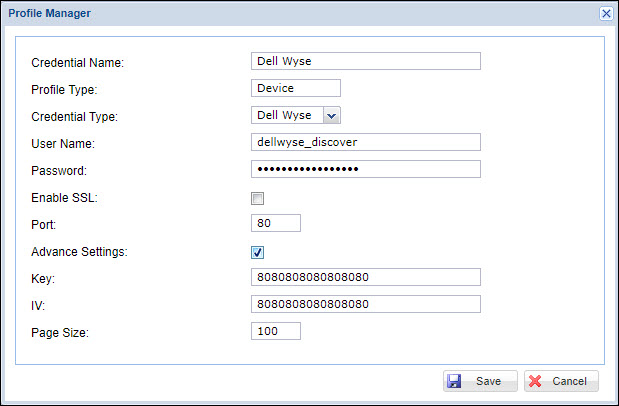
User Name – Username for the Dell Wyse Device Manager.
Password – Password for the Dell Wyse Device Manager account.
Enable SSL - enable if SSL is to be used.
Port - defaults to appropriate values for HTTP or HTTPS protocols.
Advance Settings - check this if the Key, Initialization Vector (IV) and Page Size has to be changed. The password is sent using AES encryption using CBC mode for which the default Key and IV values are used. However these can be changed.
Page Size - refers to the number of results to be returned in the response (by default it is 100).
Click on 'Save' to save the credentials.
Once the profiles are defined, select the profiles that need to be used by the discovery rule for the discovery process.
Note: The discovery rule will only consider the credential profiles that are selected. Also make sure that appropriate credentials are defined to enable discovery and data collection for all the devices that would be discovered. The discovery process is intelligent enough to discover the nodes and also tag the appropriate data collection types based on the device type
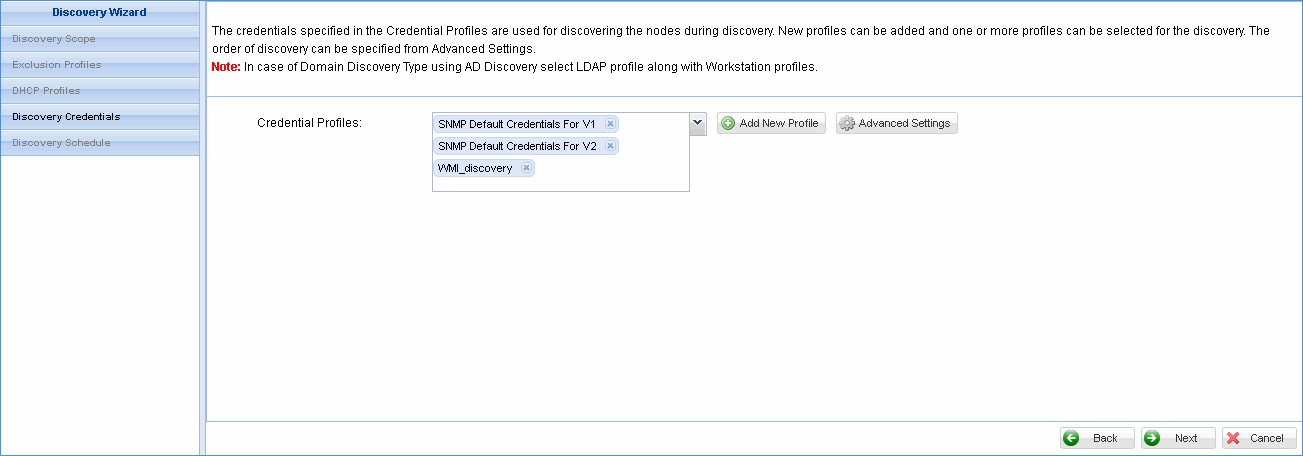
ADD New profile: Click here to add a new credential profile. 'Profile Manager' page is displayed. Enter the credential name and select the credential type. Depending on the credential type chosen the credential details will vary. Please refer to the above data collection standards for an explanation on the credentials.
Advanced Settings: This option allows you to define the priority of the data collection types.