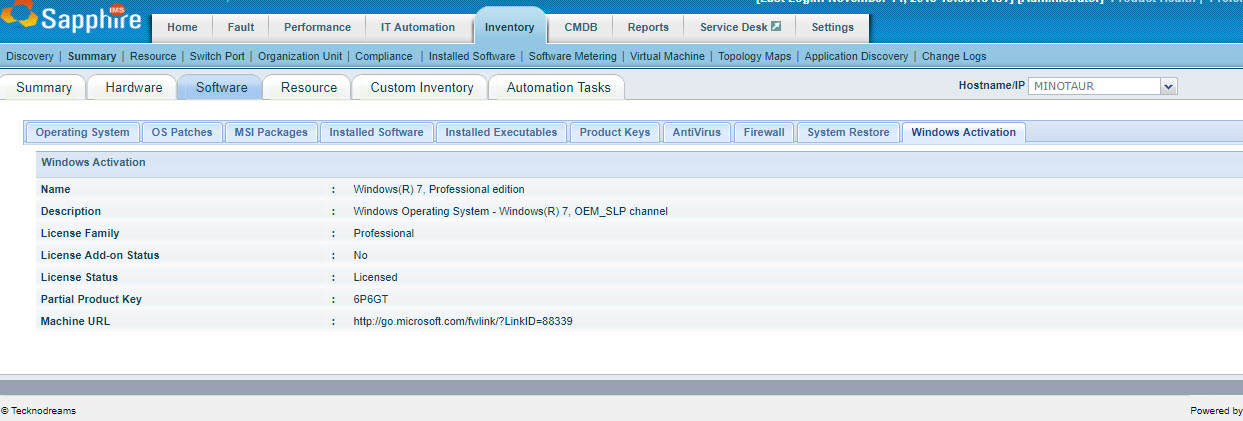
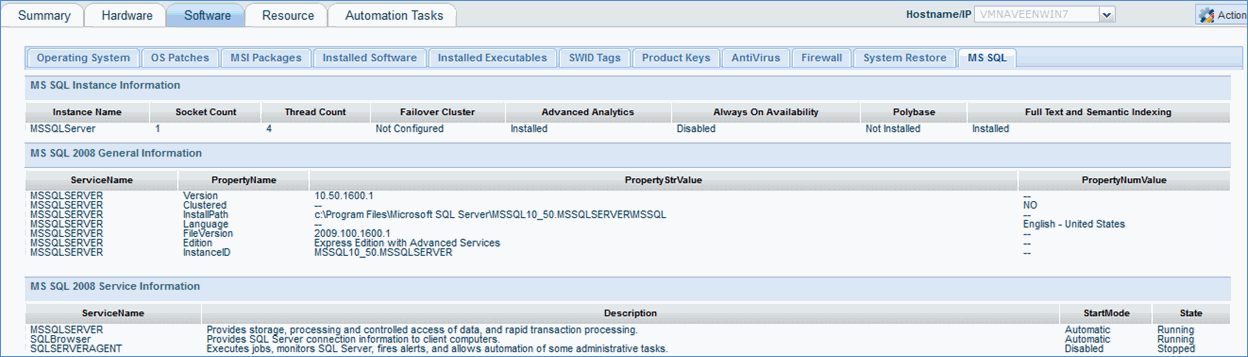
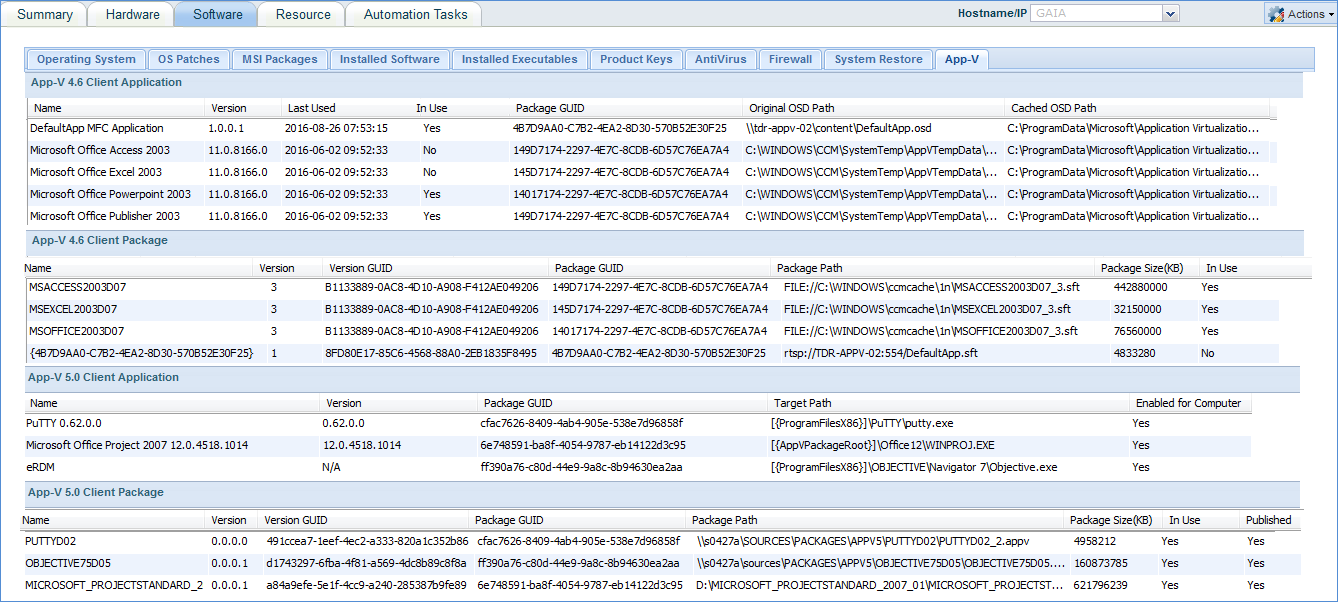
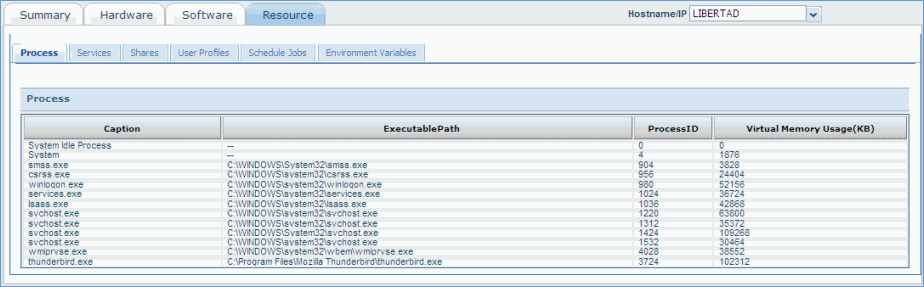
Once the discovery process is complete, the discovered nodes can be viewed.
On the SapphireIMS menu, point to 'Inventory' and click 'Discovery’ to view the list of discovered devices
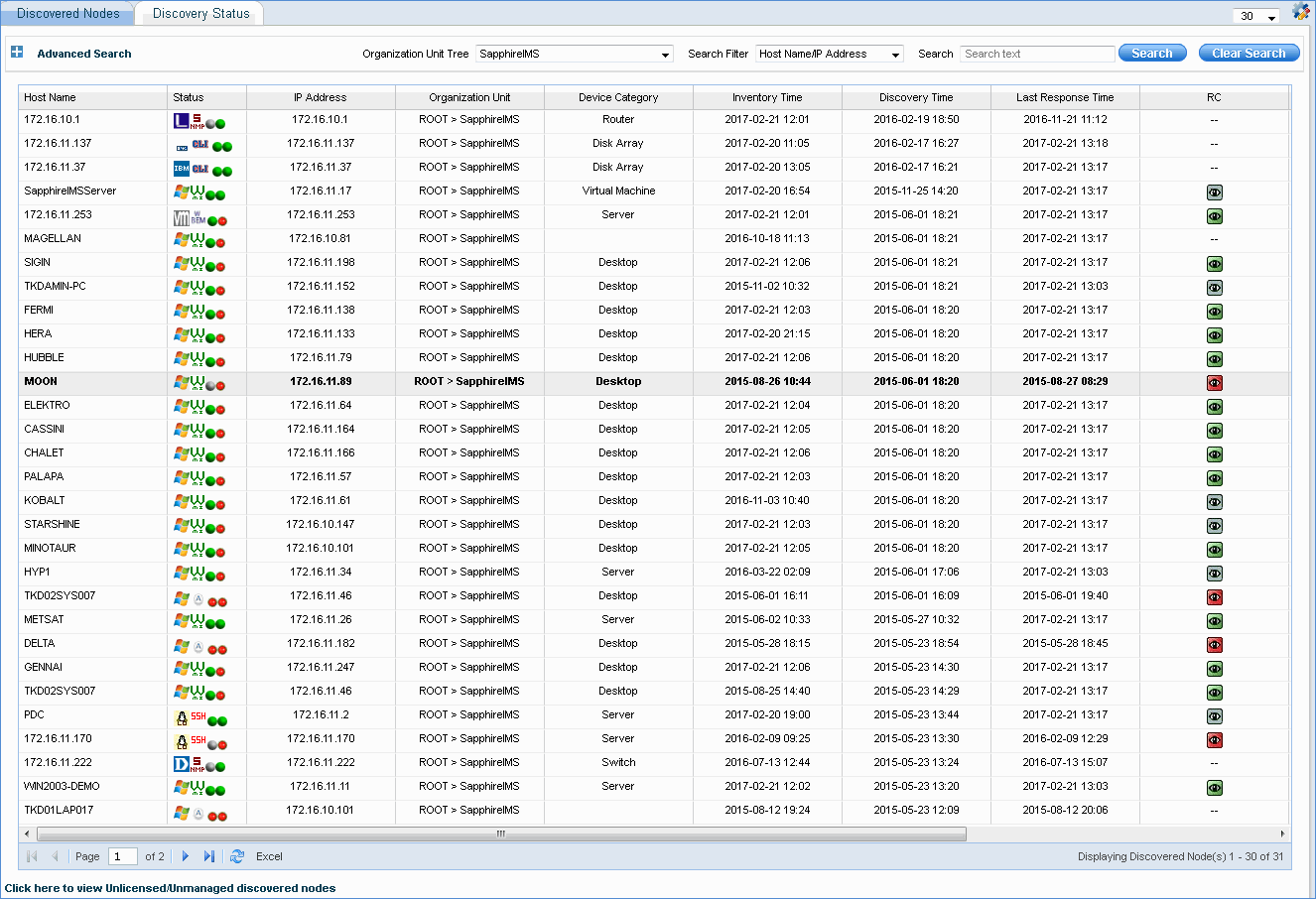
Click  icon,
select field name, click
icon,
select field name, click to select the fields
to appear in the listing page, or click
to select the fields
to appear in the listing page, or click  to
remove the field from the listing page.
to
remove the field from the listing page.
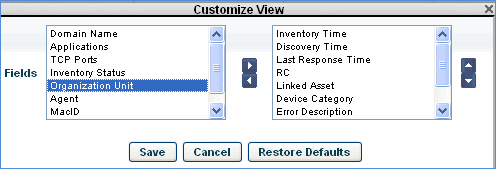
Click 'Save'
Click 'Restore Defaults' to restore the default discovery listing page settings
 Note: A Global Settings Flag
controls the display of Host Name for SNMP devices. If the flag is 1 Host
Name is displayed as-is. If the flag is 2 the Host Name is displayed as
FQDN. If the flag is 3 the Host Name is displayed as System Name. If the
flag is 4 then the Host Name is displayed if available or else System
Name is displayed as Host Name.
Note: A Global Settings Flag
controls the display of Host Name for SNMP devices. If the flag is 1 Host
Name is displayed as-is. If the flag is 2 the Host Name is displayed as
FQDN. If the flag is 3 the Host Name is displayed as System Name. If the
flag is 4 then the Host Name is displayed if available or else System
Name is displayed as Host Name.
Note: In any of the inventory
listing views, you can select any content by clicking and dragging on
the cell contents and then press CTRL+C to copy to the clipboard.
1. Click 'Settings', from 'Advanced System Settings' section click 'Global Settings'.
2. Select Category as 'Remote Desktop'
3. Set the value of 'Enable or Disable Remote Control Feature' as 1. The Remote Control icon is now visible in the 'Discovery' screen. Click the icon to access the host machine remotely.
Click on a host name to view the detailed Summary for the host

Device Summary
Notes: 1. Click the
 icon next to Host Name to change the host label as follows:
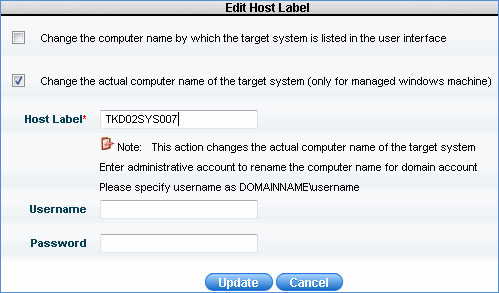
Enter the new host name, user name and password and click 'Update'
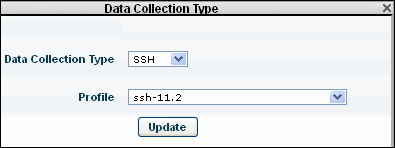
2. To change the data
collection type, click the icon next to Credential
Profile' and select the credential profile. You can click the icon next
to Ínventory Scheduler Profile and change the Inventory Scheduler Profile
as well
3. In case of MSP edition, a drop down box for 'Site' selection is visible.
Click on the below topic to view it in detail
Following is the detailed description of all the tabs seen in the above figure, click each topic to expand

 ' icon to access a system remotely.