Technicians have the access rights to change the ‘Owner’ of the service record at any point in the workflow. The record must be in ‘Assign’ state. To change the owner of the service record follow the steps given below.
Click
the icon ‘ ’ next to the
‘Owner’ box as shown below.
’ next to the
‘Owner’ box as shown below.

In the ‘Change Owner’ window as shown below.
Select the user. Note that only service desk engineers will be listed here.
Click ‘Update’

Changing the owner of the service desk record is possible in either one of the below scenarios
1. Only the current owner of the ticket can change the owner.
2. User should have work flow access to change the record from New to Assign state.
Users listing
The following conditions are checked in order for users listing
1. Users are listed after applying state restrictions defined in States configuration
2. Users are listed only for those roles for which the owner has access
3. If ticket belongs to a work group, all ticket work group users will be listed.
Note: Service Desk Engineers can edit the owner only if the access has been granted at the time of role creation
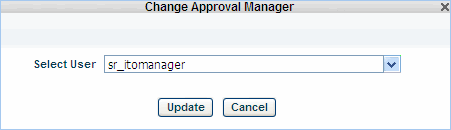
Approval Manager has the access rights to change the approval manager for the service records that are in ‘Waiting for Approval’ state. To change the ‘Approval Manager’ follow the steps given below.
Click
the icon ‘’ next to the
‘Approval Manager’ box as shown below.
'Approval Manager' text box will be displayed only if the field 'Approval Manager' is enabled in 'Fixed Fields' section

In the ‘Change Approval Manager’ window as shown below. Select the user.
Only approval managers will be listed here
Click ‘Update’
Notes:
1. Approval managers can change the approval manager only if they have been granted the access at the time of role creation
2. Notification e-mails are sent when there is a change of owner or approval manager for each project.
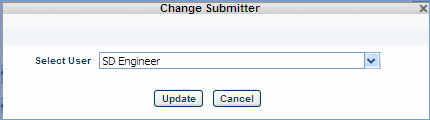
Click the record from ‘My Request' / 'All Request' screen. Refer to the ‘Edit Request’ screen
To
edit the ‘Submitter’ click the icon ‘’. Based
on the user/submitter selected the location and department will automatically
be modified. Please refer to the image below.
Changing the submitter of the service desk record is possible in either one of the below scenarios
The records are in ‘New’/ ’Start’ state and
The records have been submitted via ‘Phone’ or ‘E-mail’