
Email Routing option is provided for custom mail routing. SapphireIMS provides for routing e-mails to specific roles/users based on combinations of field values, custom SLA pre or post violation notifications or custom logic created in Java code. These routing rules are executed in parallel to other rules configured under Notification Rules or SLA.
Click on 'Email & SMS Notifications' option on the right hand side panel.
Click on 'Email Routing'. The listing of Email Routing rules is displayed.

Click on any rule to edit or click on 'ADD' to add a new rule. The Routing configuration screen is displayed.
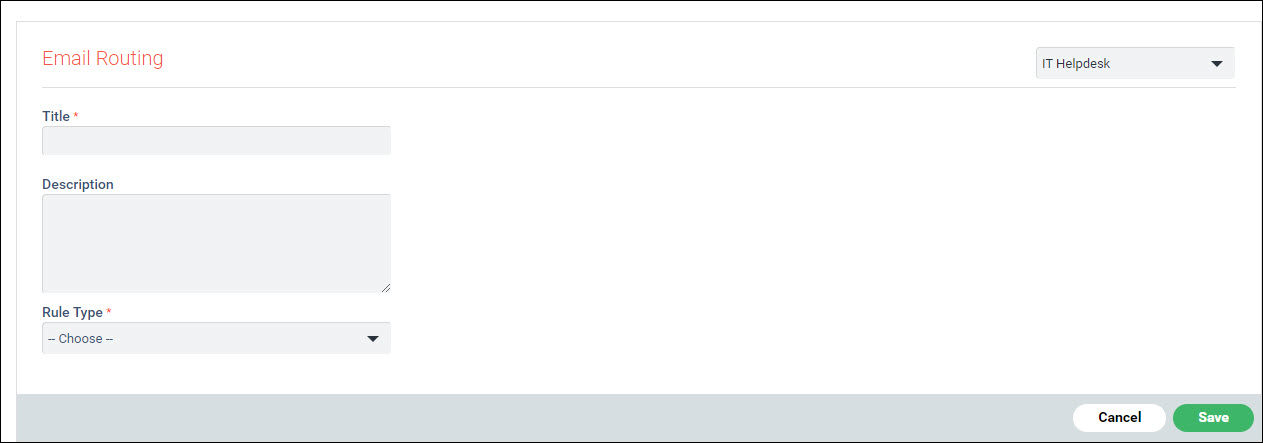
Based on the selection of 'Rule Type', the fields are different and described in the sections below. The State Based Rule is used for notifications when certain conditions occur in the record. SLA Based Rule is used for Pre and Post SLA violation notifications. Custom Rule is used when a specific business logic has to trigger a notification. Custom Rules need knowledge of Java and it is best you contact SapphireIMS Support for specific needs.
When the 'Rule Type' is selected as 'State Based Rule' the screen below is displayed.
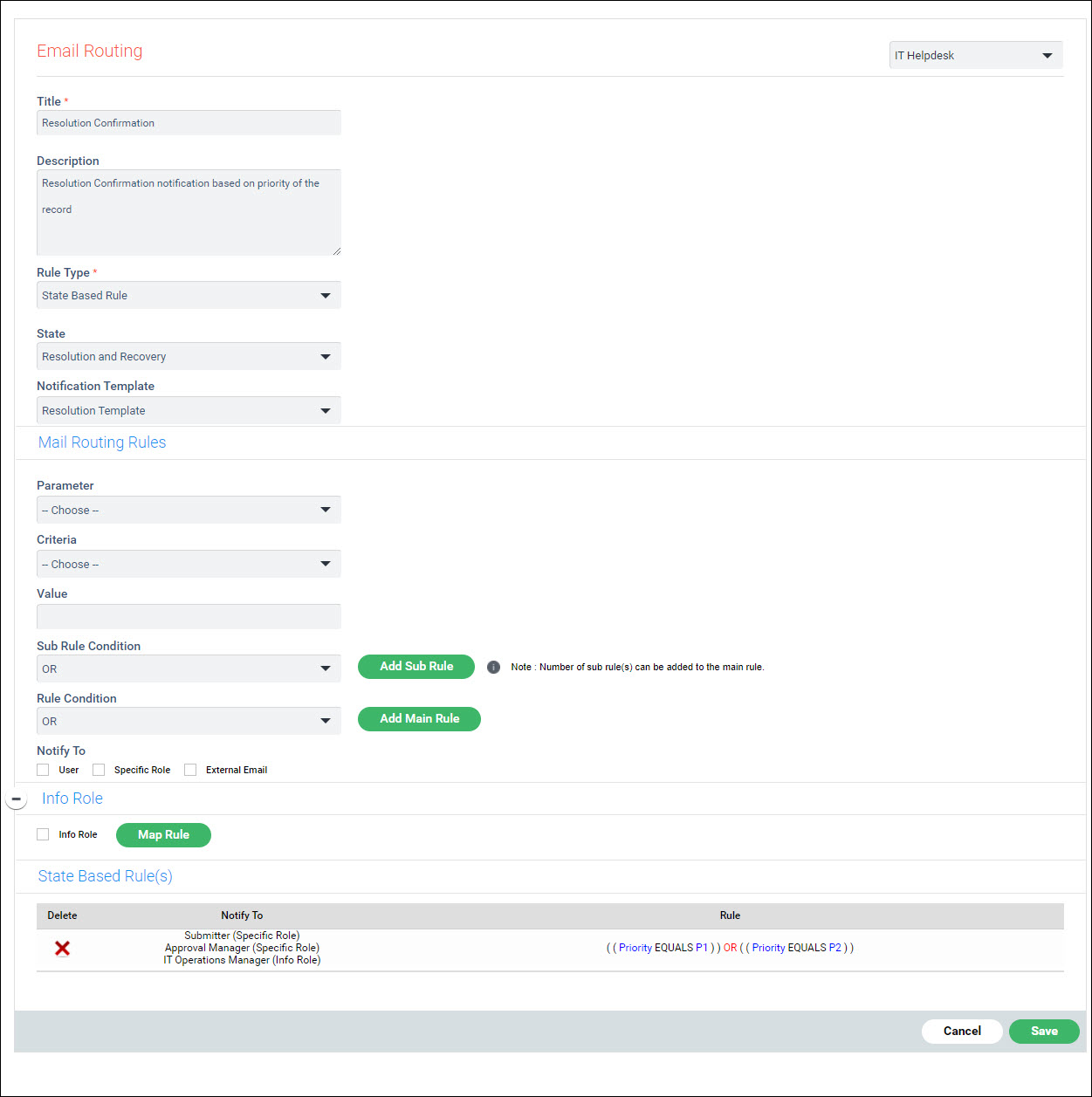
The fields are described in the table below.
|
Repeat the process to add more rules.
If any rule needs to be deleted, click on  against the rule.
Click on 'Save' or 'Update' to save the rule.
When the 'Rule Type' is selected as 'SLA Based Rule' the screen below is displayed.
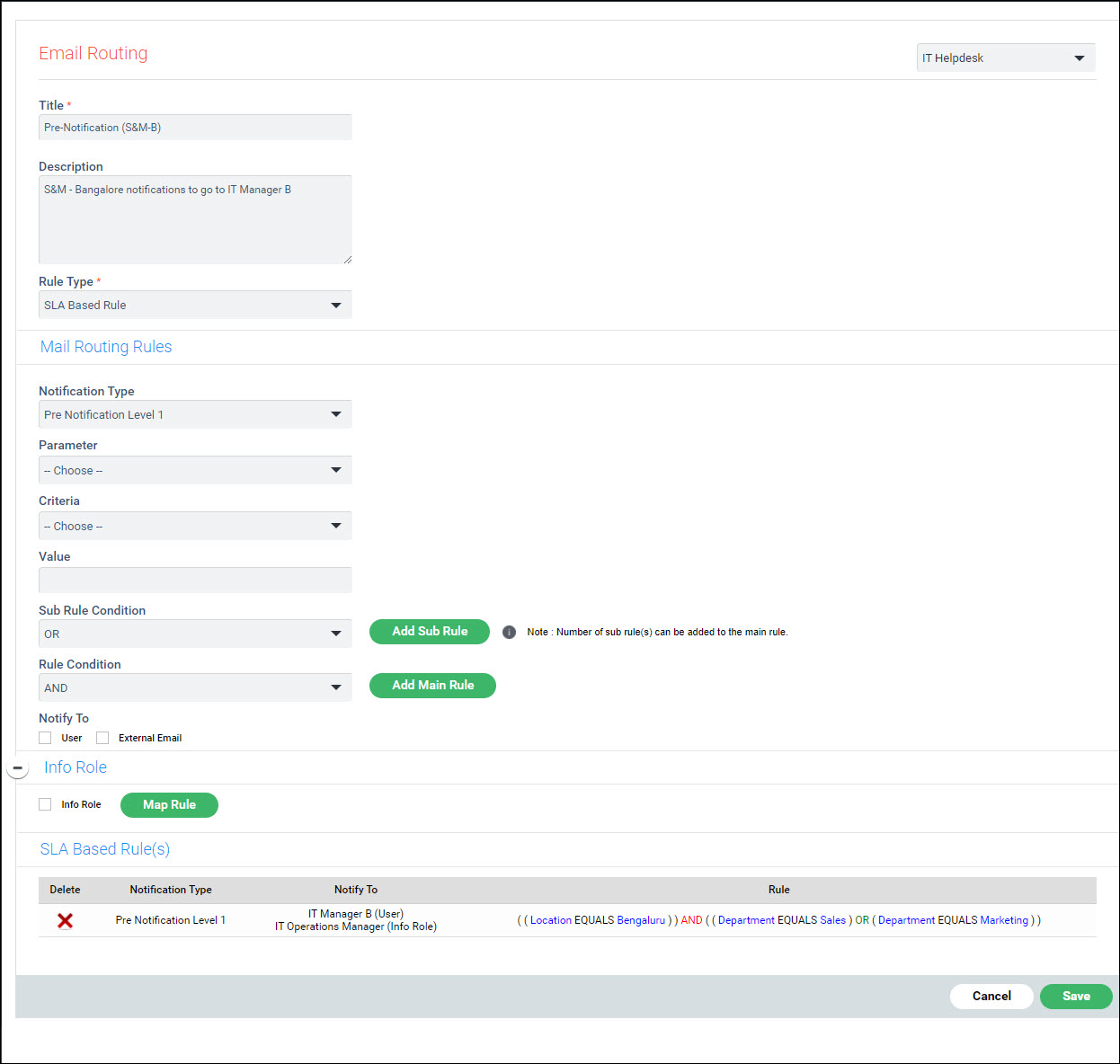
The fields are described in the table below.
|
Repeat the process to add more rules.
If any rule needs to be deleted, click on
against the rule.
Click on 'Save' or 'Update' to save the rule.
You can create a notification rule to use a custom script written in Java. There is one script which is pre-shipped with SapphireIMS and which can be triggered based on Service Desk Field values or based on the result of a database query.
For development of custom logic for notifications contact SapphireIMS Support.
The Java class file and the associated property file needs to be located in the following folder
'<SapphireIMS Installed Path>\SapphireIMS\WebManagement\standalone\deployments\SapphireIMS.war\WEB-INF\classes\sapphire\mailroutingscripts'.
The Java class file and Property File needs to be configured into the rule.
Select the 'Rule Type' as 'Custom Rule'. The screen below is displayed.
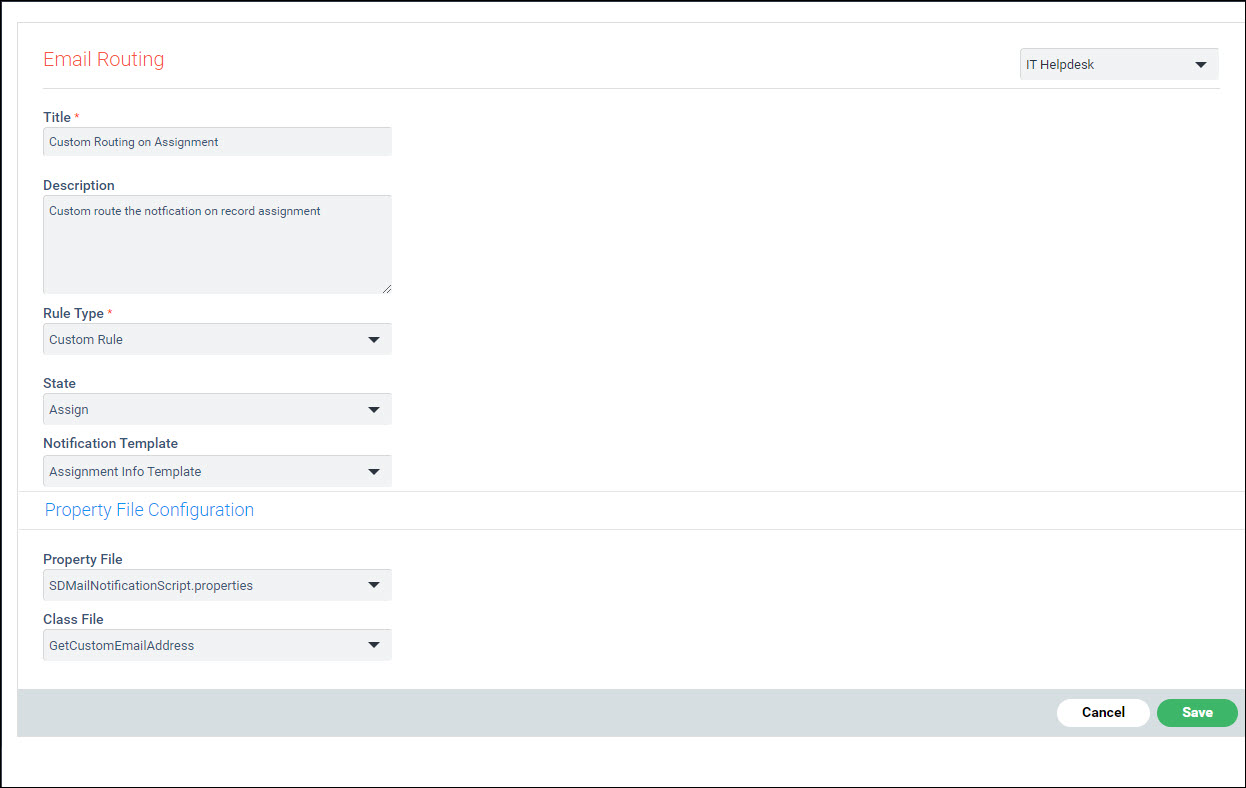
The fields are described in the table below.
|
Click on 'Save' or 'Update' to save the rule.