Windows Patch Management Settings
SapphireIMS provides settings for changing
the configuration related to patch scan and deployment such as enabling
patch scan and deployment, automating patch deployment process when missing
patches are found, automating the reboot of affected systems after the
completion of patch deployment and downloading CAB file. If these
settings are to be changed perform the following steps.
Click the 'Settings'
tab. In the 'Software Management'
section, click 'Patch Management
Settings'
Click the 'Windows
Patch Management Settings' tab
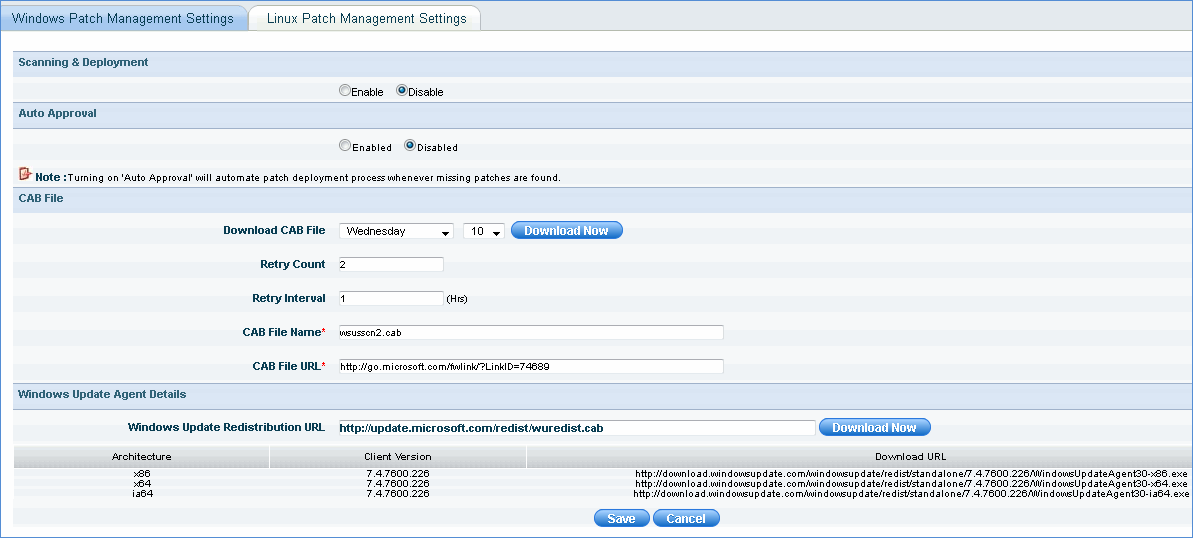
Patch Management
Sr.
No |
Field
Name |
Description
|
1 |
Scanning and
Deployment |
If
this setting is enabled the scanning and deployment operations
will be performed as per the rules defined in the patch management
wizard
 Note: This
setting overrides all settings in individual rules set up using
the Wizard. Note: This
setting overrides all settings in individual rules set up using
the Wizard.
|
2 |
Auto
Approval |
If
this flag is turned on, once a missing patch is detected, it will
be downloaded and automatically deployed on the target system
(adhering to the patch deploy schedule defined). However
this option will not affect devices listed in the critical system
profile (where an explicit approval is always required)
|
3 |
Download CAB file |
The
CAB file provided by Microsoft provides all the information about
the various patches that are released. This needs to be downloaded
periodically from the Microsoft web site. Typically this will
be released once in a week. Change the setting as per your scan
and deploy settings
|
4 |
Retry Count |
The
duration after which a retry has to be attempted.
|
5 |
Retry Interval |
Number
of attempts to retry if a CAB file download fails
|
6 |
CAB File Name |
Name
of the CAB file provided by Microsoft with all the latest updates |
7 |
CAB File URL |
Location
from where the CAB file is downloaded internally.
|
8 |
Windows Update Agent Details:
Windows Update Redistribution URL |
Download
this cab file to perform the ‘Windows Update Agent’ installation.
If target system version is less than the stated client version
then SapphireIMS will automatically install WUA at the time of
performing a scan.
This cab file has updates based on
three processor platform types as given below
‘x86’ (For 32 bit
editions of Windows) ‘x64’ (For 64 bit
editions of Windows) ‘ia64’ (For Itanium
based) |
|
Note:
To mark systems for patch scan inclusion or exclusion or to mark systems
as critical, click ‘Settings’, from ‘Software Management’ section, click
‘Profile Manager’
SapphireIMS allows
you to define patch management profiles for
1.
Patch Inclusion List - inclusion
of hosts or nodes for patch scanning
2.
Patch Exclusion List – exclusion of hosts or nodes for patch scanning
3.
Critical System List – select systems to be marked as ‘critical’ where
patch deployment is always on approval.
