
SapphireIMS supports collection of event logs from Windows. This topic describes the Event Log Viewer, to view the dashboard for analysis and view the summary and raw data.
Windows Event Logs collects the following information for each event and SapphireIMS can create reports and dashboards based on filters and analysis of these events. The information recorded for each event is described below.
|
 Note: Windows Event Logging
must be configured appropriately.
Note: Windows Event Logging
must be configured appropriately.
From the top menu bar in SapphireIMS, point on 'Fault' and click 'Event Logs'. The Event Log Dashboard is displayed.
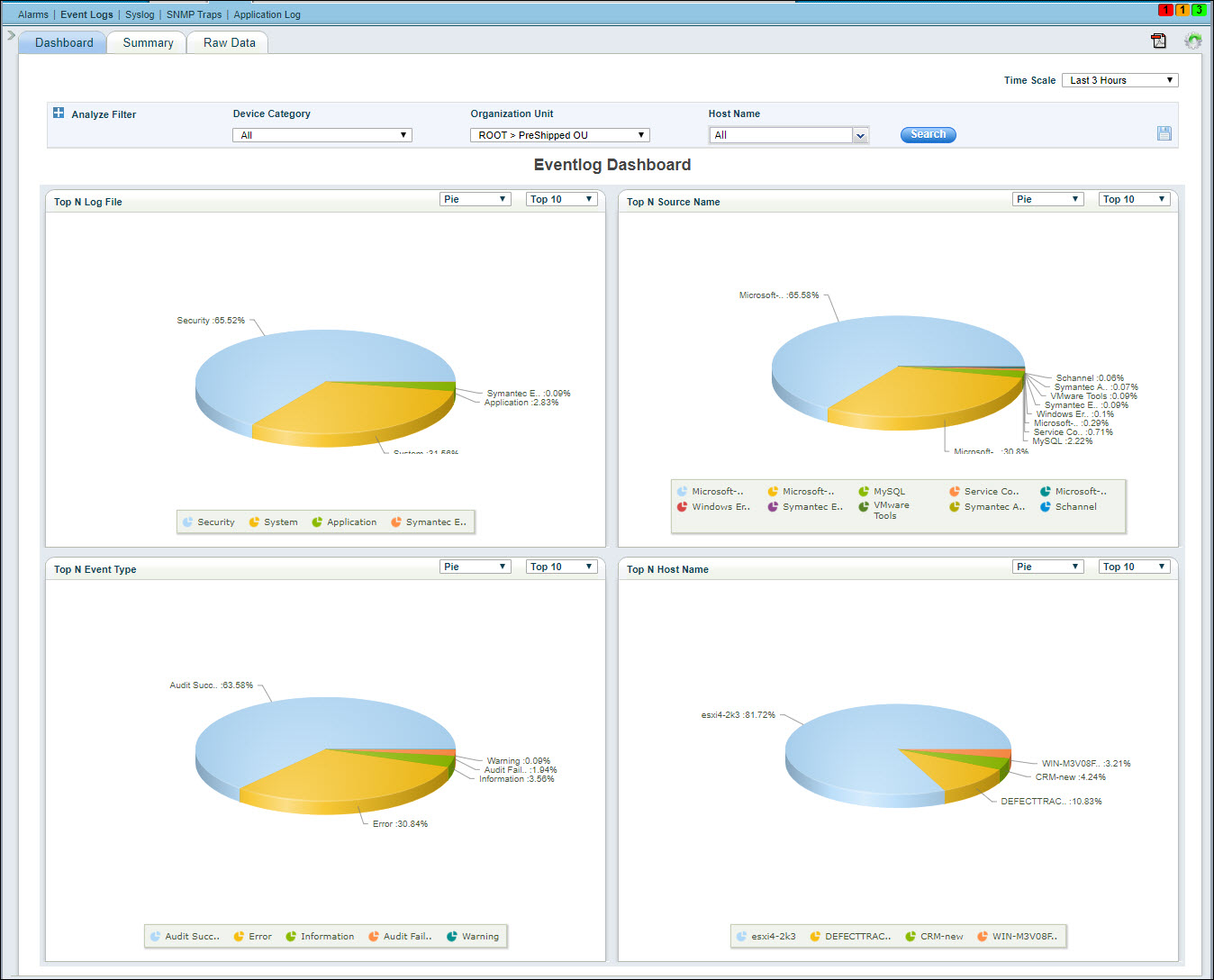
The following dashboards are displayed:
Top N Log File: Displays the top N distribution of log events from various log files like System, Application or Security logs.
Top N Source Files: Displays the top N distribution of log events from various applications.
Top N Event Type: Displays the top N distribution of log events based on event types like Information, Errors or Audit.
Top N Host Name: Displays the top N distribution of log events from various hosts.
Click on  and
select from among the 'Top N' or 'Bottom N' data in the drop-down
list.
and
select from among the 'Top N' or 'Bottom N' data in the drop-down
list.
Click on  and
select from among the chart types in the drop-down list.
and
select from among the chart types in the drop-down list.
Click on  to select
the time scale for the dashboard.
to select
the time scale for the dashboard.
Refer to section Changing the refresh interval if you want to enable auto-refresh and change the refresh interval.
Refer to section Setting up Analysis Filters to filter the data.
Once the filter rules are setup,
to save the search profile, click on  . A pop-up
is displayed to enter the profile details
. A pop-up
is displayed to enter the profile details
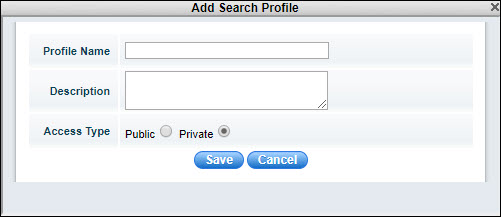
Enter the 'Profile Name' and 'Description'. To publish this profile select 'Public' else select 'Private'.
Click on 'Save'. A confirmation is displayed that the profile is saved. Click on 'OK'.
Once the profile is saved, it can be selected from the left hand menu which slides out when the arrow is clicked. The dashboard is updated based on the selected profile. Both 'Views' which are public and 'My Views' which are private are listed here.

To edit the profile click on  and to delete the profile click on
  .
.
The Events can be displayed in a tabular form in the Summary view where the count of the events can be aggregated in various ways.
Click on the 'Summary' tab. The default summary table is displayed.
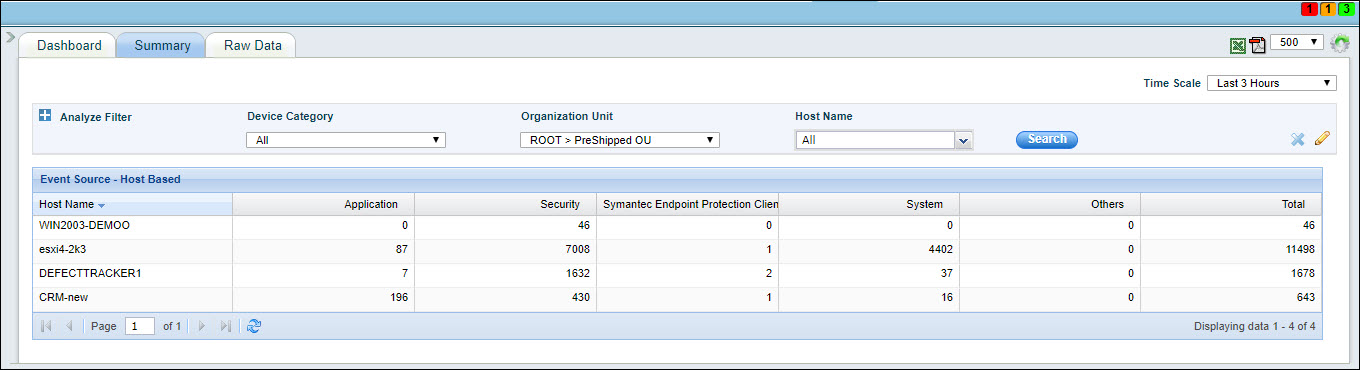
Click on to select
the time scale for the summary view.
Refer to section Changing the refresh interval if you want to enable auto-refresh and change the refresh interval.
Refer to section Setting up Analysis Filters to filter the data.
Click on to create
a new profile by specifying the fields to use for aggregation and
display. The search profile pop-up is displayed.
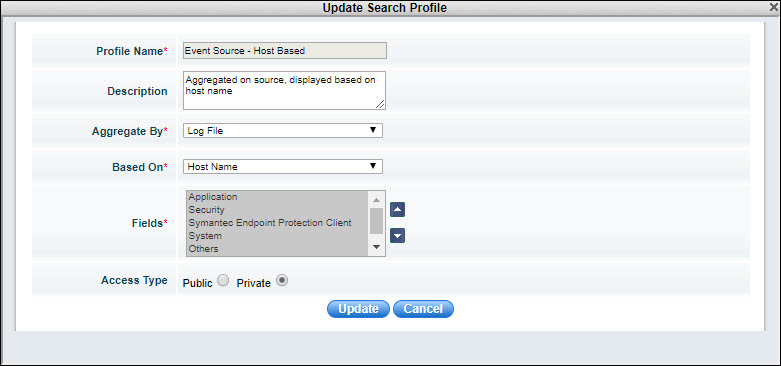
Enter the 'Profile Name' and 'Description' for the profile.
Select the 'Aggregate By' to select the field which has to used for the aggregation of count. For example, if the aggregation is based on 'Log File' as in the profile above, then the counts of events for each of the Log file is computed and shown under the respective columns in the table.
Select the 'Based On' to aggregate the counts based on the field selected. For example, if 'Host Name' is selected, then the aggregation is done for each host, row wise.
Select one or more 'Fields' which are to be displayed in the columns.
Select the 'Access Type' as 'Public' to make it available for all or 'Private'.
Click on 'Save' to save the profile or 'Update' to update the profile.
The saved profiles are accessible from the left hand menu.
To save the summary table in a PDF, refer the section Saving Views and Reports as a PDF file.
To export the data in an excel, refer the section Exporting Views and Reports into an Excel file.
The Raw Data for the Event Log can also be viewed as a listing.
Click on the 'Raw Data' tab.
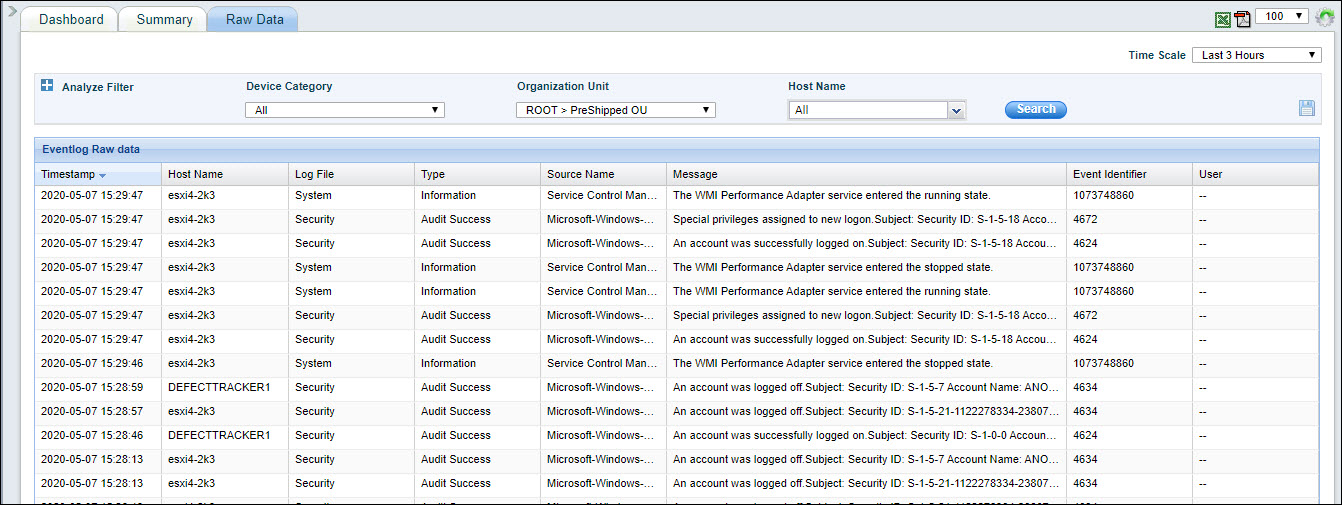
The event log listing is displayed.
Use the Filter Analysis as detailed under Setting up Analysis Filters section to filter the raw data.
The views can be changed by selecting
the fields. Click on . The
search profile entry screen pops-up.
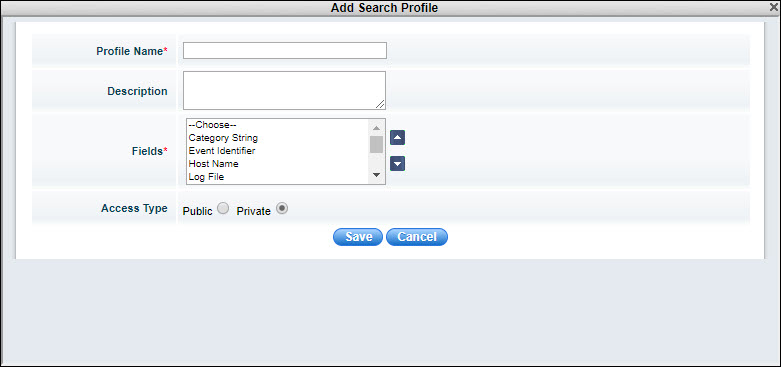
Enter the 'Profile Name' and 'Description' for the profile.
Select the 'Fields' which should be displayed in the columns.
Select the 'Access Type' as 'Public' to make it available for all or 'Private'.
Click on 'Save' to create a new profile or 'Update' to update the profile.
To save the summary table in a PDF, refer the section Saving Views and Reports as a PDF file.
To export the data in an excel, refer the section Exporting Views and Reports into an Excel file.
Filters can be set to analyze the data displayed for dashboards and summary views. These filters could incorporate rules based on parameter values.
Click on 'Analyze Filter'. The Analysis Filter expands as shown below.

Select the 'Device Category', 'Organization Unit' and 'Host Name' to filter on.
You can create filter rules based on field values and combine multiple sub-rule into a single rule.
Click on 'Search'
after adding the rule. The data is filtered based on the rules and
displayed. To save the filter rules, click on ,
enter the profile details and save.
Click on  to select
the auto refresh interval. The refresh entry details screen pops-up.
to select
the auto refresh interval. The refresh entry details screen pops-up.
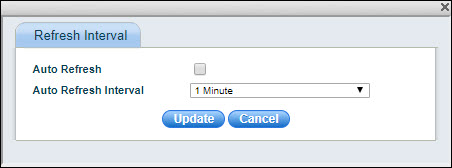
Select 'Auto Refresh' if you want the dashboard to be automatically refreshed. Select the 'Auto Refresh Interval' and clock on 'Update'.
To save the dashboard in a PDF, refer section Saving Views and Reports as a PDF file.
To save the dashboard in a PDF file,
click on  . A pop-up to enter the PDF options is
displayed.
. A pop-up to enter the PDF options is
displayed.
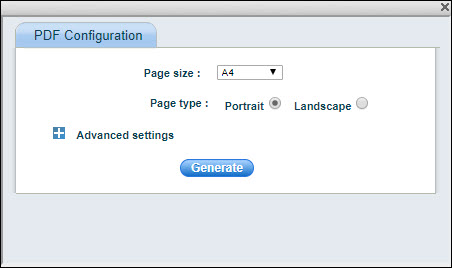
Select the 'Page Size' and 'Page type'. Click on 'Advanced' to select other options.
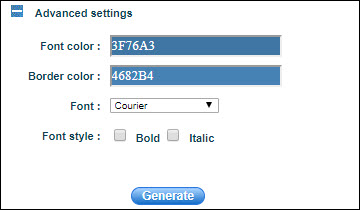
Select the 'Font Color', 'Border Color', 'Font' and 'Font style'. Click on 'Generate' to generate the PDF file.
Any view or report can be exported
into an Excel file. Click on  .
.
An excel file is created with the name as the label on top of the table in the summary or raw data views.