
SapphireIMS allows you to export the project settings and import it on another server. This is useful when you want to create a new project and replicate the project settings from an existing project.
In the Settings tab, click on 'Project' under Service Desk Configuration.
In the Project Listing screen, select the Project and click on 'Export' option. The Export screen is displayed
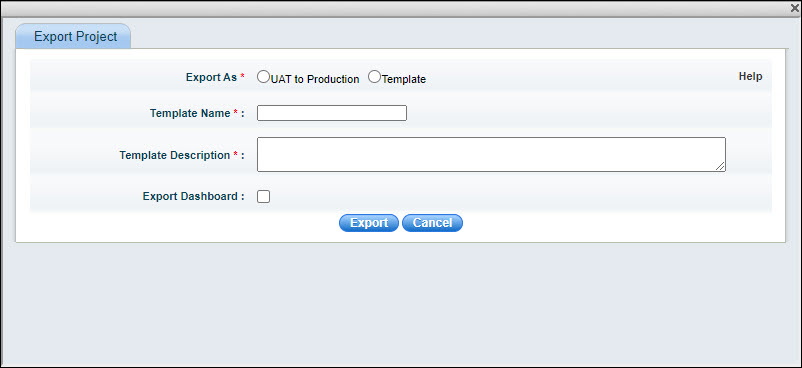
Select 'UAT TO PRODUCTION' option if you want to move the project instance from a test system to a production system where the Department and Location information is also copied. Select 'Template' to create a copy of the project without the specific Department and Location information. Click on the 'Help' button to get help on the options.
Enter a 'Template Name' and 'Template Description'.
Check the box 'Export Dashboard' if the configured Dashboard has to be exported. This copies all the custom widgets.
Click on 'Export' which creates a file in JSON format with the project information. The file is created in the 'Downloads' folder.
In the Settings tab, click on 'Project' under Service Desk Configuration.
In the Project listing screen, click on 'Import'. The Import screen is displayed.

Select the file which has the Project Settings (must be a JSON format file) and click on 'Import'. A confirmation message is displayed and the project settings get imported from the template. The project is displayed in the listing screen.