Search for 'SapphireIMS' mobile application in Google Play Store
or iTunes. The application will be listed with Sapphire
icon  . Install it on your smart phone device.
The
Sapphire icon is now displayed in the ‘Apps’ or ‘Application’
folder in your mobile.
Select the Sapphire icon.

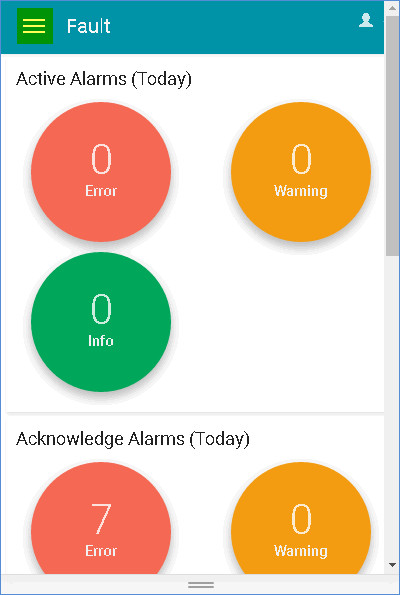
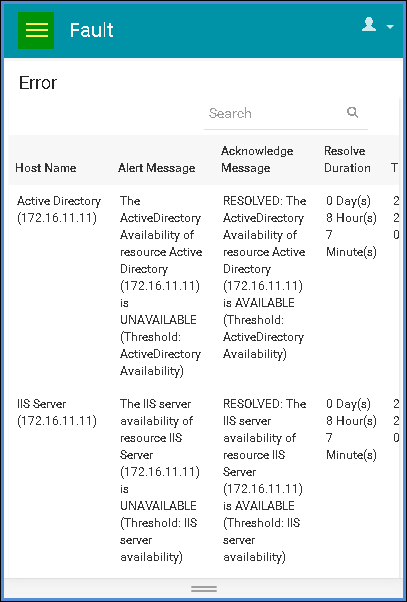
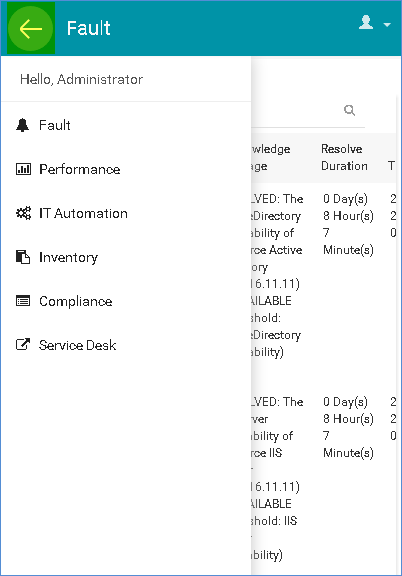
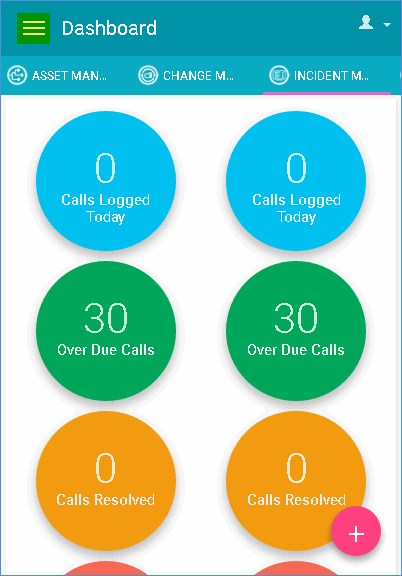
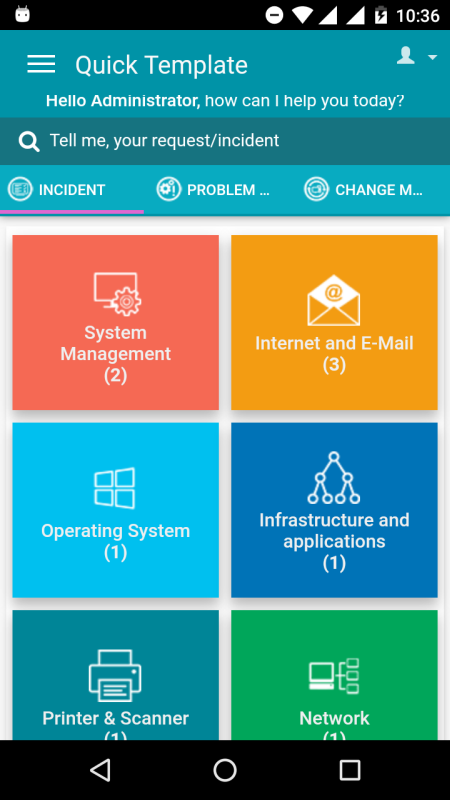
Enter SapphireIMS login credentials – SapphireIMS server URL, user name and password and click ‘SIGN-IN’. The following screen with menu options (based on user access) is displayed.
Note: No configuration related to inventory collection, configuring automation tasks or alerts is possible on the mobile application. The mobile application is meant only for viewing the result of mobile widget execution.