Mail Notification Templates


SapphireIMS provides for Email notifications to be sent when an operational activity is completed or on upcoming events.  For example, asset related notifications can be sent when assets are deleted. So also when the AMC period of a server is due to expire, a notification can be sent a few days before so that the renewal is done.

Templates can be created for notifications and customized.


Add a Mail Notification Template

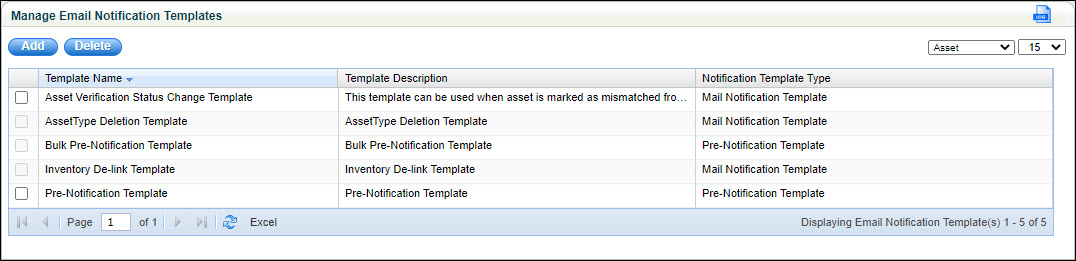
Settings-CMDB-NoteTempList.jpg

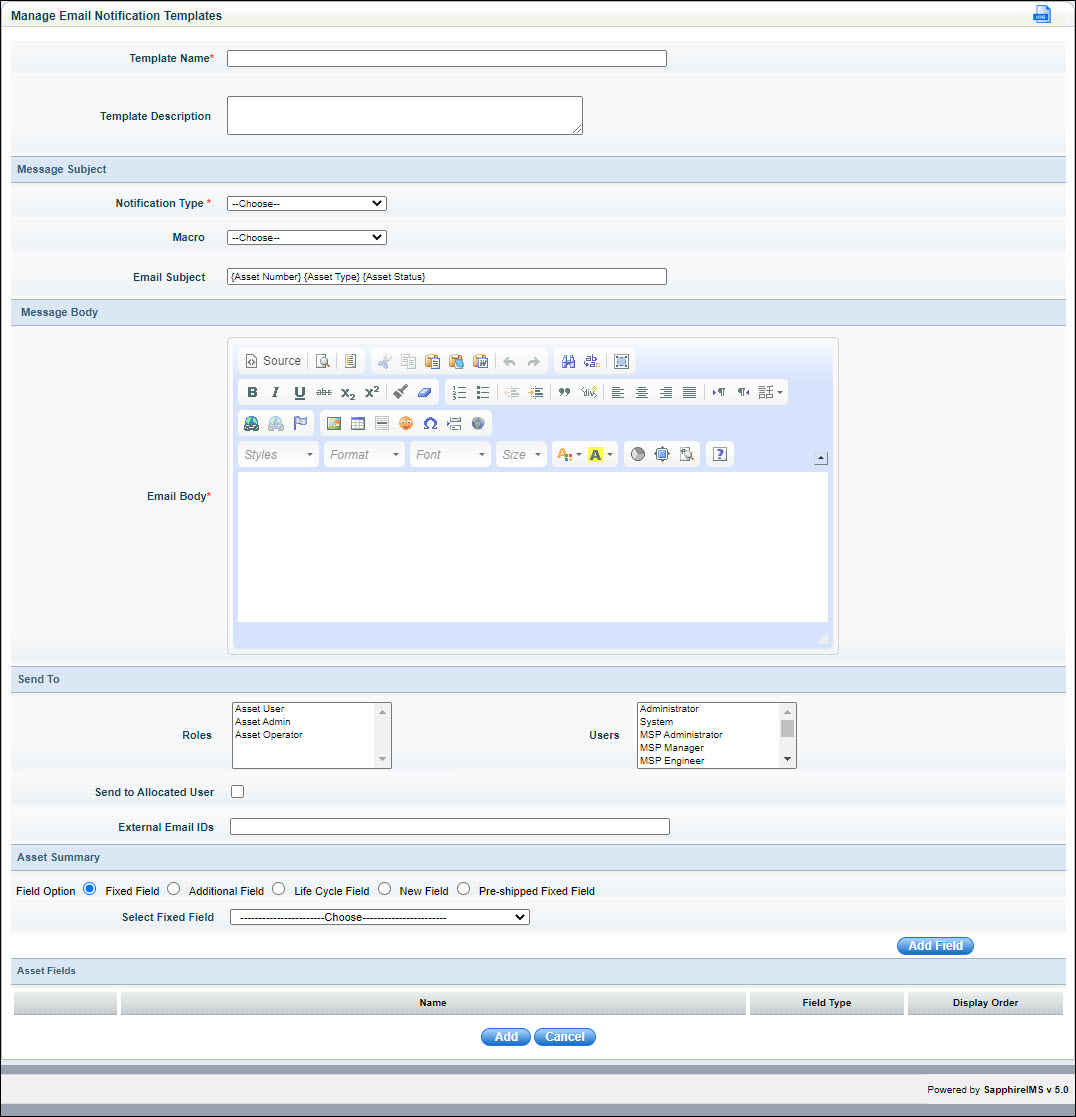
Settings-CMDB-NoteTempAdd.jpg


Serial No

Field Name

Description

  1

Template Name

Enter the template name.

  2

Template Description

Enter a brief description of the template.

  3

Notification Type

Select the notification type as 'Pre-Notification' if this template is used for Pre-Notification or as 'Mail Notification' if it is used for notification of any activity.

  4

Macro

Select one or more macros which will be appended in the Subject line.  You can also copy the macro into the Email body. Macros need to be enclosed in {}.

  5

Email Subject

Enter the Subject by typing the text and selecting macros where needed. For example, 'Asset Allocation Notification - {Asset Type} {Asset Number} has been allocated to  {Allocated User}'.

  6

Email Body

Enter the text of the Email. You can use the HTML editor to format the Email.

  7

Roles

Select one or more Roles to whom the Email should be sent. All users allocated to the selected Role will receive the Email.

  8

Users

Select one or more Users to whom the Email should be sent.

  9

Send to Allocated User

Put a check in this box if the user to whom the asset is allocated should receive the Email.

 10

External Email IDs

Enter any external Email IDs to whom the notification should be sent. You can add multiple IDs separated by commas.

You can also provide a MySQL query which will return the e-mail address of the person to whom the mail notification has to be sent.

Enter the query in the following format: QUERY :: = Select <column name> from <table name> <where clause>

 11

Field Option

You can add a summary table in the body of the Email. The summary table can contain the asset parameters.

Select the Field type from among the following:

'Fixed Field' - Select one of the fixed fields in the pull down menu.

'Additional Field' - Select the Asset Type and from one among the Additional field defined for that Asset Type.

'Life Cycle Field' - Select the Asset Status and the Life Cycle Field from the list.

'New Field' - Enter any field and value which will be displayed in the summary.

'Pre-shipped Fixed Field' - Select the Asset Type and select the pre-shipped fixed field from the list.

Click on 'Add Field'. Repeat this step to add more fields in the summary.

In the case of Additional, Preshipped and Lifecycle fields you can select the 'All' option to select all item types or status.


Delete a Mail Notification Template