
My Maps allows you to create a network topology view of your organization devices and resources. The following features can be configured in map view:
1) Provision to add new devices,interface and resources
2) Provision to add link between two devices
3) Connection can be added by Ping, Interface or Availability
4) Provision to add more than one connection between two devices
5) Support for custom images upload
Go to Settings > Business Service Monitoring > Manage Maps
In the 'My Maps' tab, click 'Add'
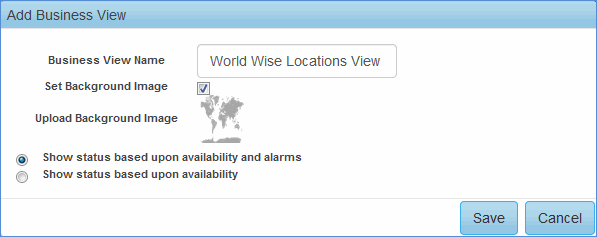
1. Enter the name or business view name of the map
2. Check the box to set a background image for the Network Map (e.g. a Location map)
3.
Click on the ' ' to upload background image
4. Select the appropriate option to display status
5. Click 'Save'
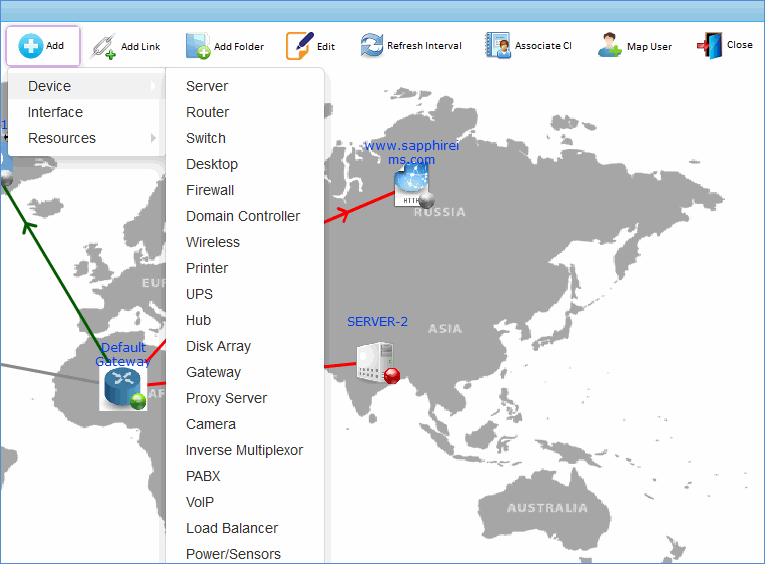
1. Click 'Add' to add a Device, Interface, Resource to the Map
2. Hover on 'Device' or 'Resources' or click on 'Interface'
3. Click on a Device to add a device. For Resources, hover on the Resources Type Menu and click on a Resource to add

1. Select the devices to add (You can select multiple devices)
2. Expand 'Advanced Settings'
3. Enter the width and height of the images
4. Upload the images to be displayed for the devices in the map
5. Click 'Save'

1. Select a device (This will list only the devices which are added to the map. So before adding an interface, please add a device to the map)
2. Select the interfaces to add to the map (You can select multiple interfaces)
3. Expand 'Advanced Settings'
4. Enter the width and height of the images
5. Upload the images to be displayed for the devices in the map
6. Click 'Save'

1. Select the resources to add (You can select multiple resources)
2. Expand 'Advanced Settings'
3. Enter the width and height of the images
4. Upload the images to be displayed for the resources in the map
5. Click 'Save'
In the map, click 'Add Link'
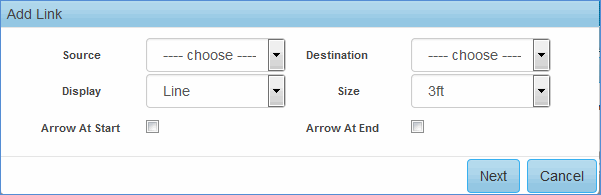
1. Select the source device/interface/resource of the link
2. Select destination device/interface/resource of the link
3. Select display type of the link
4. Select line size of the link
5. Check the box to add an arrow at the start of the link
6. Check the box to add an arrow at the end of the link
7. Click 'Next'
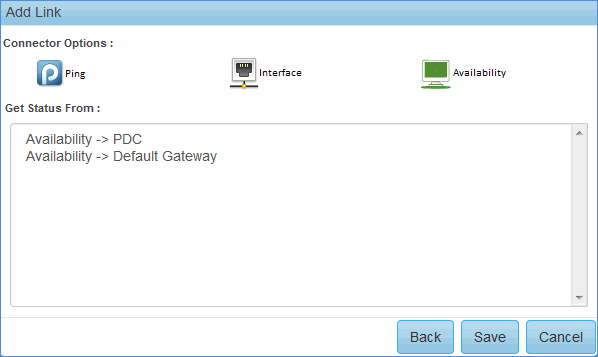
1. Select a connector option for the Link
2. Select a ping poller resource to get the Status (Up/Down) of the Link
3. Click 'Save'
Note: You can also select 'Interface' and 'Availability'. Select the source and destination interfaces and click 'Save' to save the connector option. Similarly select the source and destination availability and click 'Save' to save the connector option.
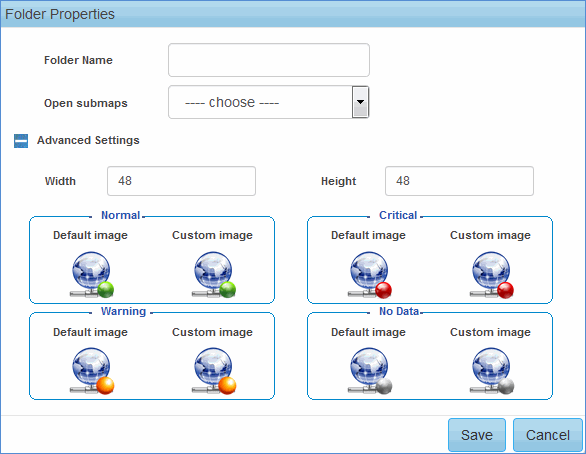
1. Enter the folder name (i.e. the name of the Location, Branch etc.)
2. Select the network map to open on click of the folder icon in this map
3. Expand 'Advanced Settings'
4. Enter the width and height of the folder icon image
5. Upload the image to be displayed for this folder in the map
6. Click 'Save'
Click
on the ' ' button and select the item type (devices,
interfaces, resources etc.)
' button and select the item type (devices,
interfaces, resources etc.)
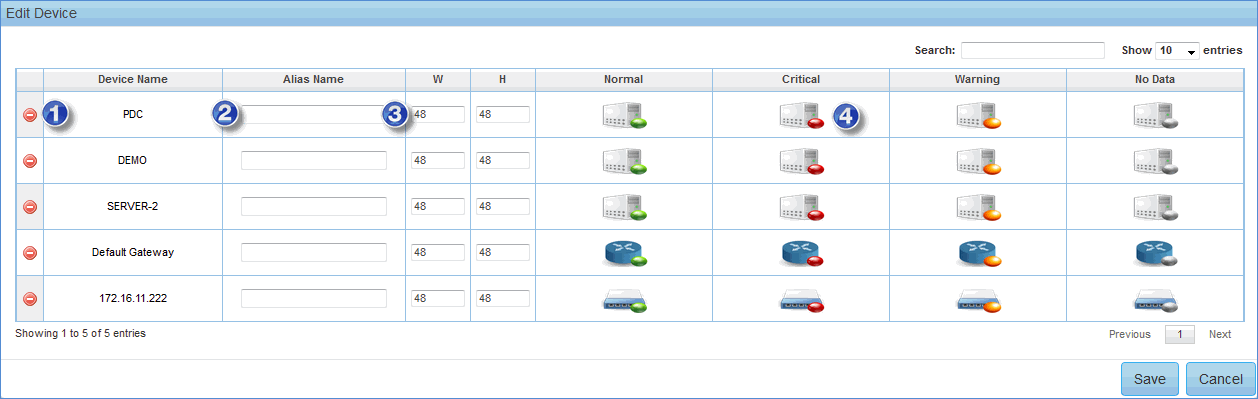
1. Click here to delete the item type
2. Enter alias name of the item type (i.e. name to be displayed in the map)
3. Enter image width and height
4. Click to change icon image
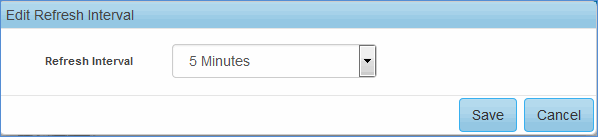
Click on the ' '
button to change the refresh interval for the map
'
button to change the refresh interval for the map
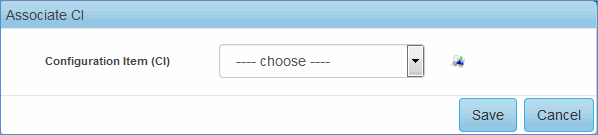
Click on the ' '
button to select a configuration item (asset) to be associated with
the map
'
button to select a configuration item (asset) to be associated with
the map
Click
on the ' ' button in a map
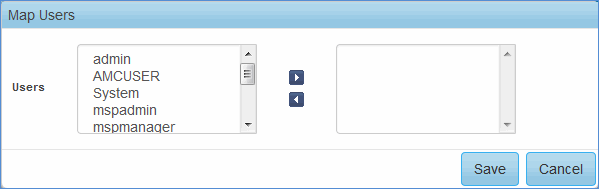
Select the users and click 'Save'
Once the Map Configuration is completed, click “Close”. This will open the map list view.

1. Click the Business View Name to edit the Device/Interface/Resource/Link configuration of the map
2. Click 'Map User' to map users to the map to provide access to users
3. 'Status' indicates the map status
4.
Click ' '
to set automatic refresh interval for the map
'
to set automatic refresh interval for the map
5. Click 'Manage Rules' to enable or disable the map status
Click 'Business Service to view the maps of the configured business service rules'

Click on the business service name to open the map

1. Click on icon to set the refresh interval.
2. Click
on icon to associate the CI with
the business rule
3. Click
on  icon to close the business
service map and redirect to the list view.
icon to close the business
service map and redirect to the list view.
4. Click
on icon to edit the availability/health
images and background image of the business rule.
5. Click
on icon and then ‘Availability’
to view the availability parameters and its images. Custom images can
be uploaded as part of this screen