
SapphireIMS allows for multiple managers to approve records especially in the context of Service Requests or Change Requests where often multiple levels of approval are required for multiple approval managers need to approve before the record moves into the Approved state.
When multiple level of approvals are required like for example, in the purchase of an IT equipment which has to be approved by the Department head and the Finance head, sequential approval is configured. In such a case the request goes to the first level approval manager and if approved, is moved to the second level approval manager. Only if both approve, the request moves into the Approved state.
An example of parallel approval, is in change management. Any change in the IT environment requires approval by the Change Advisory Board which consist of different stakeholders who could be impacted by the change. In such a case, parallel approval is configured where approval managers can approve in any order and the change is Approved only when all the approval managers approve.
When a multi-level approval is introduced in the workflow, the record is moved to 'Waiting for Approval'. The multi-level approval screen is displayed.
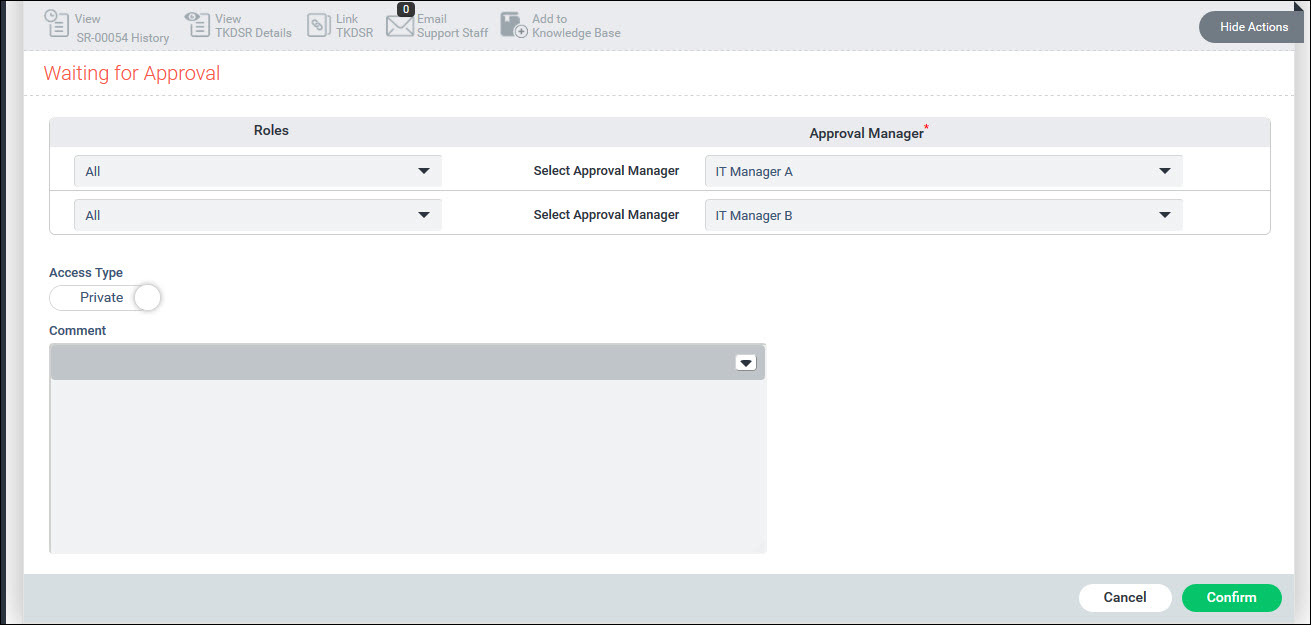
Select an approval manager from the list displayed. Enter any comment and click on 'Confirm'.
The first level approval manager in the case of sequential approval or all the approval managers in the case of parallel approval will be able to view the record and act on it.
The approval manager can log-in and approve the record. Records
which are awaiting approval have an  button displayed
against the record. Click on the button and the approval screen is
displayed.
button displayed
against the record. Click on the button and the approval screen is
displayed.
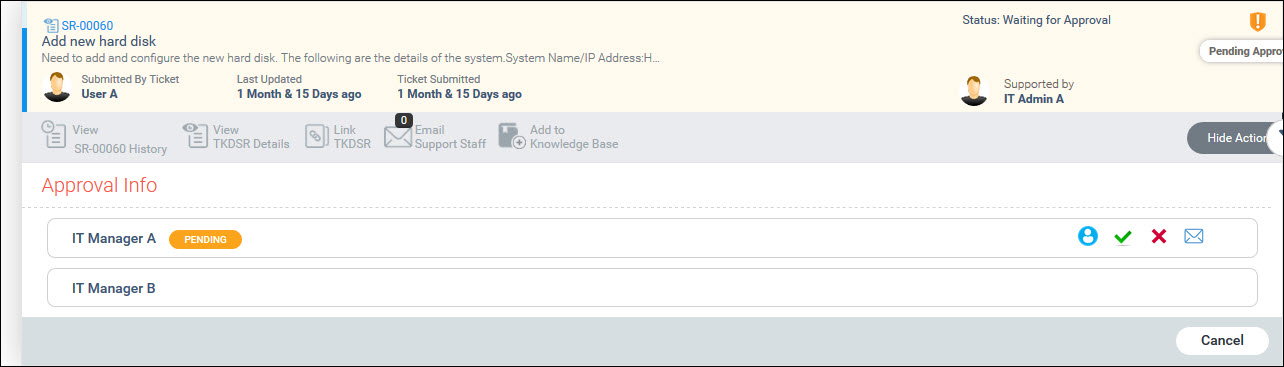
Each of the buttons are explained in the section below.
Click on  or
or  to approve or reject the
record. A screen for comment is displayed. An icon to add an attachment
is present. You can click on this to upload one or more attachments.
These attachments can be viewed under Ticket History or Attachments.
to approve or reject the
record. A screen for comment is displayed. An icon to add an attachment
is present. You can click on this to upload one or more attachments.
These attachments can be viewed under Ticket History or Attachments.
Enter any comment and click on 'Confirm'. The status shows as 'Approved' or 'Rejected'.

Similarly all the approval managers configured in the workflow can login and approve or reject the record.
If all the approvals are received and the configuration is done to automatically transition the state, then the state of the record is changed to the configured state.
There may be a need to seek clarification before giving approval.
As an approval manager you can initiate a clarification mail by clicking
on  . A mail template is displayed.
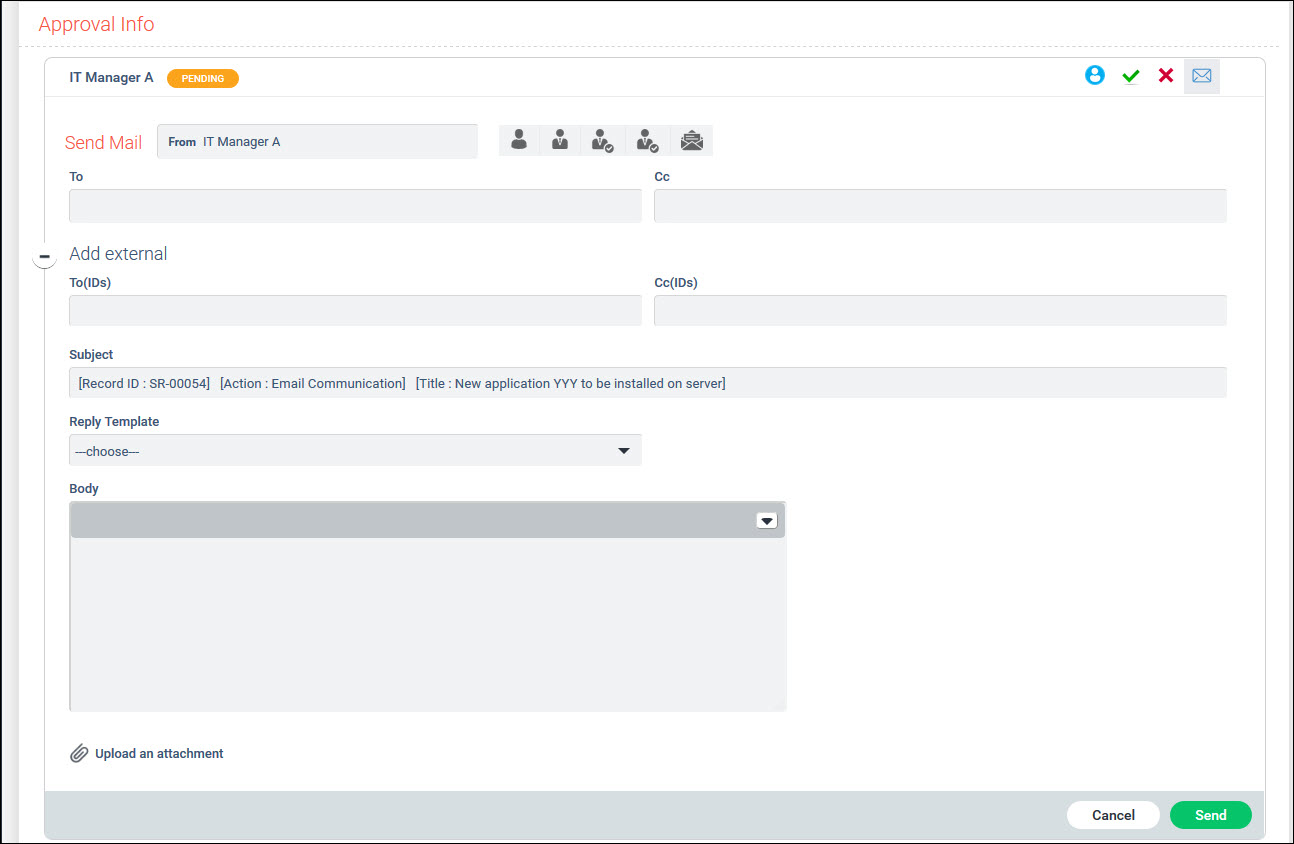
You can select the mail ids of the recipients, enter the content and click on 'Send' to send an e-mail.
As an approval manager, you can route the approval to another
manager. Click on  .
A change manager screen is displayed.
.
A change manager screen is displayed.

Select the new approval manager and click on 'Update'. The approval request will be routed to the new manager who can view the request after logging-in.
If the project setting key 'Enable or Disable Approval Manager Change Ticket View' is enabled then the previous approving manager can still view the record after the approving manager is changed. In this case the following screen is displayed
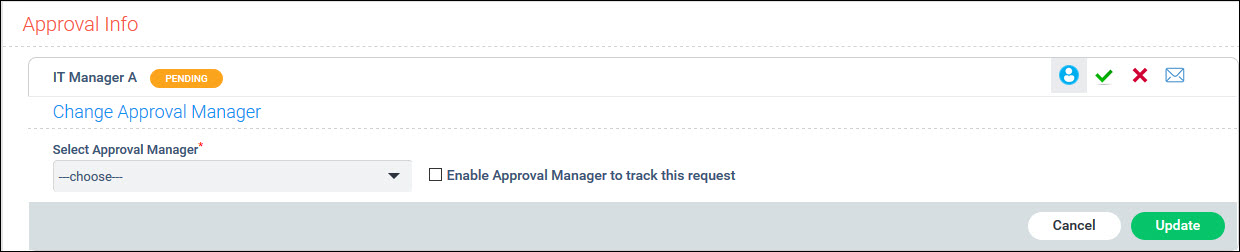
Select the new 'Approval Manager' and mark the checkbox 'Enable Approval Manager to track this request' if the previous Approval Manager needs visibility to the record.
Click on 'Update'.
In this case the records whose approval manager has been changed
can be viewed from the listing screen by clicking on  icon.
icon.