
SapphireIMS provides language support for languages other than English. Currently the languages supported are English and Portuguese.
To enable multi language support, follow the steps below:
1. Change the global settings variable 'Multi language support type' to 1.
2. Logout and login again
3. Click the 'Preferences' link
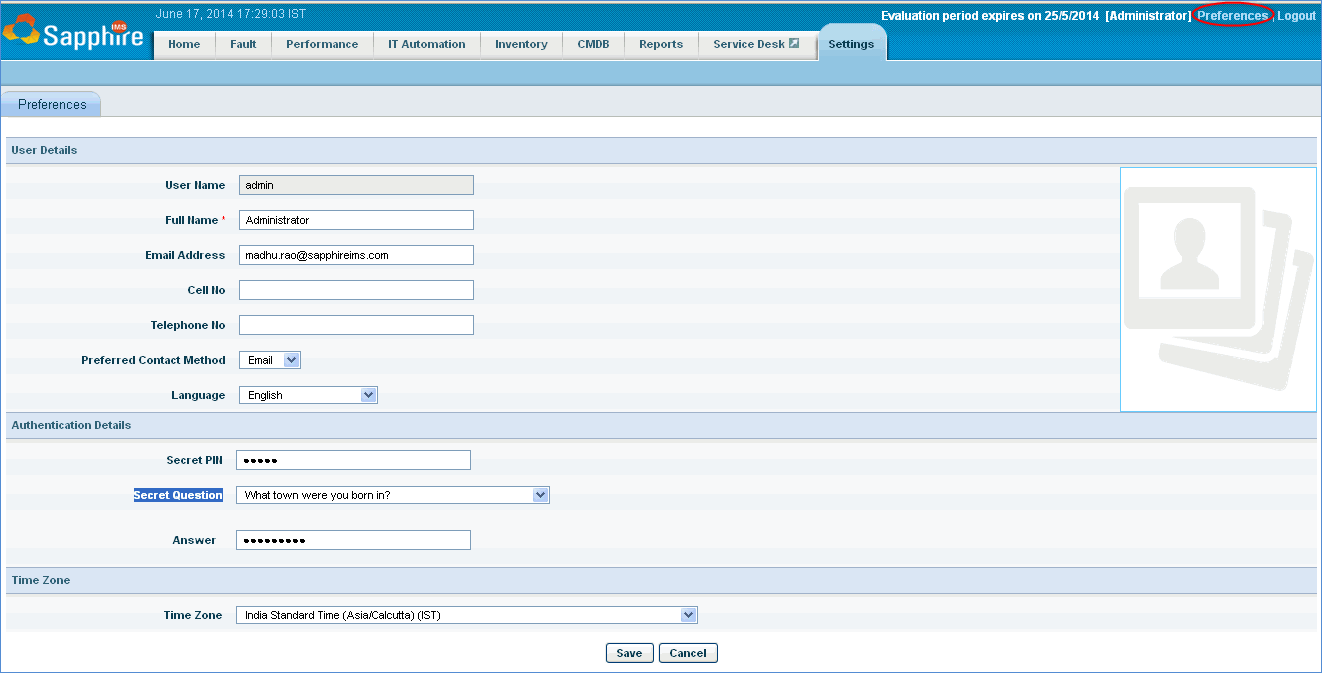
4. Select the language of display for the web interface
Note: Multi language support applies only to Asset & Inventory Management, Fault and Notifications, Business Service Monitoring and IT Automation configuration screens
SapphireIMS allows you to personalize the web interface by translating the existing text.
Click Settings->Advanced System Settings ->Translate
The total number of text in the application is displayed along with the English text and the Portuguese text one below the other as shown in the below image.
Modifying Sentences
If you want to modify a sentence, follow the steps below
Enter the text in the Search for English text field. Example: “Automation “
Click the Search button. The search result shows the list of sentences with text “Automation”
Click the Edit icon below the sentence.
Enter the modified text in the text box provided.
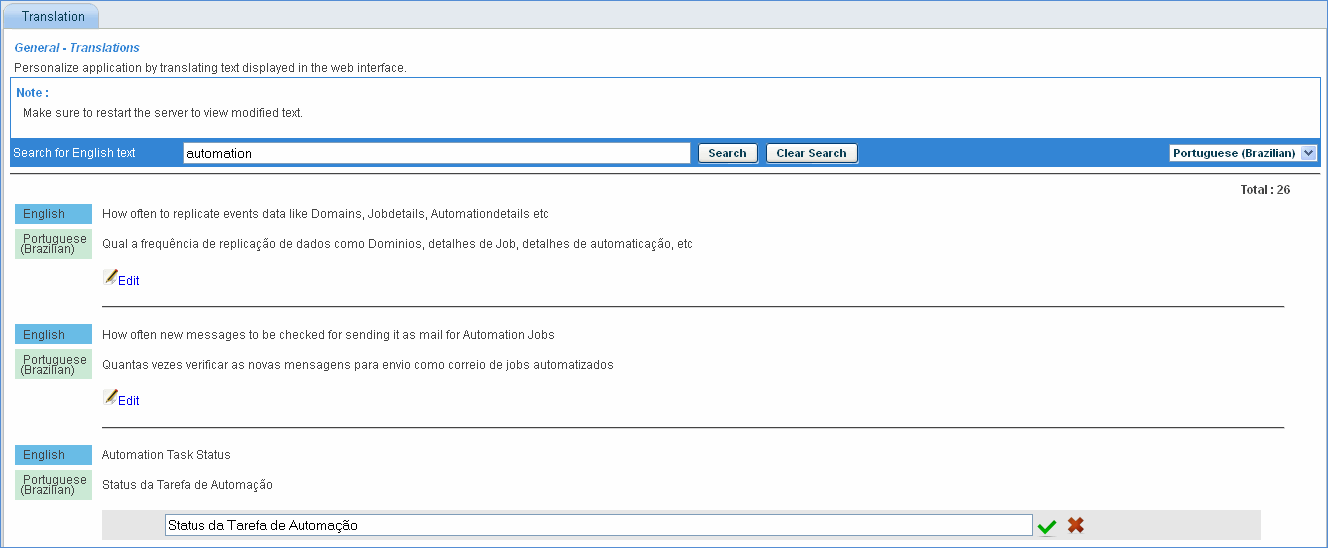
5. Click the icon to save the text. The entered value is saved in the file present in the app/i18n directory.
Note: The translated text will be visible only after service restart.