
SapphireIMS allows you to collect the hardware inventory from Windows and Linux nodes which are not connected to the network. This is done by installing and executing a program on these systems which collects the information from these systems into a file. This file is uploaded into SapphireIMS after which the information can be viewed in SapphireIMS.
1. Download the package ‘SapphireIMS_WMILite.zip’ on the target system by clicking on the following link http://www.sapphireims.com/patches/4.0/StandAloneInventory/StandAloneInventory.zip or copy the package from the SapphireIMS server at '<install-path>\ConsoleManagement'.
2. Extract the zip file. A folder named ‘SapphireIMS_WMILite’ is created. The following files should be present in this folder.
DataSchema.xml
WMILite.exe
ZipUnzip.dll
HttpPost.dll
mfc90.dll
mfc90u.dll
msvcp90.dll
msvcr90.dll
Microsoft.VC90.ATL.manifest
Microsoft.VC90.CRT.manifest
Microsoft.VC90.MFC.manifest
3. Run the command ‘WMILite.exe’ in the target system (Run as administrator in Windows Vista and above)
4. When the program completes execution, a zip file is created in the same folder. The file name will have the format ‘VPN_Windows_WMI_<Hostname>_<Random Number>’.
5. Proceed to the section "Uploading the inventory data in SapphireIMS"
1. Download the package ‘SapphireIMS_Script.tar.gz’ on the target system at '/var/tmp' by clicking on the following link http://www.sapphireims.com/patches/4.0/StandAloneInventory/SapphireIMS_Script.tar.gz or copy the package from the SapphireIMS server at '<install-path>\ConsoleManagement'.
2. Extract the files in the zip. The following files should be present in the folder
sapphire_scripts.tar.gz
sapphire_cksum.txt
sapphire_install.sh
3. To install the script, execute the following command in remote Linux machine,
sh sapphire_install.sh -[nosudo | sudo] -loc /opt/SapphireIMS -upgrade
4. After executing the command you can find a directory 'SapphireIMS' created inside /opt.
5. For collecting the inventory data, go to `/opt/SapphireIMS/bin` and execute the command,
sh sapphire_lite.sh -[nosudo | sudo]
A new zip file is created in the /opt/SapphireIMS directory.
6. Proceed to the section "Uploading the inventory data in SapphireIMS"
1. Copy the zip file created on the target system into a folder on the SapphireIMS server.
2. In SapphireIMS, on the main page click on 'Settings', and under the 'Asset and Inventory Management', section click on 'Standalone Workstation Audit'. The following screen is displayed.
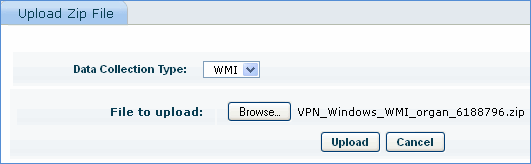
3. Select the 'Data Collection Type' as 'WMI' for Windows or 'SSH' for Linux, select the zip file to be uploaded and click 'Upload'.
4. On the main page, click on 'Inventory' followed by 'Discovery'. The target system details will be listed. All the inventory data will be available for the target node.
 Notes: 1. Standalone Workstation
Audit feature is not available in the Enterprise Plus edition.
Notes: 1. Standalone Workstation
Audit feature is not available in the Enterprise Plus edition.