Organization unit (OU) is a grouping of systems under a logical group such as "Location" or a "Business Unit" or a "Cost Center". Grouping of systems in this manner enables reporting and analysis to align with business needs. OU grouping can be structured in a hierarchical tree fashion. For example, in an enterprise having multiple divisions, each division could have branches in different cities which further could be categorized into different geographical areas.
Organization Unit view provides a graphical tree view of the organization units with all the discovered devices in the organization along with drillable dash boards.
Multiple sub tree structures (based on geography, hierarchy, BU etc) for the hosts can be configured
"ROOT" is the parent of all sub trees. Default OU is shipped with the name "PreShipped OU" under this tree. All agent and agent less nodes are mapped to this sub tree after discovery.
Option to define mapping rules for each sub tree structure is provided. All agent and agent less hosts are mapped to the sub tree nodes depending on the mapping rule for that sub tree.
One host cannot be configured in two child nodes of the same sub tree. But a host can be part of two different sub trees.
 Note: New sub-trees should
be added under Pre-shipped OU and not directly under ROOT OU.
Note: New sub-trees should
be added under Pre-shipped OU and not directly under ROOT OU.
Click the 'Settings' tab. In the 'Asset and Inventory Management' section, click 'Organization Units' Click on 'PreShipped OU'.
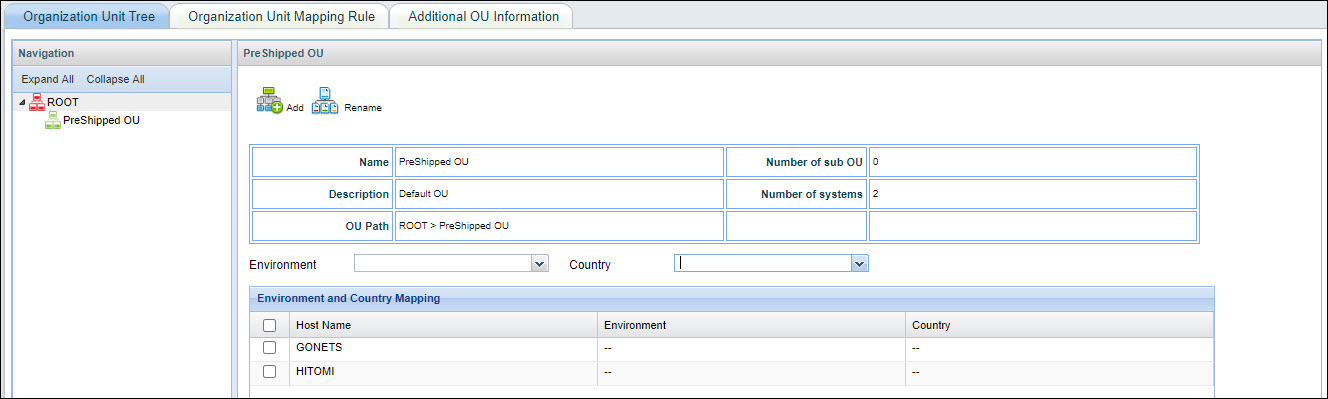
There are two ways to create a new organization unit. Click the 'Add' button or right click on 'PreShipped OU' and click the 'Add Child' option.
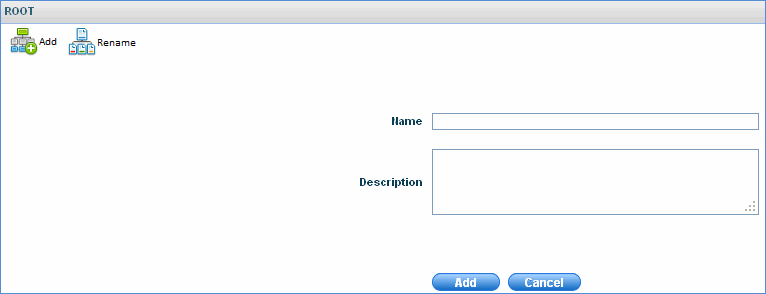
Enter the Name and Description of the OU and click 'Add'.
The new OU is created under 'PreShipped OU'.
Notes: 1. Root refers to the root of the organization and cannot be deleted. PreShipped OU also cannot be deleted.
2. All the nodes (Agent and Agent less) present in SapphireIMS will be available under default OU of a particular sub tree. If a rule is configured against this sub tree, the systems get mapped accordingly.
Click the organization unit to be renamed and select the 'Rename' option. This option changes the organization unit name and also maps all the agents or hosts to the newly renamed organization unit.
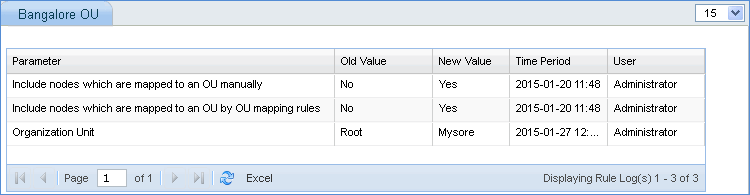
Note: Changes to the organization unit mapping rule can be viewed under Settings > Organization Unit > Organization Unit Mapping Rule > Audit Log
Select the organization unit to be deleted and select the 'Delete' option. This option deletes all the references to the OU and the OU as well.
Organizations typically have various environments such as Development, Production, Testing, Support etc. which have certain specific licensed software running. You can map systems to a particular country or environment, so that software compliance can use this information to check for environment or country of usage violation.
Select the particular business unit for which the hosts under it need to be mapped to a specific environment
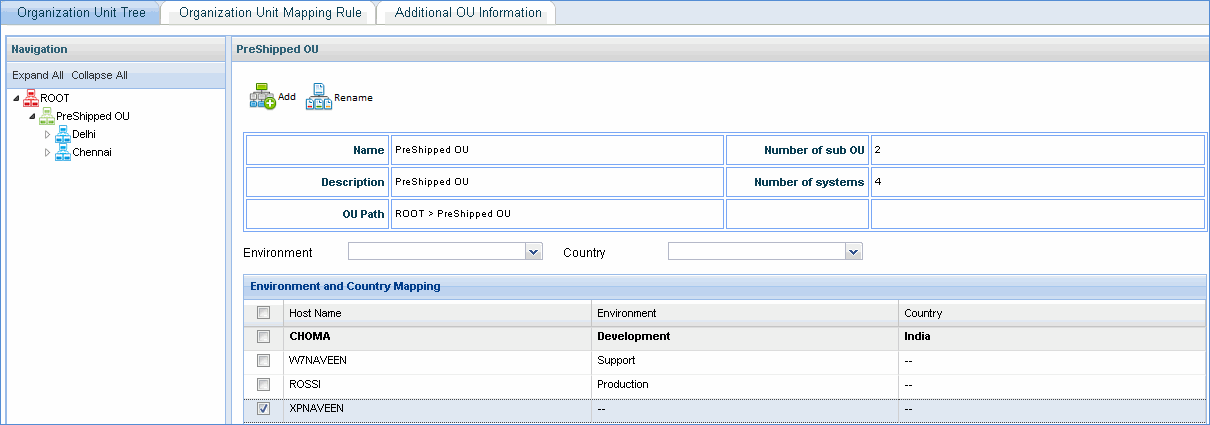
Check the hosts and select the environment and country to be mapped to them
This option is available for all the sub OU's.
Click  button to
map systems to the selected OU.
button to
map systems to the selected OU.
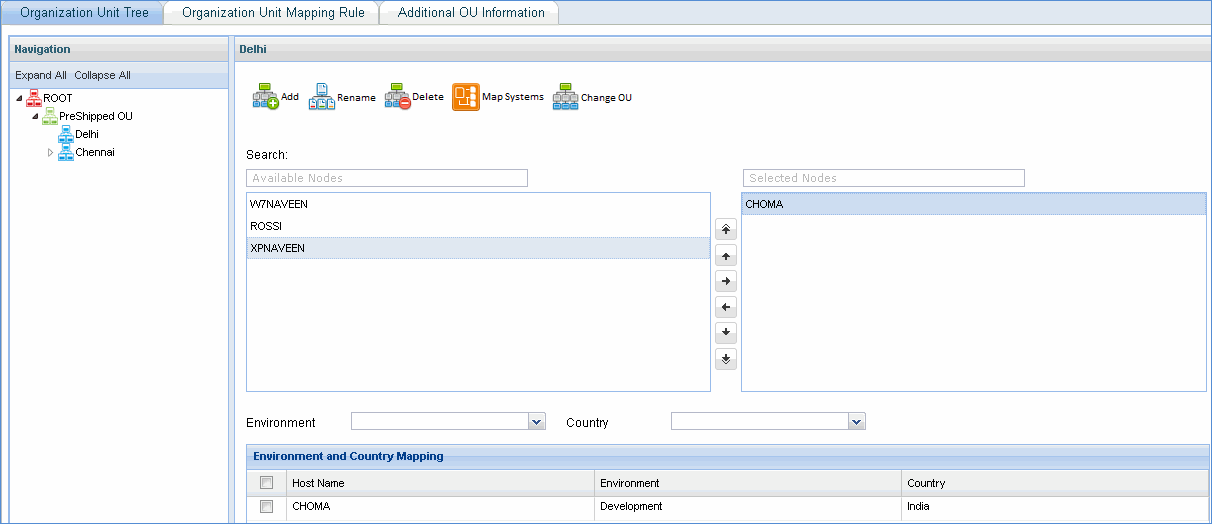
Select the systems to be mapped to
the OU and click  to move the systems to 'Bangalore'
OU.
to move the systems to 'Bangalore'
OU.
Click 'Add' to save the mapping
In the 'Navigation' panel, click the OU to be changed (you can map systems from other OU's to the selected OU) and click 'Change OU' option. All OU's other than the selected OU are displayed.
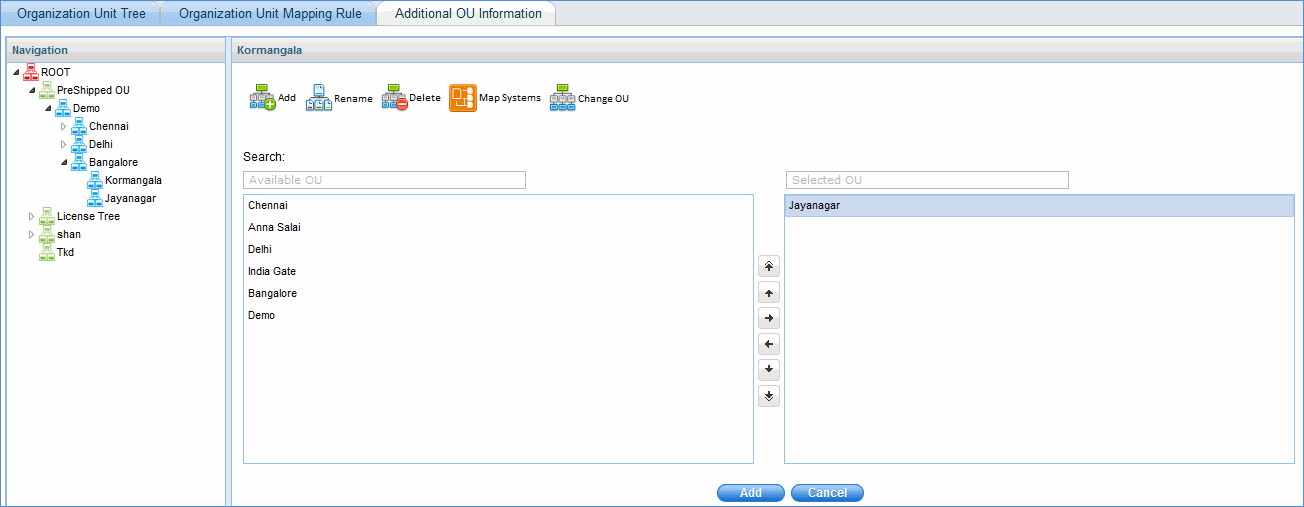
In the example shown above, 'Kormangala OU' is selected. Select the OU (Jayanagar) whose systems have to be mapped to 'Kormangala' OU.
Click 'Add' to save changes. All the systems that were previously mapped to 'Jayanagar' OU are now mapped to 'Kormangala' OU
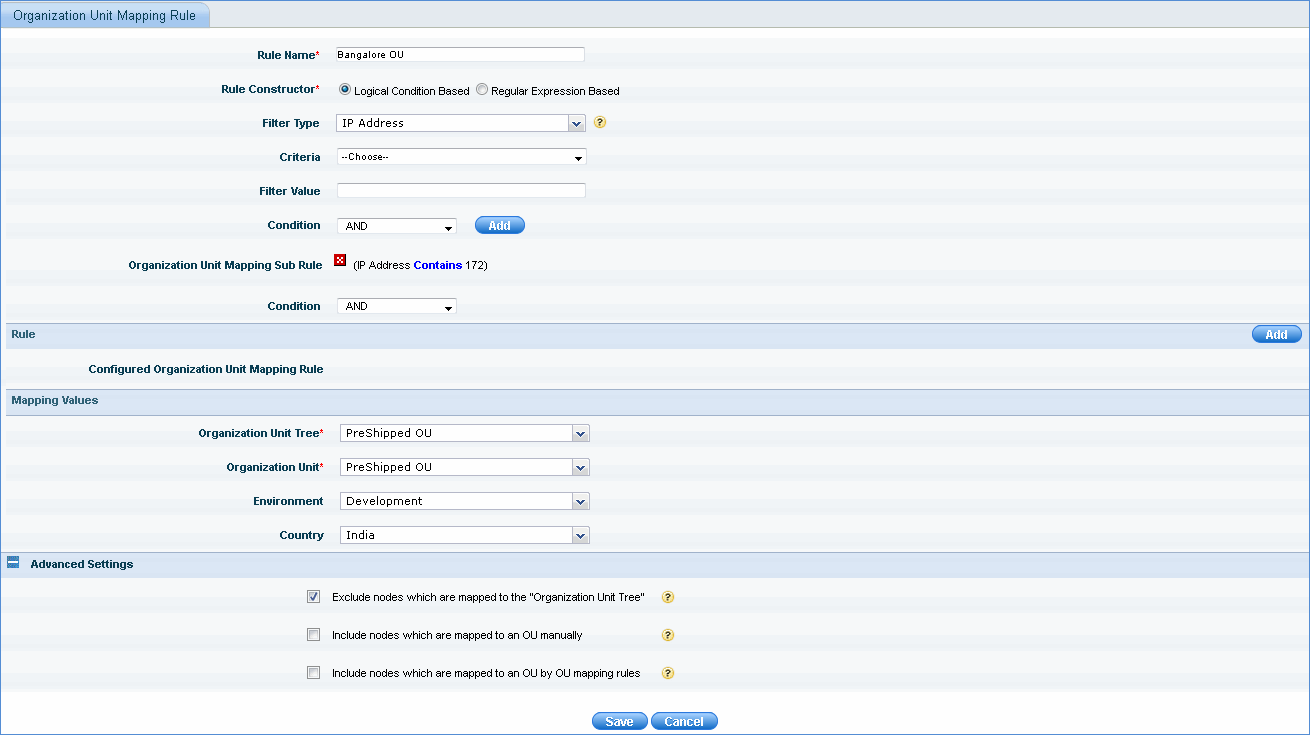
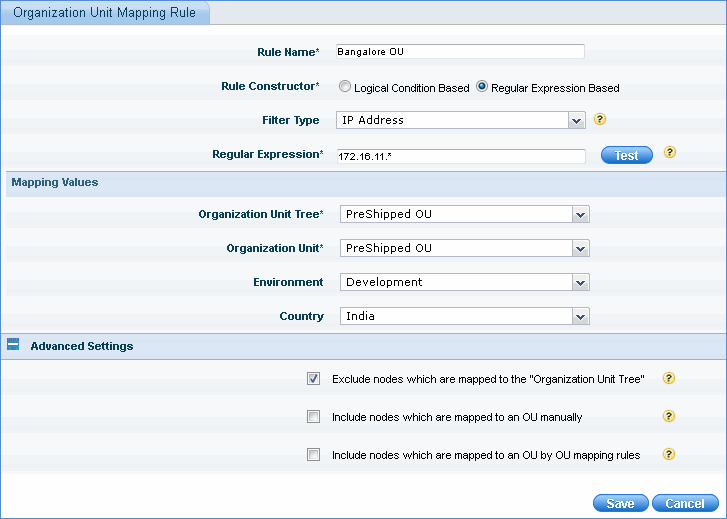
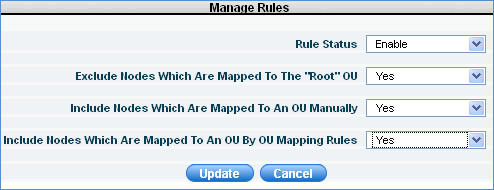
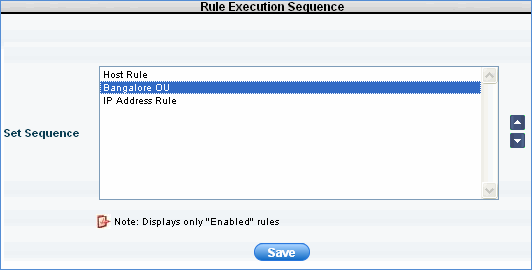
Organization Mapping Rule allows you to define a rule for automatic mapping of nodes (agent as well as agent less) to an Organization unit.
The 'Organization Unit' listing page lists the OU rules that are already defined. The schedule for mapping the nodes using organizational unit mapping rules is 3600 seconds. This schedule can be changed.

Click each of the below topics to view it in detail