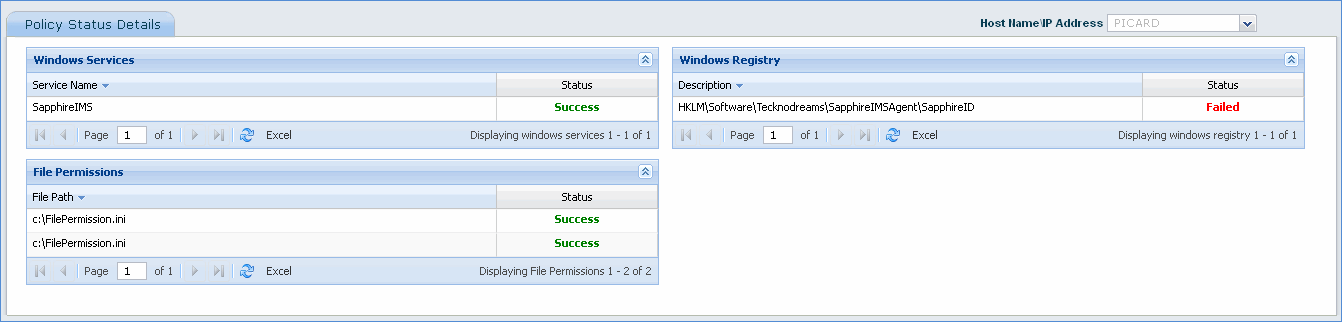
SapphireIMS allows you to add a custom policy configuration rule for policy analysis.
SapphireIMS does a Policy Analysis where it compares the data collected from the host with the policy standards as per the custom policy configuration rule after every inventory collection.
The policy allows you to monitor services discovered through SapphireIMS against custom policy compliance, specify registry key values, specify file permissions and specify the policy scope or the nodes which are applicable for the policy.
1. Click the ‘Custom Policy Rules’ tab.
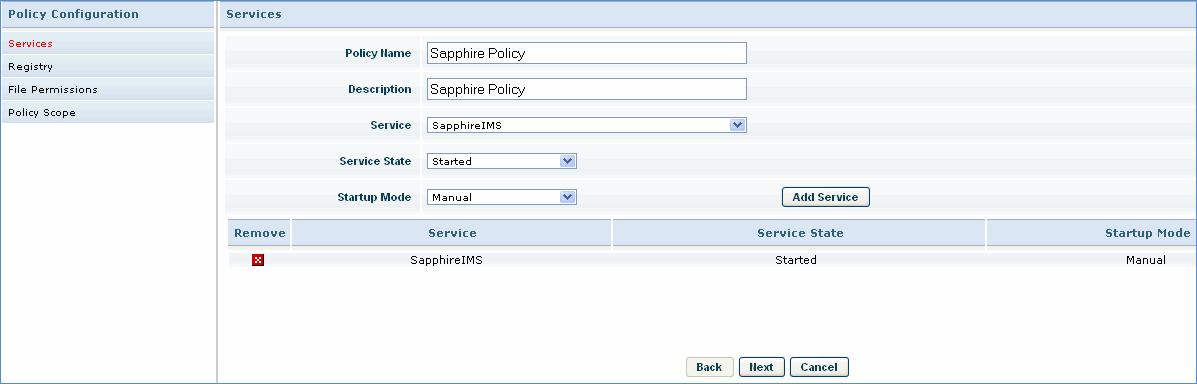
2. Enter the name and description of the custom policy.
3. Select the service to be monitored for custom policy compliance.
4. Select the ‘Service State’ and the ‘Startup Mode’
5. Click ‘Add Service’
6. Click ‘Next’
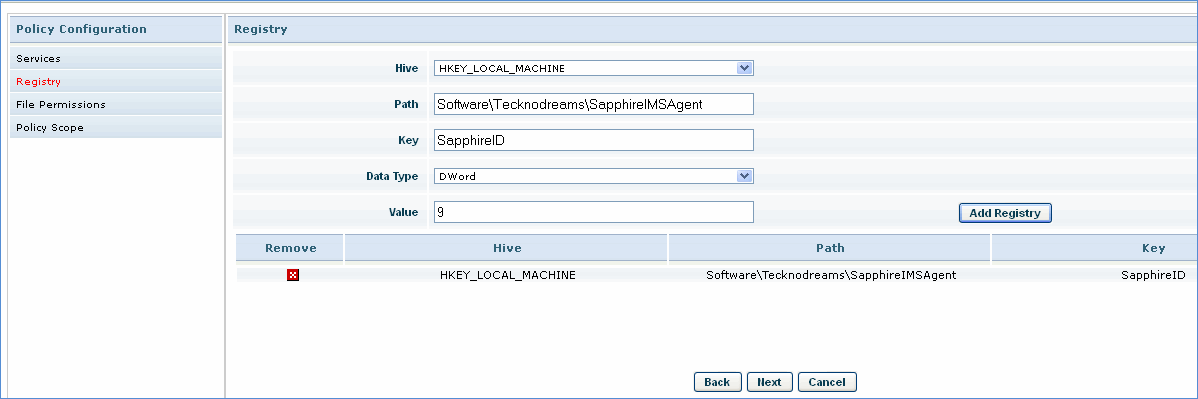
7. Select the registry hive and provide the path of the registry key to be monitored for compliance.
8. Enter the name of the registry key
9. Select the data type and enter the compliance value of the registry key.
10. Click ‘Add Registry’
11. Click ‘Next’
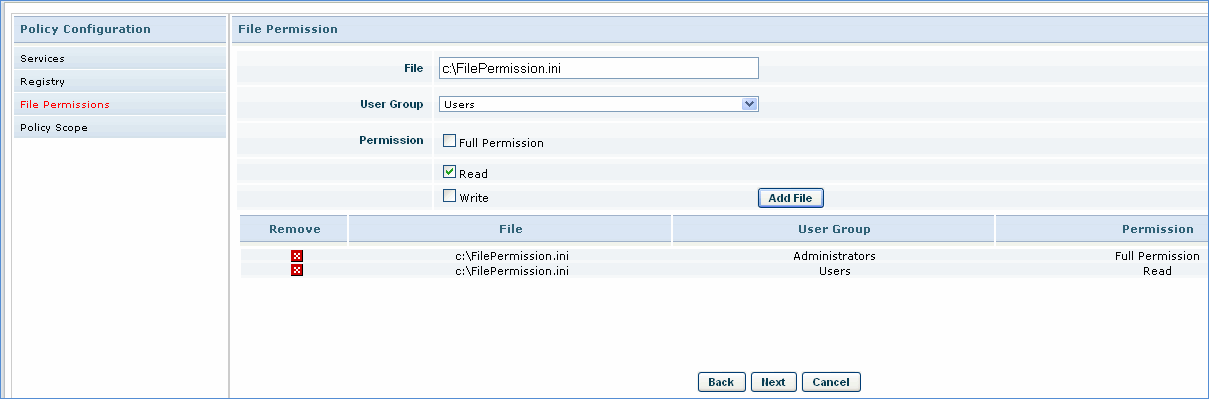
12. Enter the file name to be monitored for compliance
13. Select the user group
14. Check the desired permissions for the file
15. Click ‘Add File’
16. Click ‘Next’
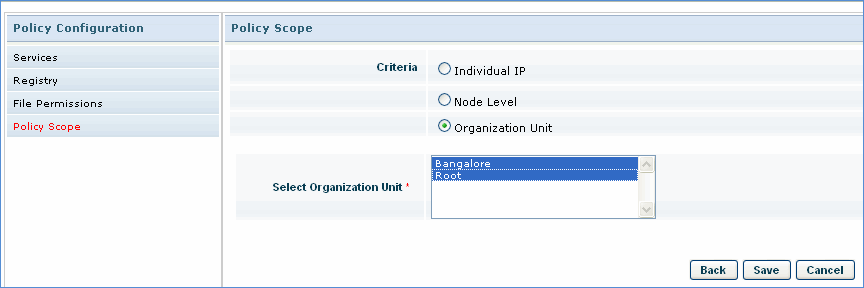
17. Select the hosts to be monitored for the custom policy compliance rule.
18. Click ‘Save’ to save the custom policy configuration.
1. Click the Policy Analysis tab.
2. Select the Rule and the Policy Name to view the % of policy compliance