
Defining popup notification flashes a notification message based on the events selected. For example, if popup notification is selected for arrival of new tickets, a notification is flashed on the portal whenever a new record is submitted. Similarly for Mobiles, SapphireIMS supports push notifications which alert the user on various events.
In SapphireIMS portal, click 'Settings' and from ‘Advanced System Settings’ section click 'Global Settings'. Update the value of ‘Enable or Disable Popup Notification’ to 1.
You can change the value of the setting key 'TimeOut Interval for PopUp Notification' to a value between 5 and 60 seconds. Default value is 15 seconds.
In SapphireIMS, under 'Service Desk', click 'Settings' panel, click on the '+' sign to expand 'General Settings'. Click on 'Popup Notification'.
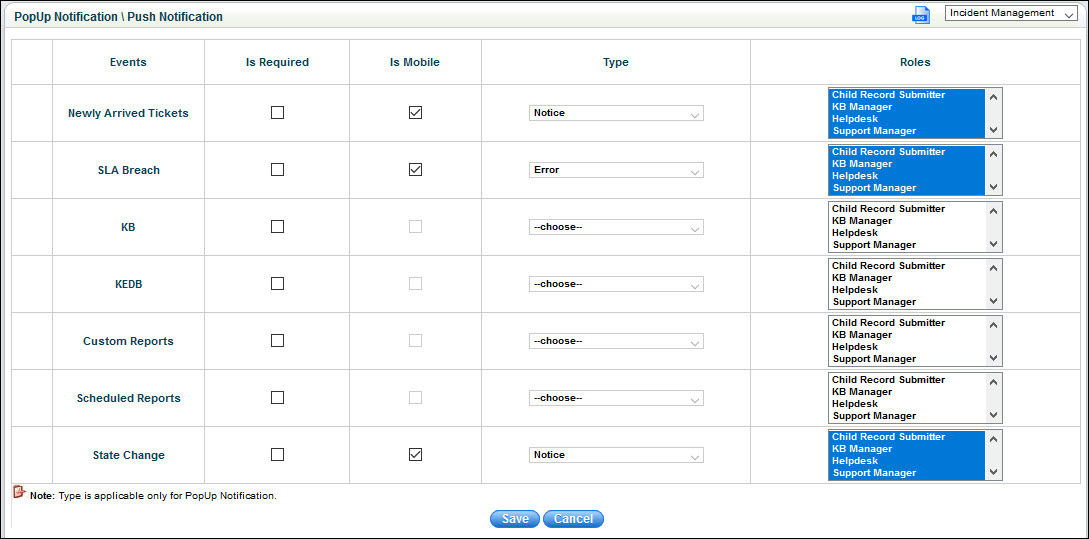
Check the box 'Is Required' for events for which popup notification is required.
Similarly if a Push Notification on the mobile is required for the event, check the box 'Is Mobile'.
Select the type of notification required and select the roles which will receive the Popup or Push Notification.
Click 'Save'. The popup notification or Push Notification is displayed based on trigger of the events that are selected.
There are three types of popup notification
Notice - notification is in green color
Warning - notification is in yellow color
Error - notification is in red color
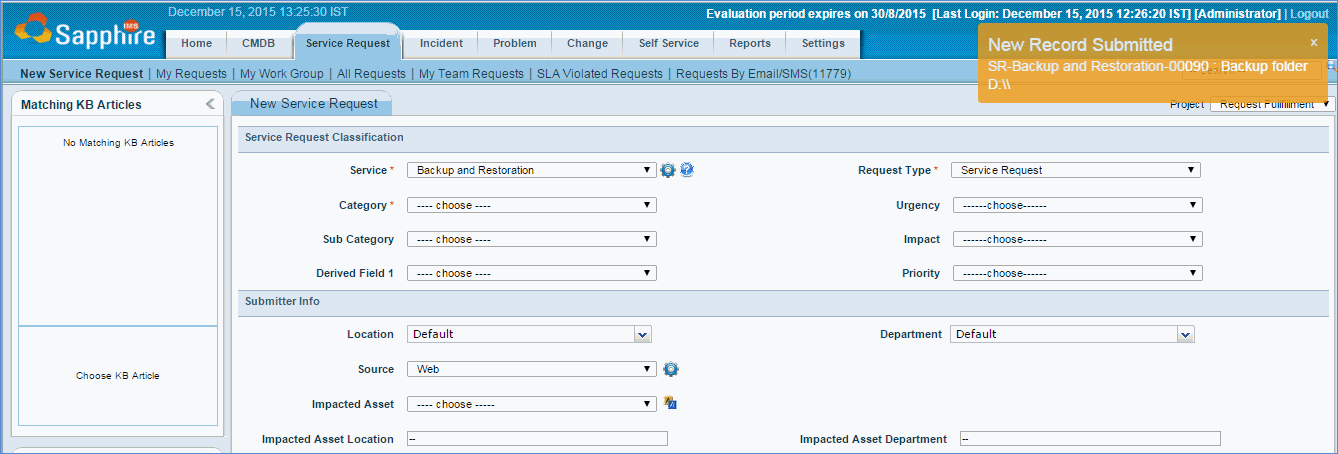
Note: The user will be able to view the popup notification based on the role configuration provided in popup notification. For example, if 'Technician' role is selected for newly arrived tickets, all technicians in the service desk project domain will receive the popup notification on arrival of a new ticket.