Efficient power management helps in saving energy of your system. A desktop/laptop’s power management functions can be controlled by setting a power policy in SapphireIMS. Functions like hard disk turn off time, monitor turn off time, system stand by time and laptop hibernation can be managed.
The power policy created in ‘How to Configure Power Management Policy’ section can be applied to one/multiple systems. To apply the power policy, follow the steps given below.
1. On the SapphireIMS menu, point to ‘IT Automation’, and click ’Power Management’
2. Host Selection: From ‘Choose Hosts’ section, click ‘Criteria’ and select as desired. The options displayed in ‘Criteria’ list box are as explained below.
All- This includes all the nodes in the network
Node Level- This allows selection of the specific nodes. Use this if you know the host name or the IP address of the nodes.
Domain /Organization Unit/Operating Systems/Baseline Compliant Nodes – This allows you to select hosts belonging to the desired domain/Organization Unit/having the desired operating system/satisfying the baseline compliant nodes rule.
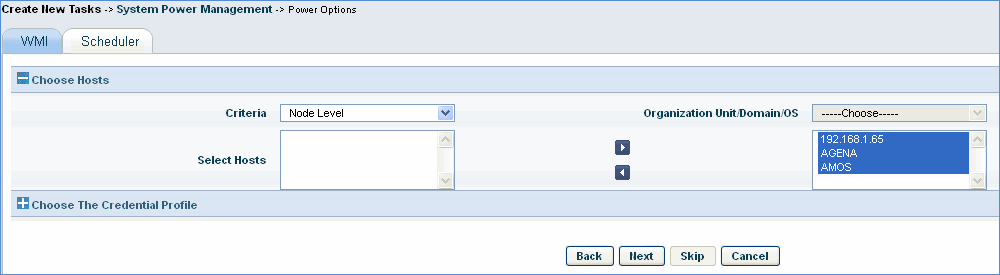
3. Once the host selection is complete click ‘Next’
4. If a power policy is not created, alternatively it can be created by clicking the link given here.
5. The ‘Power Policy’ name is listed in this section. For information on power policy details refer to the section ‘How to Configure Power Management Policy’
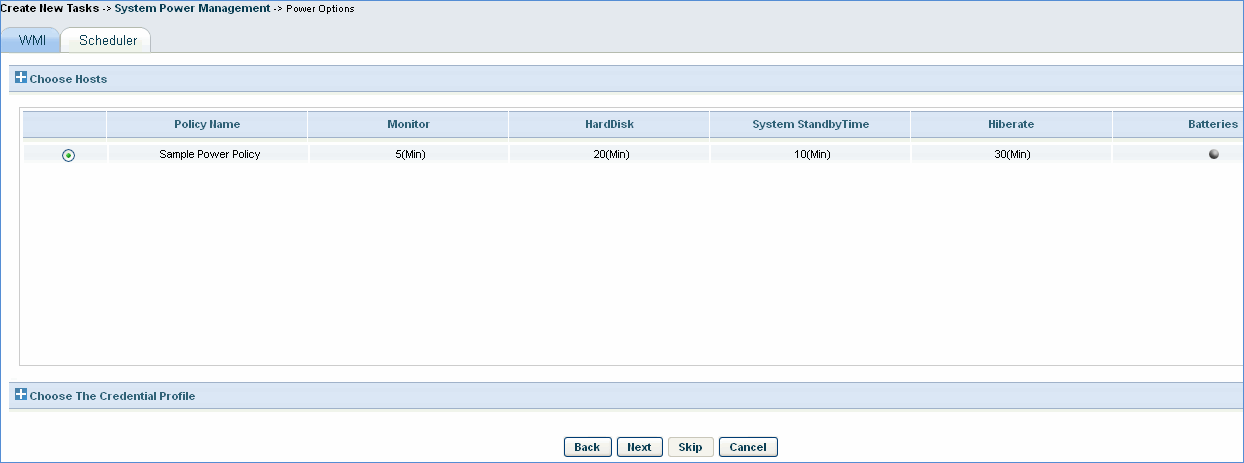
6. Click ‘Next’ to display the scheduler
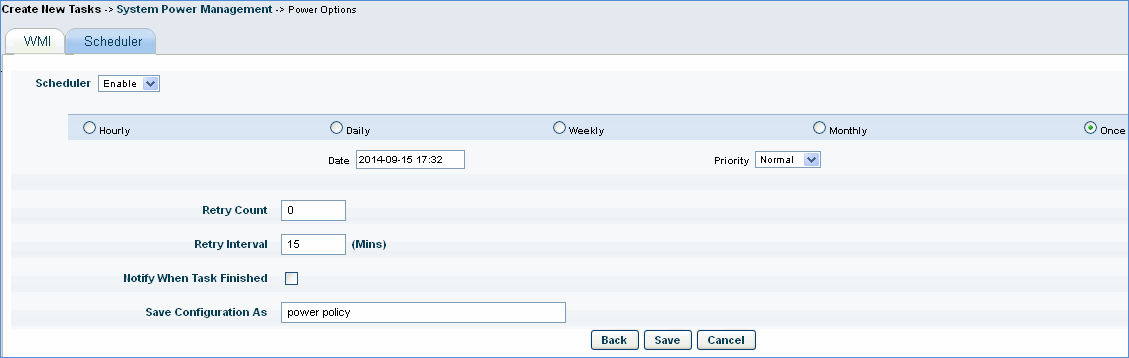
7. Select the time to schedule the power management task
8. Retry Count specifies the number of times the job will be posted for failed power management jobs
9. Retry Interval specifies the time interval after which the failed power management job is re-posted
10. Select ‘Notify when task finished’ if a notification needs to be sent on successful completion of the power management job.
11. Type the power management configuration name and click ‘Save’