
SapphireIMS allows you to create process flow templates for automation tasks. Process flow template enables the user to define the process flow in case of success or failure of a specified automation task.
1. Click the ‘Settings’ tab. In the ‘IT Automation’ section, click ‘Process Flow’.
2. Click ‘Start’ to define the process flow template
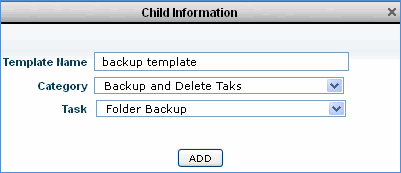
3. Enter the template name, select the category of the automation task and select the task.
4. Click ‘ADD’
5. Click on ‘Root’ to define the process flow.
6. Define process flow for ‘failure’, ‘success’ or ‘ignore case’
7. Each process flow thus defined can have sub process flows for ‘failure’, ‘success’ or ‘ignore case’
8. Save the template definition

9. The template is now listed under ‘Process Flow Templates
10. Click ‘Create Process Flow’ icon to save the process flow with hosts and schedule configuration.
11. Enter ‘Process Flow Name’ ,‘Process Flow Description’ and click ‘Next’
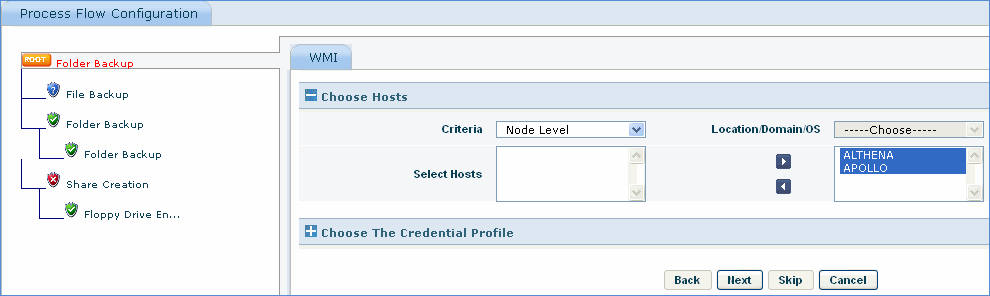
12. Select the hosts applicable for the process flow

13. Enter the folder backup source and destination path
Note: Different process flow require different configurations
14. Similarly complete the process flow configurations for all the process flows defined.
15. Select the process flow schedule and save the configuration.
To view the process flow status, click the ‘Process Flow Status’ tab