SapphireIMS agent for Linux machines can be installed from the SapphireIMS server portal to a range of machines by specifying the IP address and server details of the destination machines.
Pre-requisites for SapphireIMS agent installation in linux machines:
User must be either a root or sudo user
Python 2.6+ must be installed
Sqlite3 python module must be present
Internet access to SapphireIMS server
Note: SapphireIMS server is supported on Fedora, Ubuntu, Redhat, Debian, Open Suse and Suse Enterprise Linux flavors
To install SapphireIMS agent remotely on linux machines, perform the following steps:
On the SapphireIMS menu, point to IT Automation and click Automation Tasks
Click Discovery and click Linux Agent Installation

Sr. No |
Field Name |
Description |
1
|
Start IP
|
Enter the start range of IP address for linux agent installation
|
2
|
End IP
|
Enter the end range of IP address for linux agent installation
|
3
|
Host Profile
|
Select the host profile (ssh credential profile) used to connect the target machines to SapphireIMS server for linux agent installation
|
4
|
Server IP Server Port
|
Enter the SapphireIMS server IP address and port number in which the server is running
|
5
|
HTTPS
|
Check this box if the installation has to be performed securely
|
6
|
Organization Unit
|
Select the OU to which the target machines belong to
|
7
|
Asset Tag
|
Enter the asset tag provided to the target machines at the time of discovery
|
8. Proxy Server Details - Enter the IP Address, port, user name and password if the agent machines need to connect to SapphireIMS server via a proxy server
|
||
9
|
VNC Port
|
Enter VNC Port number to enable remote access for the machines. Note: This is related to remote access of the agent machines and not considered by the installer.
|
10
|
Ping
Timeout
|
Enter
'Ping Timeout' in milliseconds to declare an IP address as 'System
Unreachable'
|
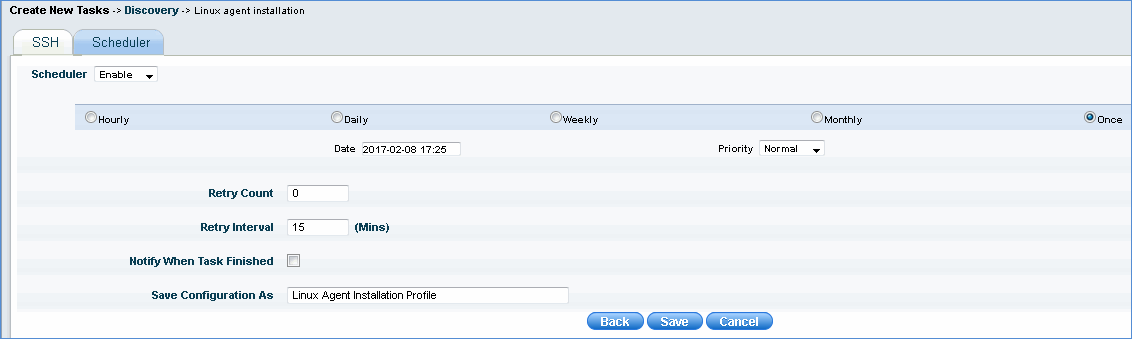
Click 'Next' to define the linux agent installation schedule