
SapphireIMS supports other third party remote control software such as 'Radmin' which can be integrated with SapphireIMS.
The following section explains how ‘Radmin Viewer 3.4’ a third party program can be integrated with SapphireIMS to connect to a system remotely. This feature provides complete remote control access and allows performing all the remote management tasks.
1. Radmin Viewer (the client module) must be downloaded and installed on the computer which you want to use to access remote computer.
2. Radmin server must be running on the remote computer in order for you to control it.
3. Download ‘Radmin Viewer 3.4’ and install it. Radmin Viewer must be registered with SapphireIMS for the integration to proceed.
Radmin once installed must be registered with SapphireIMS.
· To register Radmin type the command as shown below from the command prompt from ‘Radmin’ installed directory.
<InstalledPath>\SapphireIMS\ConsoleManagement\ITAutomation\SAPP_RDP.exe\register Radmin.exe >
Refer to the image shown below.

You will receive a registration success message similar to the one shown below. Click ‘OK’
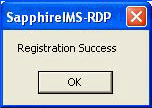
Radmin is successfully registered with SapphireIMS. Now remote access needs to be enabled from within SapphireIMS.
To enable remote access for using Radmin click ‘Settings’ > ‘Advanced System Settings’ > ‘Global Settings’.
Click the variable ‘Enable or Disable Remote Control Feature’. Edit the setting key value as per the description
In the ‘Setting Key’ text box type 2 for enabling ‘Radmin’ feature from SapphireIMS
Click the ‘ ’icon to initiate
remote access from SapphireIMS
’icon to initiate
remote access from SapphireIMS
Once Radmin has been enabled from SapphireIMS the remote access icon will be visible in ‘RC’ column of the ‘Inventory’ > ‘Discovery’ > ‘Discovered Nodes’ page. Refer to the image below.
Click
the remote access icon ‘’
across the host name to display a remote login screen.
