
Default SLA comments can be added, so that when SLA breach has occurred, SLA comments can be selected from the default drop down list.
Select 'Service Level Management' option on the right hand side panel.
Click on 'SLA Comment'. A list of configured SLA Comment is displayed.
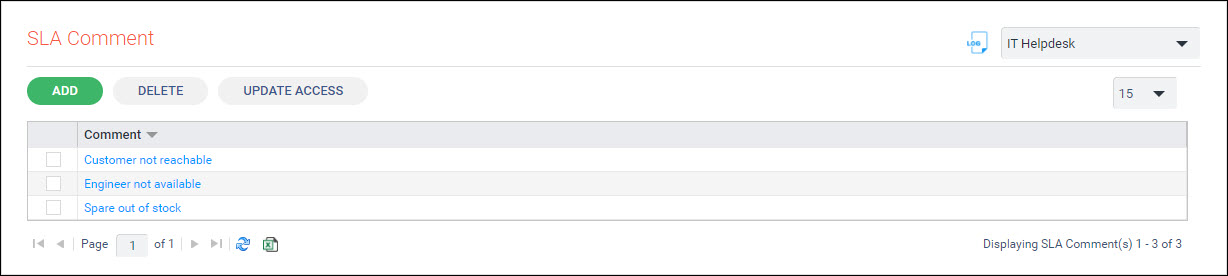
Click on a comment to edit or click on 'ADD' to add a new comment.
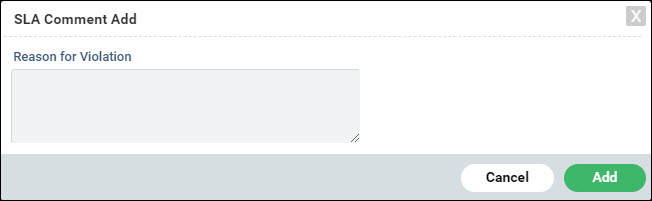
Enter the 'Reason for Violation' and click 'Add' or 'Update'.
In the listing select a comment and click 'DELETE' to delete the comment.
You can restrict access to SLA comments based on roles. To modify access click on 'UPDATE ACCESS'.
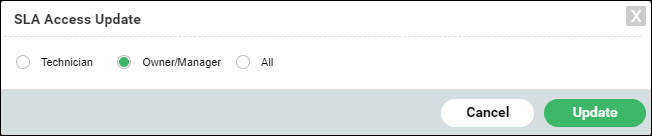
Select the role as 'Technician', 'Owner/Manager' or 'All'.
Click on 'Update'.