Scheduled Reports


Scheduled report provides an option to schedule reports to be sent as an e-mail periodically. This would be useful in the following scenarios


1. On the SapphireIMS menu, point to 'Reports' and click 'Scheduled Reports

2. All the scheduled reports will be listed in this screen. To create a new report, click 'ADD' and read below.


Creating a New Scheduled Report


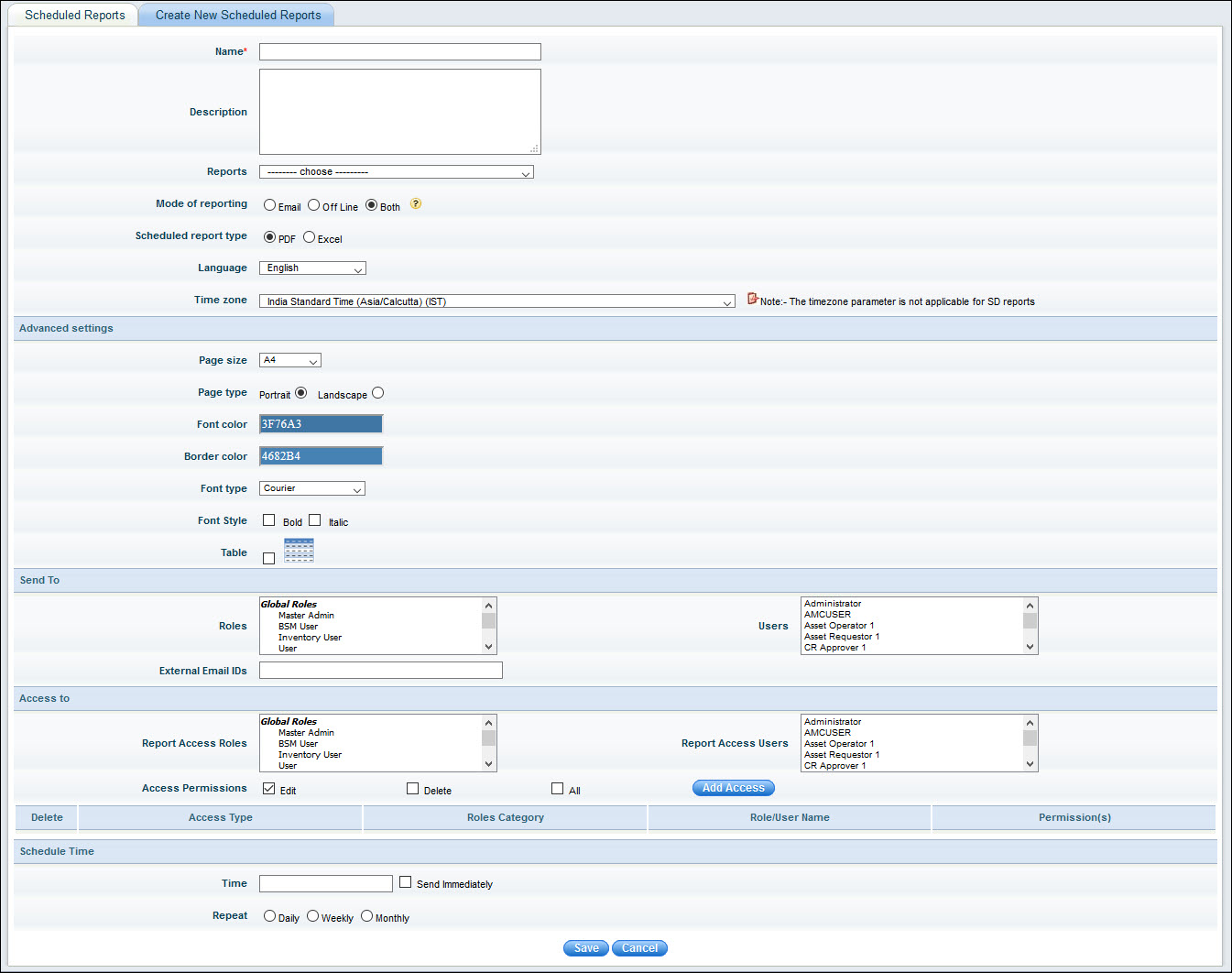
Reports-Sched-Add.jpg

New Scheduled Reports


Sr. No

Field Name

Description

       1

Auto Report Name

The title with which the report would be referred to


       2

Description

Brief description of the report to be created


       3

Reports

Provides a listing of all the system and SLA reports that are created earlier. Select the  report that needs to be scheduled


       4

Mode of Reports

        You can select the mode for the scheduled report as either e-mail, off-line or both

  • E-mail - If this option is selected, the scheduled reports will be notified through e-mail

  • Off Line - The notification mode will be off Line and the users with the access can view the reports when they login to the system. Default mode of offline reports is pdf

  •  

       5

Scheduled  Report Type


Select the format PDF or Excel. Report will be generated in the selected format


Send To


       6

Roles

Globally created SapphireIMS roles and service desk roles will be visible here.

Select the roles to which the report needs to be delivered. All the users attached to the  selected role would get the report delivery


       7

Users

Select the users to whom the report needs to be delivered


       8

External E-mail ID

This text box is provided to deliver the reports to mail ids outside the SapphireIMS system. These users need not necessarily be configured to the system but will receive the reports as scheduled

For e.g.

  • Sending to a customer whose user account is not available in IMS

  • Sending mail to a user whose user account is available in IMS, but his e-mail ID is not available in the IMS user database

       9

Access To

The Access control permissions for the Report can be set here.


Role

Select one or more Roles for which the permission has to be given.


Users

Select one or more Users for whom the permission has to be given.


Access Permissions

Check one or more boxes to give permission to 'View', 'Edit', 'Delete' reports or check on 'All' if all permissions are to be given.

      10

Time

Specify the time at which the report delivery should happen


      11

Repeat

Specify the repeat interval at which the report delivery needs to happen periodically. Note that the report delivery would automatically be scheduled and performed repeatedly in the specified interval


      12

Send Immediately

Use this option to perform an immediate report delivery


Editing/Deleting a Scheduled Report

  1. To edit a scheduled report, select a report from the scheduled report list and click report link. This displays the report edit screen. Make the necessary changes and click ‘Save’.  

  2. To delete a scheduled report, select a report from the scheduled report list and click ‘Delete’. This deletes the report that is selected.