
This feature is used for getting visibility into the Service Desk team members who are available to manage the services.
Click on the button  to sign-in.
A pop-up is displayed asking for confirmation.
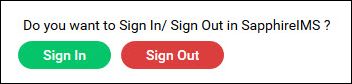
Click on 'Sign-in'.
Click on the button
to sign-out.
A pop-up is displayed asking for confirmation and also displaying the time at which you signed-in.
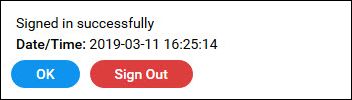
Click on ''Sign-out'.
 Note: This configuration
can only be done by the SapphireIMS Administrator
Note: This configuration
can only be done by the SapphireIMS Administrator
You can configure the Service Desk to sign-out Engineers automatically after a specified duration.
To configure the sign out interval, go to Settings > Advanced System Settings > Global Settings. Select the setting key 'Automatic User Sign-Out Alert'. This setting controls the time before the automatic sign-out at which an alert is displayed.
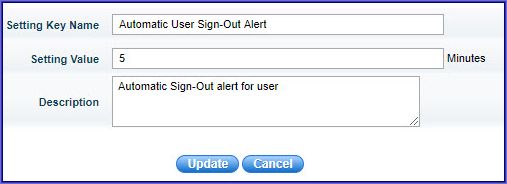
Set the value and click on 'Update'.
Next select the setting 'Automatic User Sign-Out Interval'. A pop-up is displayed to update the interval.
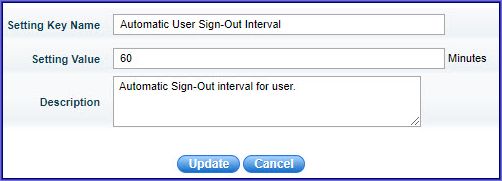
Set the value and click on 'Update'.
Note: Any changes to these
settings requires SapphireIMS to be restarted.