SapphireIMS allows you to monitor storage devices such as IBM Raids in SAN environment.
1. SMCli to be installed in a machine which has fiber channel connectivity to the storage device
2. For SapphireIMS to connect to storage device using SMCli, install and run Open-SSH server in the SMCli installed machine
3. Place IMSStorageCollector.bat in one of the drive say “c:\ “; so this becomes the CLI path in the configuration
1. Click the Settings tab. In the Business Service Monitoring section, click SAN
2. Click Add
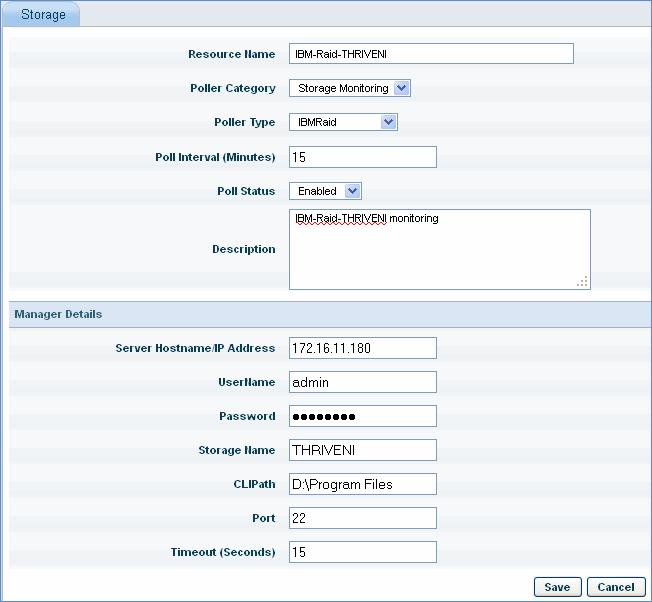
IBM Raid Monitoring
Sr. No |
Field Name |
Description
|
1 |
Resource Name |
Provide the name through which the storage device resource will be identified with.
|
2 |
Poller Category |
Select the poller name. All storage resources will come under Storage Monitoring poller
|
3 |
Poller Type |
Displays the poller types for the selected ‘Poller Category’. Currently IBM Raid, IBM Storewize and IBM DSStorage are supported.
|
4 |
Poll Interval (in mins) |
Specify the polling interval for the application to be monitored.
|
5 |
Poll Status |
By default the poll status would be ‘enabled’. Only if it is set to ‘Enabled’ the polling would be performed.
|
6 |
Description |
A brief description of the resource that is added
|
7 |
IP Address |
Enter IP Address of SSH server running in the SMCli installed machine.
|
8 |
User name and password |
Enter username and password of the SSH server
|
9 |
Storage Name |
Enter user friendly name of the storage device
|
10 |
CliPath |
Enter the SMCli installed path
|
11 |
Port |
Enter port number of the SSH server
|
12 |
Timeout |
Enter timeout (in seconds) for SSH connectivity
|
 Notes:
1. CLI support for storage devices includes IBM raid array DS3524, EMC
raid array (VNX-Block, Clarion)
Notes:
1. CLI support for storage devices includes IBM raid array DS3524, EMC
raid array (VNX-Block, Clarion)
2. Storage device support is also provided using SNMP. The following set of devices are supported:
Raid Array: EVA above 6.0 HP EVA 3000,EVA above 6.0 HP EVA 4000,EVA above 6.0HP EVA 5000,EVA above 6.0 HP EVA 6000,EVA above 6.0 HP EVA 8000, MSA (2000,2312,2324) and MSA P2000
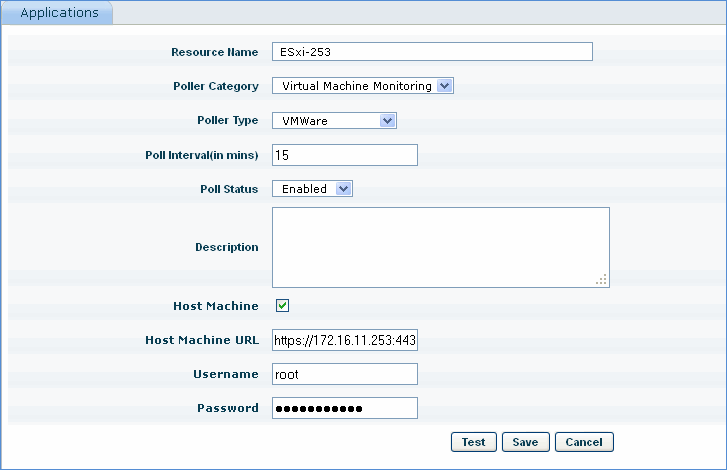
SapphireIMS provides support for monitoring VMWare virtual server as well as Microsoft Hyper-V virtual server.
1. Click Settings, from Business Service Monitoring section, click Application Performance
2. Click Add
1. If poller type selected is VMWare, check if the vmware server is the host machine
2. Enter URL of the host machine
3. Enter Username and password of vmware server
1. If poller type selected is HyperV , enter host name of the hyperV server
2. Enter Username, password and domain of Microsoft HyperV
Click Test to test the connectivity of the virtual server
Click Save to save the configuration