There are a number of customization settings in the Service Desk which can be used to customize the user interface.
 Note: The settings in this
section are supported in the Standard View only.
Note: The settings in this
section are supported in the Standard View only.
SapphireIMS Service Desk has a more contemporary user interface ('Standard') and the users have a choice of using the 'Standard' or the 'Classic' view. As shipped, the default setting is 'Classic'.
The following settings have to be enabled in order to view service desk application in the Standard view.
Login to SapphireIMS as the Administrator.
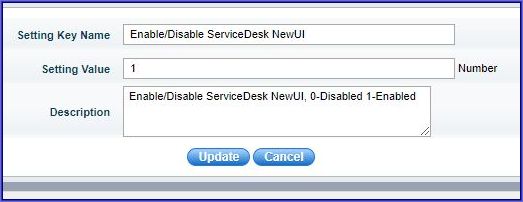
Go to 'Settings > Advanced System Settings > Global Settings' and set the setting key 'Enable/Disable ServiceDesk New UI' to 1. Click on 'Update'.
To enable the Service Desk 'Standard' user interface, navigate to 'Settings > User Management > Users'. Click on the user name and set the value of the 'UI Interface' option as 'Standard'.
Smart Search capability simplifies the submission of tickets. If enabled, based on input entered by users, it can search among ticket submission templates (Quick templates) and bring up the most appropriate one which will have some of the content pre-filled.
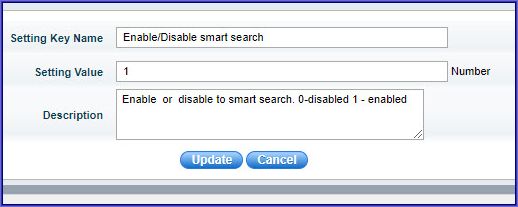
Go to 'Settings > Advanced System Settings > Global Settings' and set the setting key 'Enable/Disable smart search' to 1. Click on 'Update'.
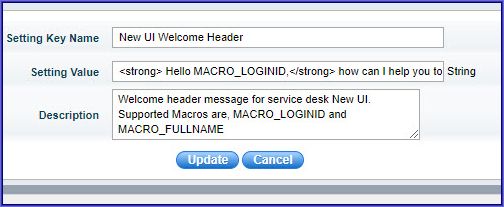
To customize the Header in the Welcome message, navigate to 'Settings > Advanced System Settings > Global Settings' and edit the text against the setting key 'New UI Welcome Header'. Click on 'Update'.
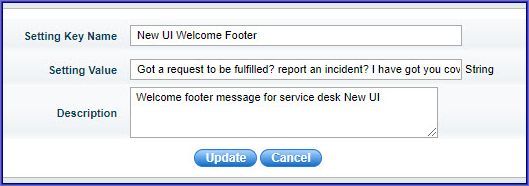
To customize the Footer in the Welcome message, navigate to 'Settings > Advanced System Settings > Global Settings' and exit the text against the setting key 'New UI Welcome Footer'. Click on 'Update'.