Synthetic Transactions


Service Monitoring is about monitoring the quality of service from an end user point of view (User Experience). For example, if an e-mail service has to be monitored from an end user perspective, then it is not just about monitoring the status of the e-mail server, but also simulating the user experience by sending a mail and receiving a mail. This indicates the actual user experience.


The following are the key service monitor resources that can be monitored using SapphireIMS


To enable services for monitoring, follow the steps mentioned below


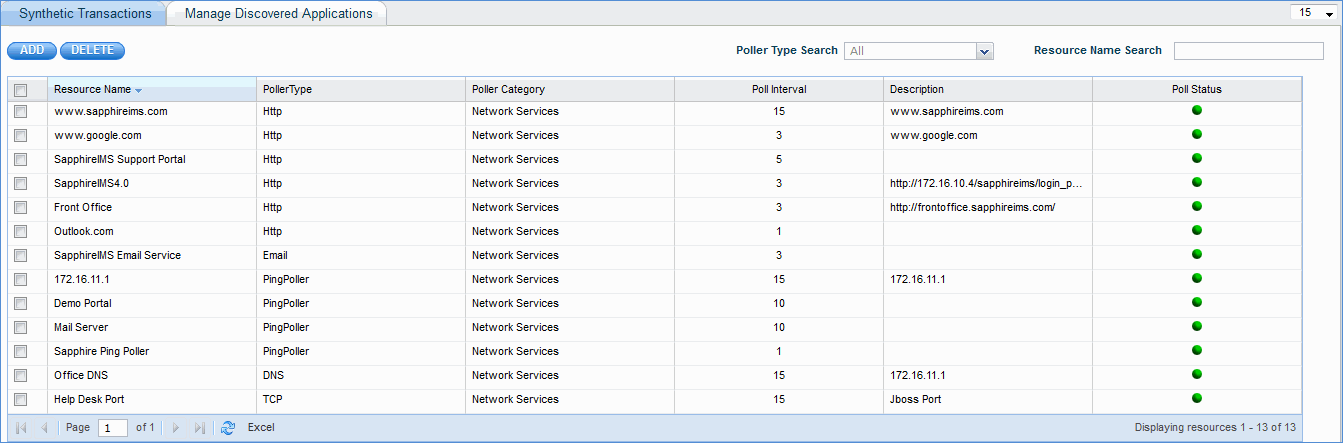
synthetic_transaction_listing.gif

Synthetic Transactions Listing


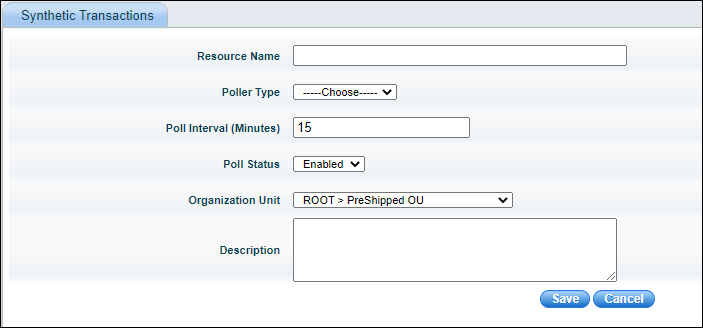
   Settings-BSM-SynTxnAdd.jpg

 Serial No

Field Name

Description

     1

Resource Name

Provide the name through which the service monitor resource will be identified with.

     2

Poller Type

Select the poller types from the drop down. The poller specifies the protocol used for the transaction.

  • HTTP

  • FTP

  • E-mail

  • PingPoller

  • DNS

  • Radius

  • TCP

For every poller type selected provide the respective details. For details on Http poller, go to the section Http Monitoring.


    3

Poll Interval (in mins.)

Specify the polling interval for the resource to be monitored. (minimum polling interval supported is 3 mins.)

    4

Poll status

By default the poll status would be ‘Enabled’. Only if it is set to ‘Enabled’ the polling would be performed.


    5

Description

A brief description of  the resource that is added,


   6

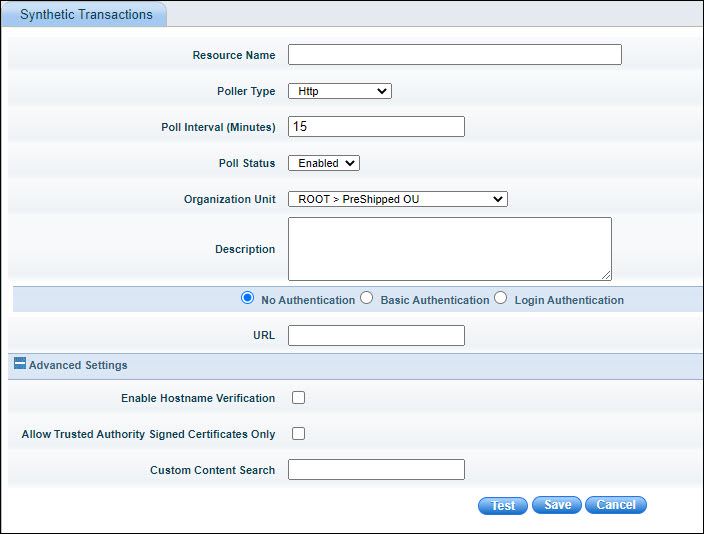
Advanced

Advanced Settings which depend on the type of poller. Click on '+' to expand

'Enable Hostname Verification': Enables verification of the host name

'Allow Trusted Authority Signed Certificates only': Requires a signed certificate

'Custom Content Search': Searches for specific content to be returned by the site or application  

   7

Test

Before saving the resource perform a test by using this option. If the ‘Test’ returns success then SapphireIMS would be able to collect the data successfully for  the configured resource.

If the ‘Test’ returns a failure, then the provided details are not correct and SapphireIMS will not be able to collect the data for the resource to be monitored.

Note: The 'Test' option is not available in a the Enterprise Plus edition.


Http Monitoring

Settings-BSM-SynTxn1.jpg

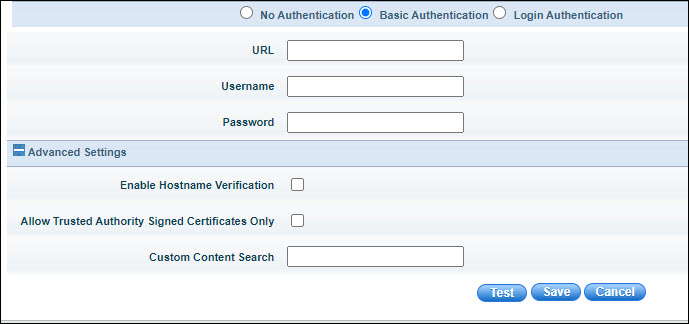
Settings-BSM-SynTxn2.jpg

 Serial No

Field Name

Description

    1

URL

Enter the URL of the site or application

    2

Username

Enter the Username for login

    3

Password

Enter the Password for login


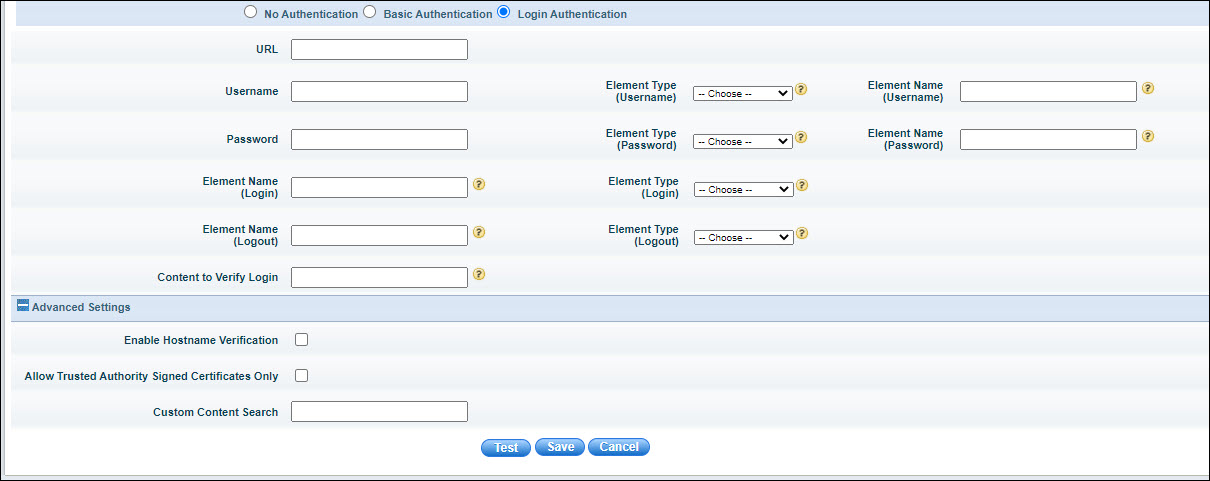
Settings-BSM-SynTxn3.jpg


 Serial No

Field Name

Description

    1

URL

Enter the URL of the site or application

    2

Username

Enter the Username for login

    3

Element Name (Username)

Enter the corresponding value for the selected Element Type to find the Username Text-box.

    4

Element Type (Username)

Select the Attributes (HTML Element) used in the Login page to identify Username Text-box uniquely. Supported Element Types are: id, name, class  

    5

Password

Enter the Password for login

    6

Element Name (Password)

Enter the corresponding value for the selected Element Type to find the Password Text-box.

    7

Element Type (Password)

Select the Attributes (HTML Element) used in the Login page to identify Password Text-box uniquely. Supported Element Types are: id, name, class  

    8

Element Name (Login)

Enter the corresponding value for the selected Element Type to find the Login button.

Note : for onclick type, enter the starting string of the Attribute value.  

    9

Element Type (Login)

Select the Attributes (HTML Element) used in the Login page to identify the Login button. Supported Element Types are: id, name, type, value, href, title, onclick

 10

Element Name (Logout)

Enter the corresponding value for the selected Element Type to find the Logout button.

Note : for onclick type, enter the starting string of the Attribute value.  

 11

Element Type (Logout)

Select the Attributes (HTML Element) used in the Login page to identify the Logout button. Supported Element Types are: id, name, type, value, href, title, onclick

12

Content to Verify Login

Enter the content in the Home page/Any other requested page from the given URL to determine the successful login.


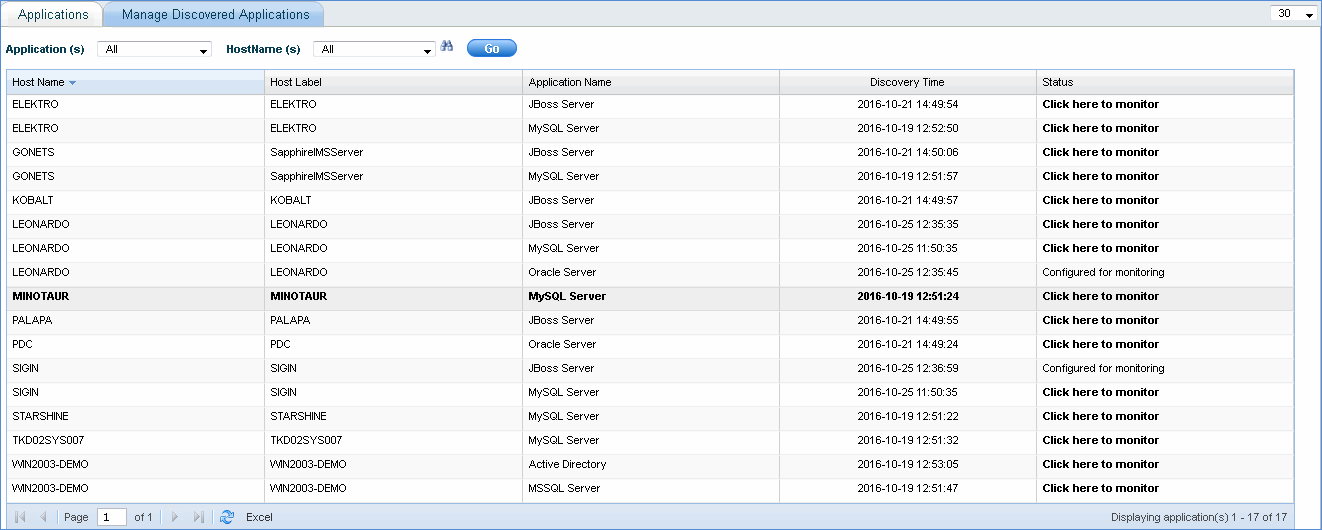
Manage Discovered Applications

You can monitor the service resources discovered through the 'Discovery' module.


manage_discovered_applications.gif