
After you set up the policy and profiles to detect Blacklisted Software in the network, you can also choose the action to be taken to uninstall the software. Uninstallation of Blacklisted Software can be either done manually or automated.
Click on 'Inventory', 'Installed Software', 'Software' options to get the installed software listing displayed and use the 'Advanced Search' filter to filter the Blacklisted Software.

Click on the Action button  . A pop-up appears
to enter the actions.
. A pop-up appears
to enter the actions.
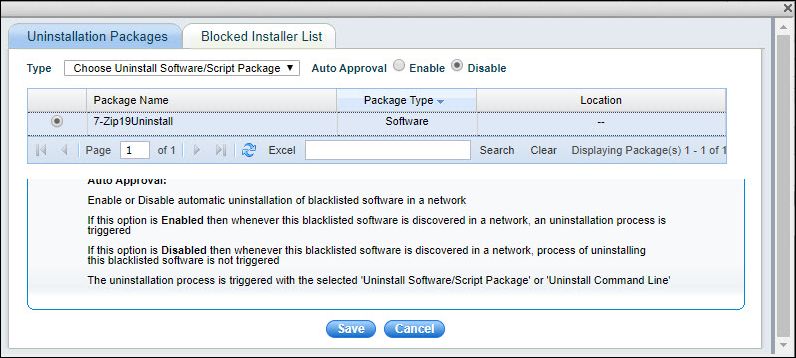
In the 'Uninstallation Packages' tab, you can select the type of the uninstallation which can be either a 'Software/Script Package' or a 'Command Line' string.
If an uninstallation package is chosen, the list of packages is displayed. Select the package to be used and select 'Enable' or 'Disable' Auto Approval depending on whether the software should be automatically removed if discovered.
 Note:
The uninstallation package should have been created earlier. Refer to
the topic Settings->Software
Management->Package and Policy Management->Managing Software Packages
for steps in adding an uninstallation package.
Note:
The uninstallation package should have been created earlier. Refer to
the topic Settings->Software
Management->Package and Policy Management->Managing Software Packages
for steps in adding an uninstallation package.
Click on 'Save'.
If 'Command Line' option is chosen, the following screen is displayed.
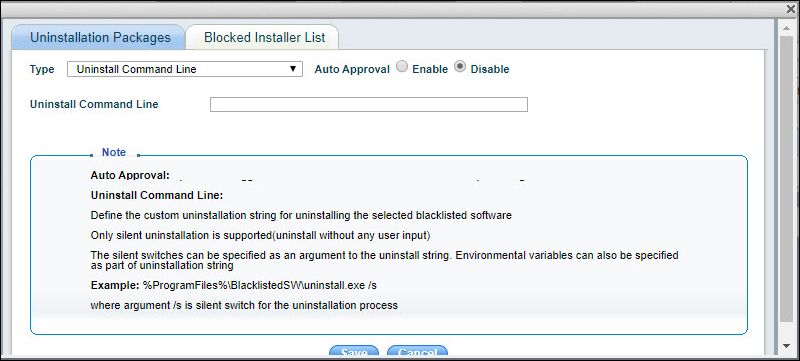
Enter the uninstallation command line. Select 'Enable' or 'Disable' Auto Approval depending on whether the software should be automatically removed if discovered.
Click on 'Save'.