
There is a facility for the SapphireIMS administrator to unlock multiple AD accounts as well as a self-service for the users to unlock only their AD account. Due to the AD policies, it is quite possible that users type their passwords incorrectly or forget their password and thereby cause the AD account to be locked. SapphireIMS has a self-service capability which helps in not requiring users to wait for the IT engineer to unlock the AD account.
 Note:
1. The setting key 'Enable/Disable AD Account Operation Access' in 'Settings
> Advanced System Settings > Global Settings' should be set to 1
to enable unlocking of AD account.
Note:
1. The setting key 'Enable/Disable AD Account Operation Access' in 'Settings
> Advanced System Settings > Global Settings' should be set to 1
to enable unlocking of AD account.
2. The setting key 'Enable/Disable AD account Unlock feature' in 'Settings > Advanced System Settings > Global Settings' should be set to 1 to enable unlocking of AD account.
Click 'Settings' from 'User management' section and then click on 'Users'
Select 'Unlock Account ' option in 'Action' drop down field.
Users can unlock their AD account if it is locked. For this the user must have set their PIN and Secret Question/Answer in the 'Preferences' page.
Click 'Unlock AD account' in the Login page
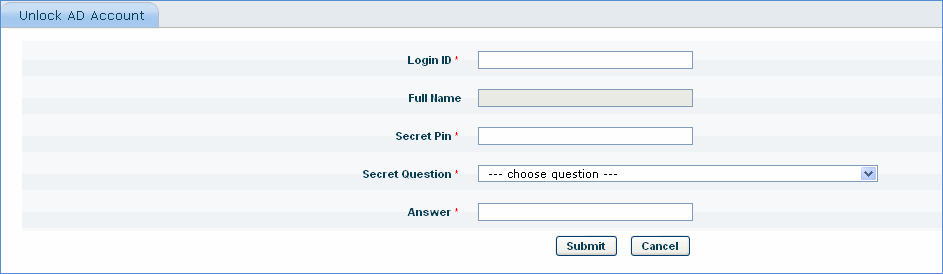
Enter 'Login ID'.
Enter 'Secret Pin', select the 'Secret Question' and enter the Answer as specified in 'Preferences' setting
Click 'Submit'.