
Agent is an executable software that resides on a target machine and periodically updates SapphireIMS server with data collected from various end nodes or machines. In the case of an agent less setup, SapphireIMS server has to connect to the nodes remotely for information to be updated in the database.
SapphireIMS server is the sole trigger point for all activities to manage your network resources. In case the target node is not reachable (in case the user is outside the corporate network or the remote machine is residing on network that is different from that of the server or the port is not open for communication etc.) from the server, then you would not be able to manage the target node. But if an agent is present on the target node, all routine tasks that do not require a trigger from the server can be configured to run on the agent node without any intervention from the server. However, only when the target node is able to communicate to the server, it would be able to push the collected data to the server.
Agent less monitoring needs certain ports to be open and services to be running. For example, in case of SSH data collection type, port 22 (default port) has to be open for communication and SSH service has to be running in the end node. But administrators in the corporate world may be reluctant to do so due to security reasons. In such situations, a recommended solution is to implement SapphireIMS agent architecture
Some operations like software metering, software blacklisting, antivirus data collection and policy analyzer support are only possible on SapphireIMS agent machines.
SapphireIMS agent download link:
SapphireIMS\ConsoleManagement\ExternalWar\SoftwareRepository.war\SapphireIMSAgent-4.0-Setup.exe
Follow the steps below to install SapphireIMS agent.
1. Execute the ‘SapphireIMSAgent-4.0-Setup.exe’ in every system which is designated as SapphireIMS agent.
2. Provide the details as mentioned in the table below, click ‘Next’ then click ‘Finish’.
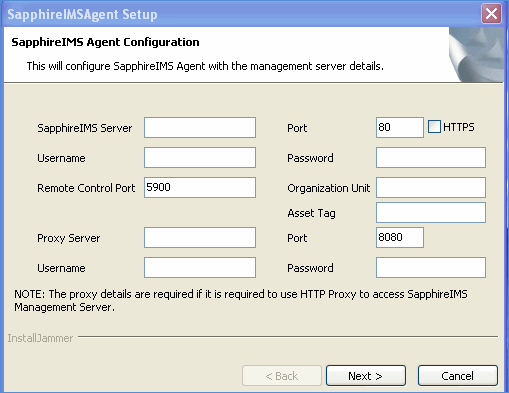
Agent Setup
|
3. SapphireIMS agent will be successfully
installed in the system. You will notice a small icon ‘ ’ on the task bar.
4. For the installed agent to be accessed remotely right click the ‘SapphireIMS-Agent’ icon and select ‘Remote Support’
5. Double click ‘Sapphire support’.
To allow the server to access the agent through HTTP, ‘Server.xml’ file needs to be modified. Kindly contact SapphireIMS support team for further details.
1. Once ‘Server.xml’ file is modified, restart ‘SapphireIMS’ service.
2. The
icon ‘ ’ will appear in the ‘Agent’ column
in the ‘Discovered Nodes’ screen for the respective agent installation.
’ will appear in the ‘Agent’ column
in the ‘Discovered Nodes’ screen for the respective agent installation.
Note: Enable the variable ‘Enable or Disable Agent Feature’ from ‘Manage System Variables’ in ‘IMS Settings’ section on the ‘SapphireIMS’ server
On successful installation of the agent it is displayed in the task bar as an icon. On right click of this icon agent control options are displayed very similar to the image shown below.
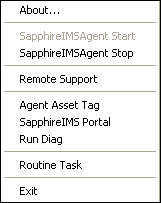
This section lists all the setting keys that must be modified to disable each of the agent control options shown in the image.
To disable the options, modify the setting key located in ‘Settings’ > ‘Advanced System Settings’ > ‘Global Settings’
To disable ‘Agent Asset Tag’ option, locate the setting key ‘Display Asset Tag Option in SapphireIMS Agent Tray’ and modify the setting value to ‘0’
To disable ‘Exit’ option click the setting key ‘Display Asset Tag Option in SapphireIMS Agent Tray’ and modify the setting value to ‘0’
To disable ‘Remote Support’ connection option, click the setting key ‘Display Remote VNC Connection Option in SapphireIMS Agent Tray’ and modify the setting value to ‘0’
To disable ‘SapphireIMS Portal’ option, click the setting key ‘Display SapphireIMS Portal access in SapphireIMS Agent Tray’ and modify the setting value to ‘0’
To disable SapphireIMS Agent service, click the setting key ‘Display Service Control in SapphireIMS Agent Tray’ and modify the setting value to ‘0’
Note: When agents are enabled for performance monitoring, SapphireIMS server does a reverse ping after the time period ( [PollInterval * 2] + 8 times) to find the agent status. Based on the threshold configuration, an alert will be generated if the agent machine is down. This process continues until the agent starts communicating with the SapphireIMS server again.
Set the global settings key 'Enable/Disable Reverse ping to agent' to 1 to facilitate the reverse ping process.