
 Note: Asset Reports are available
only if ITSM module is installed.
Note: Asset Reports are available
only if ITSM module is installed.
Asset Reports are based on CMDB data. This topic describes how to add new Asset Summary and Asset Analytical Reports.
Asset Summary Reports display the list of assets in CMDB which can be filtered by criteria applied to the CI attributes as well as time elements.
On the SapphireIMS menu, point to 'Reports' and click 'Asset and Inventory Reports'.
Click the ‘Asset Summary Reports’ link. Click on the ‘Add’ button. A screen to display the report details is displayed. As an example, the report below displays Laptops and Desktops filtered by warranty start dates.
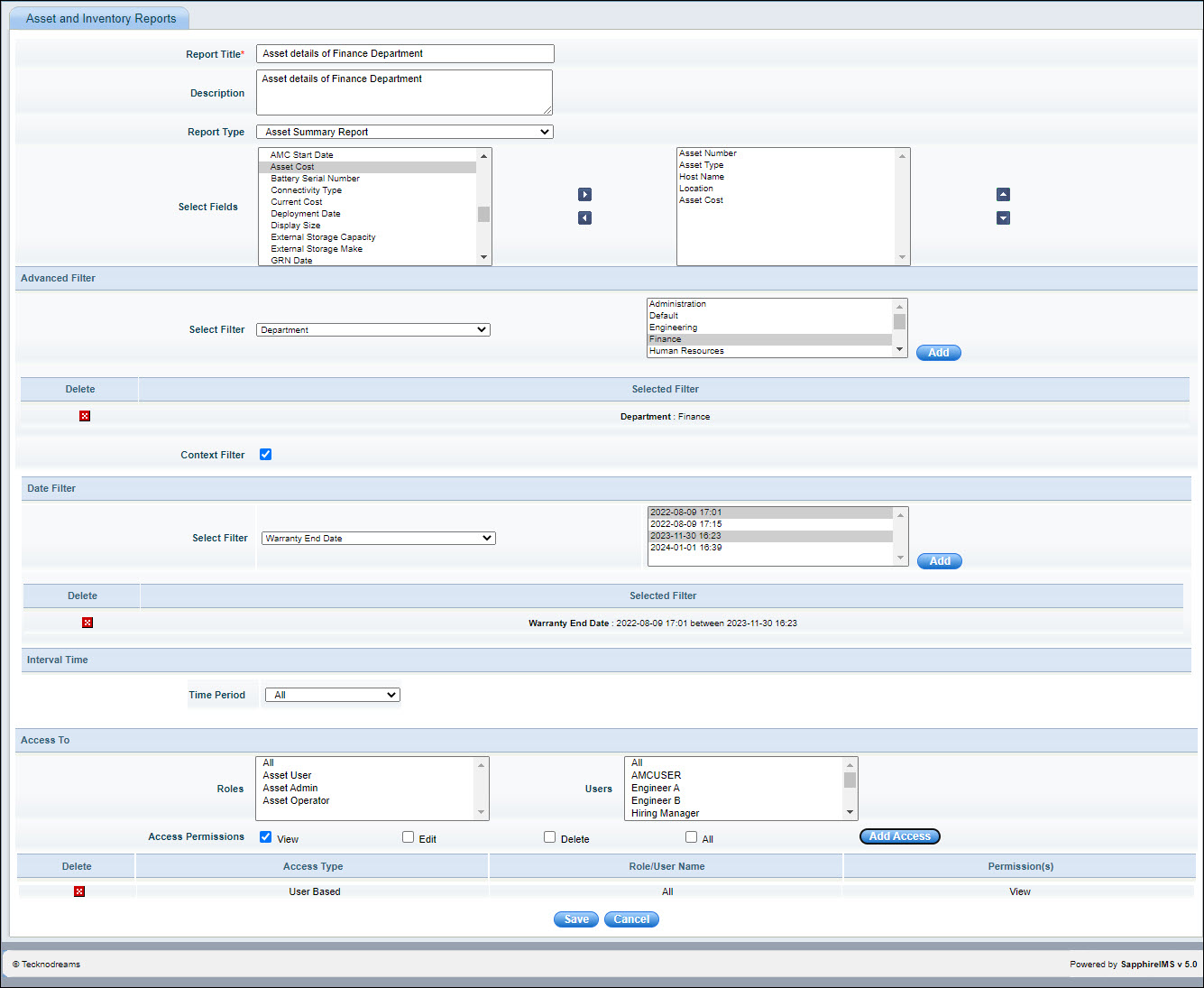
The fields are described below.
|
Enter all fields and click on 'Save'.
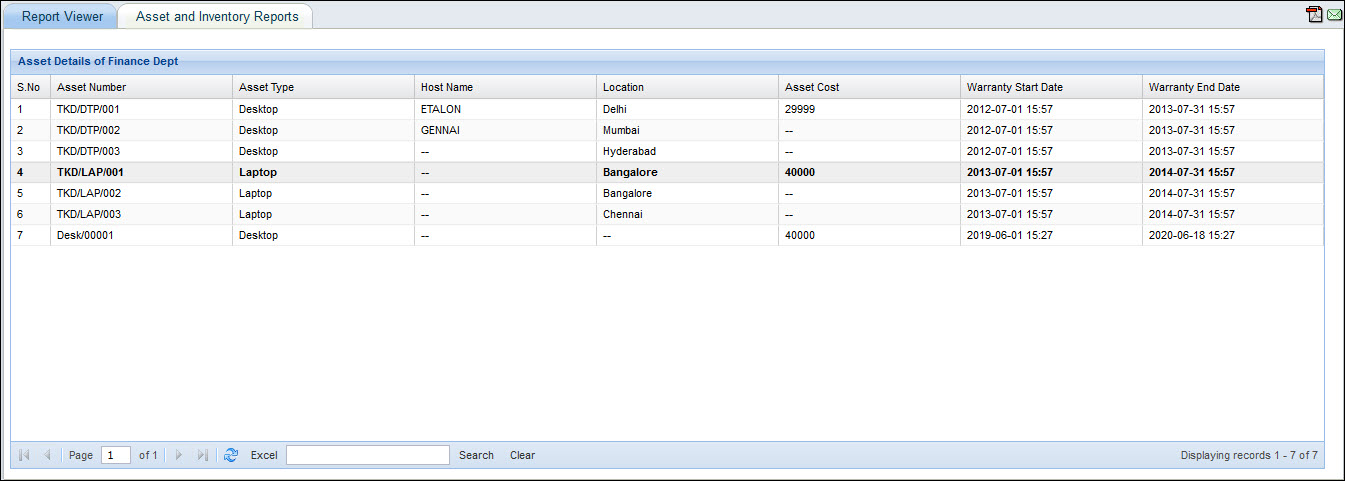
Run the report by clicking on it. The report is shown in the Report Viewer.
A sample report is shown below.
This is an analytical report which gives the distribution of assets based on various parameters.
On the SapphireIMS menu, point to 'Reports' and click 'Asset and Inventory Reports'.
Click the ‘Asset Analytical Reports’ link. Click on the ‘Add’ button. A screen to display the report details is displayed. As an example, the report below displays the distribution of asset by type and location.
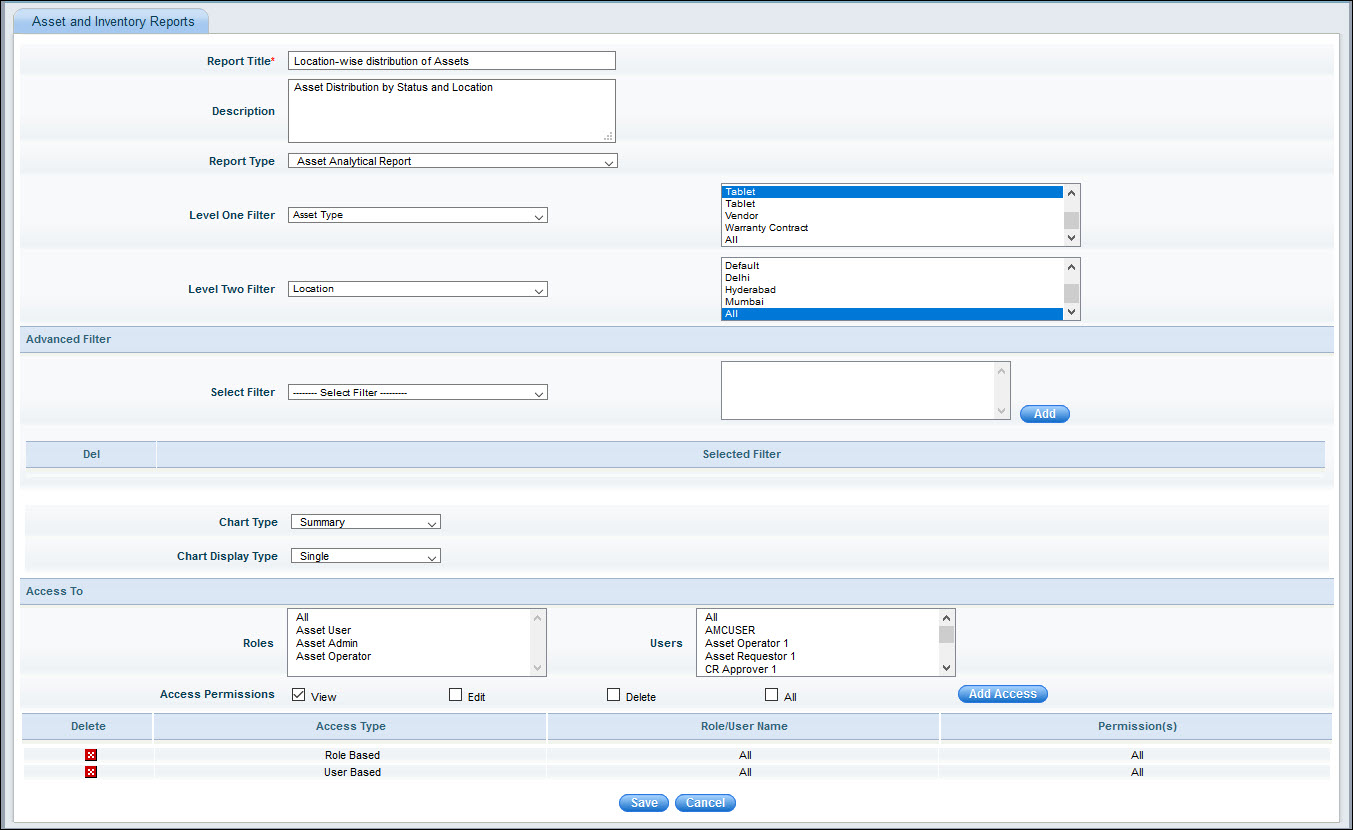
The fields are described below.
|
Enter all fields and click on 'Save'.
Run the report and the following is displayed.
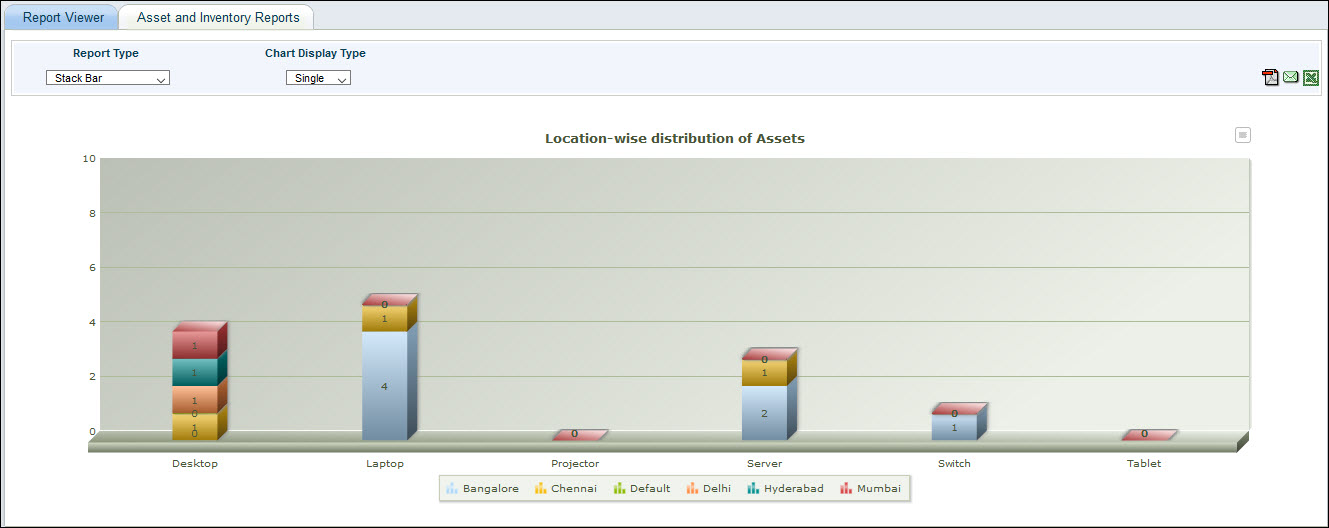
You can change the Report type and Chart Display Type.
New Asset summary and analytical reports can be quickly created by using an existing report as a template and making modifications. The steps below describe how to create a new report from an existing Asset Summary Report.
Click on Reports > Asset and Inventory Reports > Asset Summary report. The Asset Summary Report listing screen is displayed.
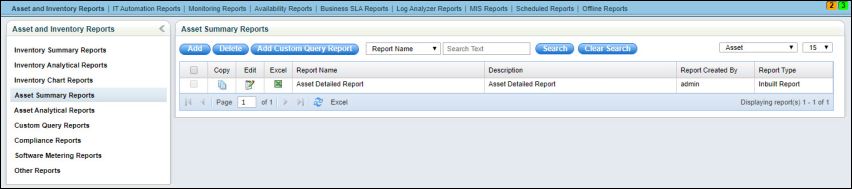
Click on 'Copy'
option  for the specific report which you
want to use as a template. The report editing screen is displayed.
for the specific report which you
want to use as a template. The report editing screen is displayed.
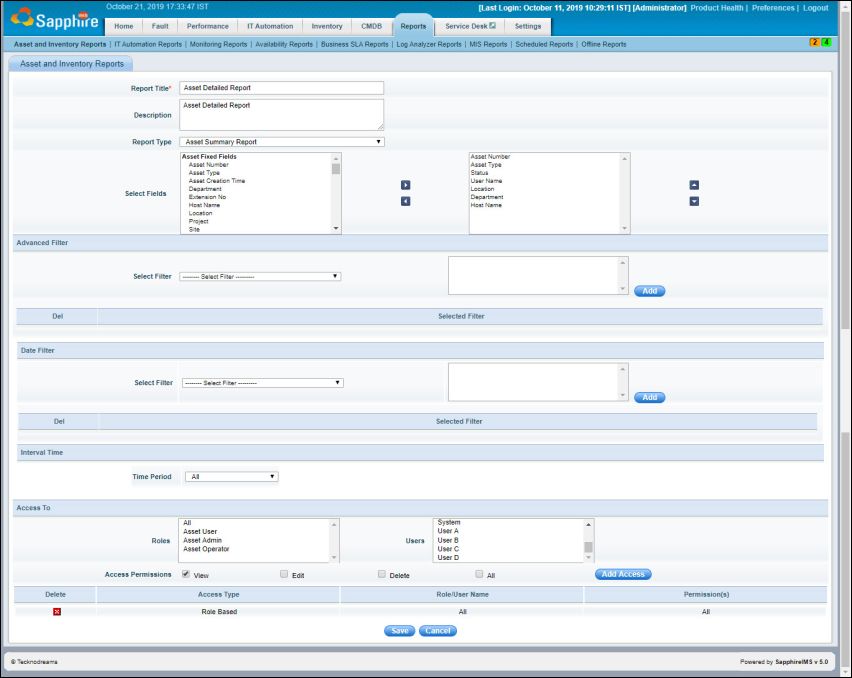
Modify the title and make any changes to the report. Click on 'Save' and a new report is created.