
To move multiple service records to the next state as per the workflow, follow the steps listed below.
Select the Request ID’s/ Incident ID's/ Problem ID's/ Change ID's that are in the same state.
From the ‘Actions’ drop down, click ‘Bulk State Transition’ to display the ‘Change State’ screen.
Choose the state from the ‘Change State’ drop down to change the state.
In the ‘Next State’ drop down the states that satisfy following criteria will only be visible.
Workflow: The ‘Service’ and ‘Sub Category’ included in the states workflow should match with that of the records selected.
Additional Fields: The fields for the state must have the ‘Service’ and the respective ‘Sub Category’ included.
E.g. If the service desk record states have to be modified from 'New' to ‘Assign’ state then in ‘Additional Fields’ section for ‘Assign’ state the ‘Service’ and ‘Sub category’ should match to that of the records.
For a state only those ‘Additional Fields’ which the user has access to will be considered.
A service desk record cannot be moved to the ‘End State’ if it has any child record, which is not in the ‘End State’.
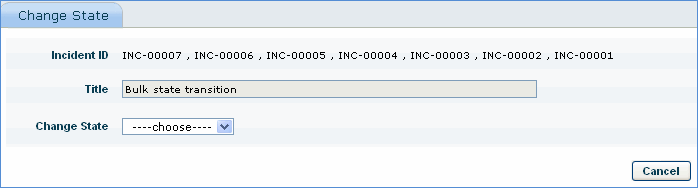
Bulk State Movement
Notes:
1. At the time of modifying the state if any details are modified it will be reflected in all the selected records
2. For 'Bulk State Transition' to be enabled, the option 'Bulk State Transition' has to be selected while creating roles.