
Roles: Service Desk Engineer
Incident classification is primarily to classify incidents in order to provide initial support. Through incident classification, support staff aims to determine the reason for an incident and to route it to the correct team for resolution. Proper classification also helps to identify and prioritize the incident to work on first. Incident classification is a two step process, Incident Categorization and Incident Prioritization.
To categorize an incident, you may have to modify some incident details like the category and subcategory. It is very important to understand the source of all incidents. Service Desk Engineer can categorize the incident based on the nature and type of incident.
The following section lists down the steps to categorize an incident.
1. Select the 'Incident' from 'Incident' > 'My Incidents' tab or 'Incident' > 'All Incidents' tab or search for the incident. Click the incident that is in ‘Assign’ state.
2. Edit the 'Category' and 'Sub-Category' fields. Click 'Update'
3. While viewing the incident, select ‘Categorize’ in the ‘Change State’ option to display a 'Change State' window.
4. In the 'Change State' window, select the work group and type/modify the required information. Click 'Change'
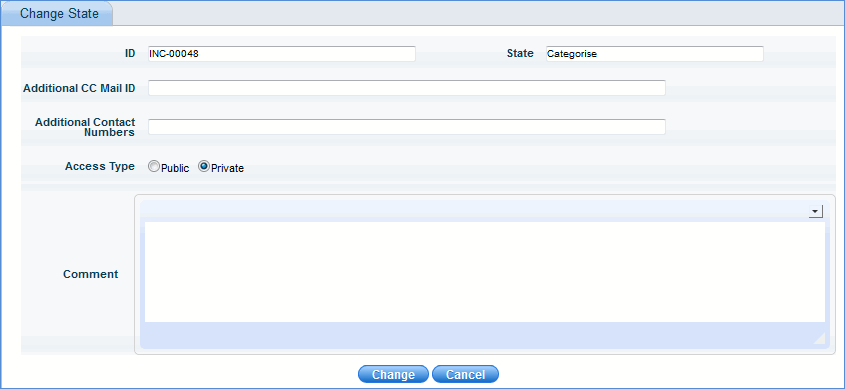
|
5. The incident is now successfully categorized. You will receive a confirmation message similar to the one shown below

Prioritizing is another important aspect of an incident life cycle as this determines how the incident is handled by the support staff. Prioritization is determined by taking into account the urgency of the incident and the impact it is causing on the business. A service desk engineer can prioritize the incidents by changing the 'Urgency' level and 'Impact' level.
1. Select the 'Incident' from 'Incident' > 'My Incidents' tab or 'Incidents' > 'All Incidents' tab or search for the incident. Click the incident that is in ‘Categorize’ state.
2. Select the 'Urgency' and 'Impact' fields. Click 'Update'.
3. While viewing the incident, in the ‘Change State’ list, select ‘Prioritize’ to display a 'Change State' window.
4. In the 'Modify State' window, type appropriate information and click 'Change'
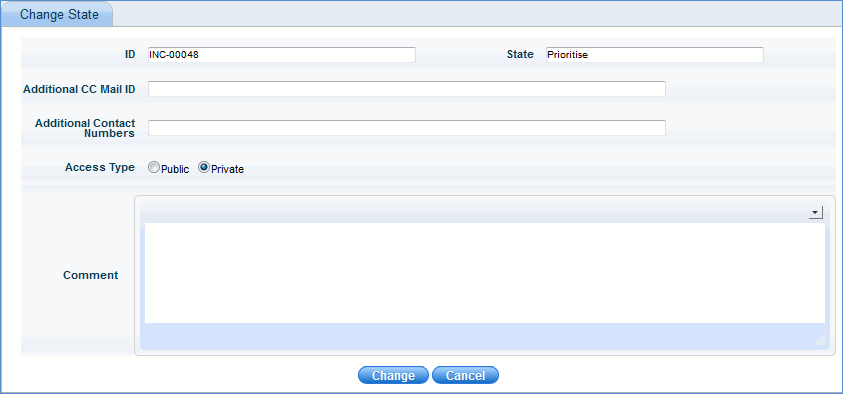
|
5. The incident is now successfully moved to 'Prioritize' state. You will receive a confirmation message similar to the one shown below
Note: Additional fields 'Additional CC Mail ID' and 'Additional Contact Numbers' are always displayed in the 'Change State' window. Modify as required.