Compliance Baseline Rules
Compliance Baseline Rules allow you to define
a baseline for nodes. The baseline feature is used in the IT Policy compliance
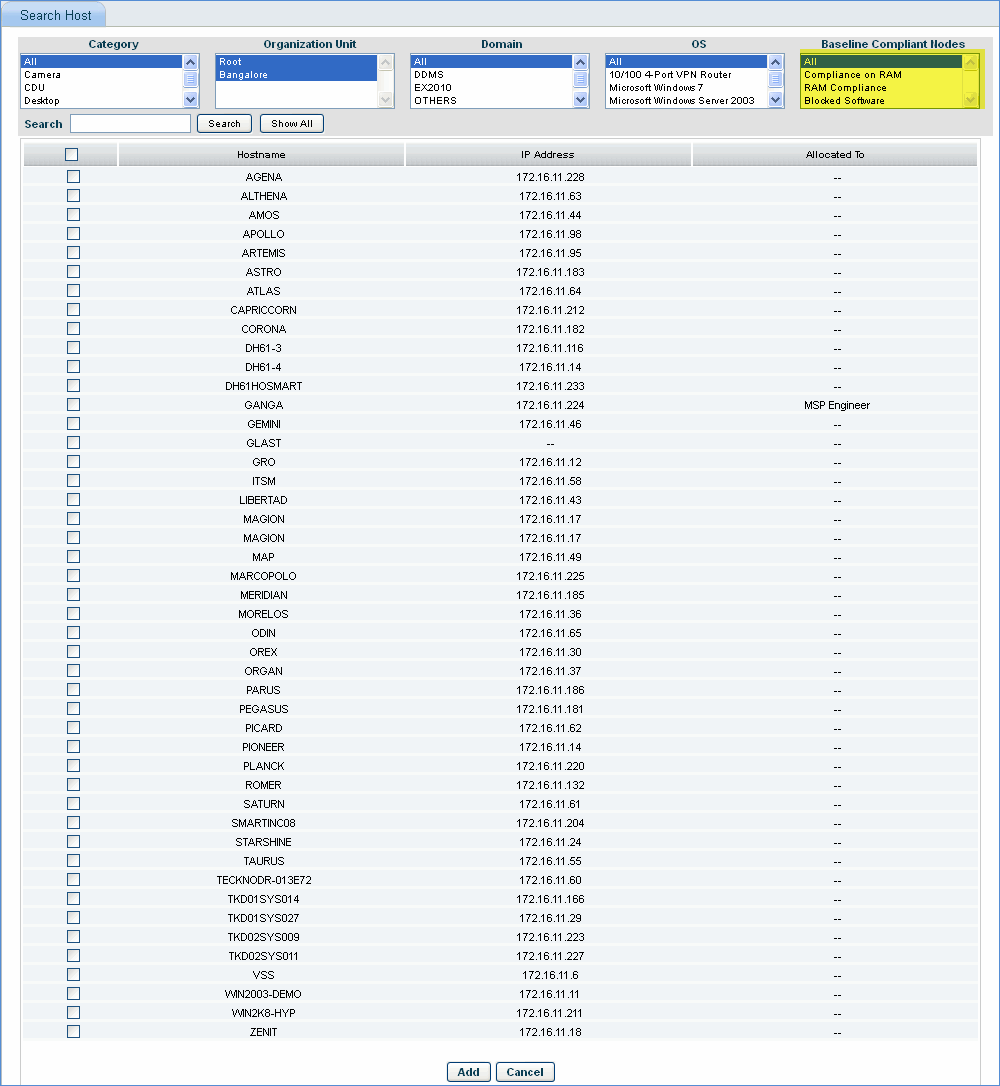
rule configuration and can also be used as a node selection filter.
IT policy compliance test can be performed
across systems by configuring a compliance baseline rule which involves
all the device parameters that SapphireIMS collects at the time of data
collection. The parameter includes inventory fields, asset fields, service
patches and service packs. The rule clearly defines what the selected
systems should be compliant for. The systems not matching with the configured
rule are shown as non complaint systems. This helps in giving a quick
regulatory compliance report.
1. Go to Settings Tab-> Asset and Inventory
Management-> Compliance Baseline Rules
2. Click "Add"
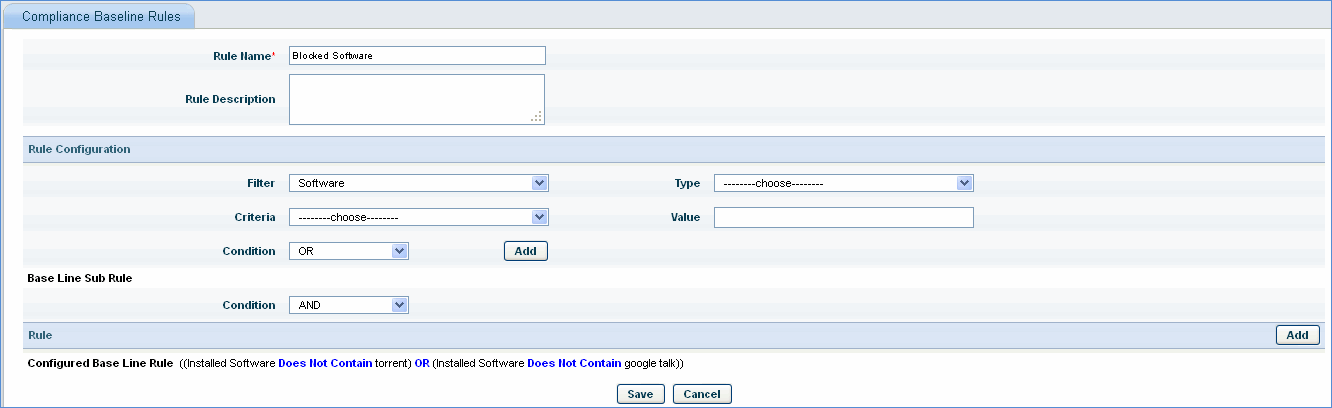
Sr.
No |
Field
Name |
Description |
1 |
Name |
Enter
a user friendly name for the compliance baseline rule
|
2 |
Description |
Describe
the rule in simple words
|
|
Rule
Configuration |
|
3 |
Filter |
Select
a filter from the drop down. |
4 |
Type |
Depending
on the parameter selected in the ‘Filter’ drop down list box corresponding
data will be displayed in the 'Type' drop down list box
|
5 |
Criteria |
Displays
the operators for e.g. ‘Equal To’, ‘Not Equal To’, ‘Contains’
and ‘Does not contain' etc.
|
6 |
Value |
Enter
a value against which the baseline compliance rule is checked
|
7 |
Condition |
Select
the operator AND/OR in case you need to add multiple parameters
for the rule
|
|
Example |
Refer
to the above image
If a baseline compliance rule needs
to be defined to block installed software like Torrent or installed
software like Google Talk, then the selection will be as follows
Filter
: Software
Type
: Installed Software
Criteria
: Does not contain
Value
: torrent
Condition
: OR
Rule
: (Installed
Software Does not contain Google Talk) |
8 |
ADD |
Click
to add the rule
|
|
The compliance baseline rule thus configured
can be selected as a filter in the 'Node Selection' page