
Search condition created in 'Advanced Search' section can be saved as a ‘Search Profile’ for later use.
The following example is to create a private search profile in the incident management project.
1. On the service desk menu, point to 'Incident' and click 'All Incidents'
2.
If a search profile is selected, click ' ' button
to clear the existing profile view configuration. 'No Profiles selected'
is displayed in the incident listing page.
' button
to clear the existing profile view configuration. 'No Profiles selected'
is displayed in the incident listing page.
3. Click the '+' button to view the filters for selecting the search criteria.
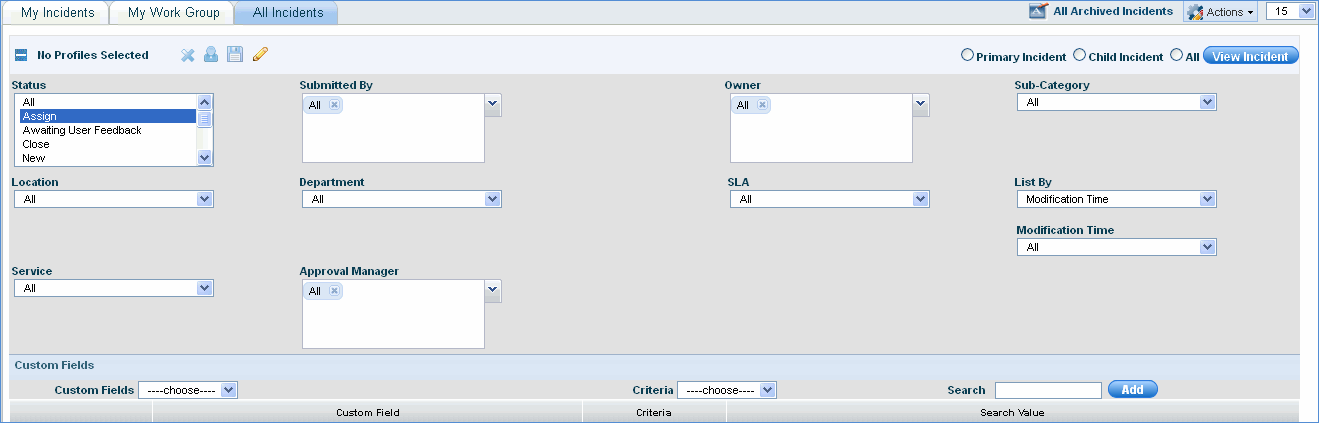
4.
Select the filters applicable for the search profile and click the icon
‘ ’
to display the 'Add Search Profile' screen as shown below.
’
to display the 'Add Search Profile' screen as shown below.
Note: Click ' ' to make the search profile
as default. When you make a search profile as default, the search profile
is applied to the request listing page when you login. Also, the search
profile selected here will take precedence over the default search profile
configured from project settings > Custom Views
' to make the search profile
as default. When you make a search profile as default, the search profile
is applied to the request listing page when you login. Also, the search
profile selected here will take precedence over the default search profile
configured from project settings > Custom Views
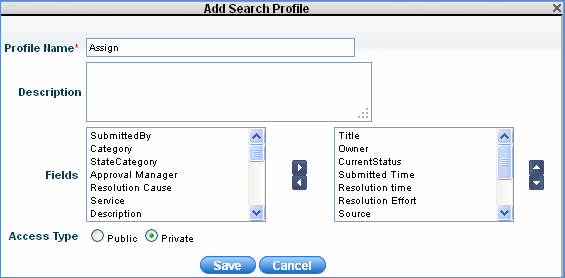
5. Type the 'Profile Name' and 'Description'.
6. Select the fields to be displayed for the search profile
7. Select 'Public' if the search profile needs to be accessed globally
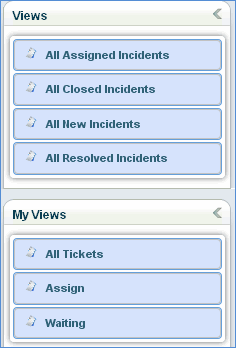
8. Select 'Private' if the search profile needs to be available only for the logged in user in the current project. The profiles selected as 'Private' will appear in the 'My Views' profiles listing of the current project.
9. Click 'Save'. Once saved, the public profile is displayed under 'Views' and the private profile is displayed under 'My Views' profile listing as shown below.
Notes:
1. To restrict Search profile configuration to users, change the Config Settings key 'Search Profile Configuration Display' as required.
2. To restrict publish option to users, change the Config Settings key 'Public search profile configuration to user as required.