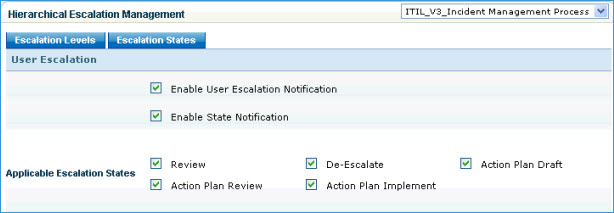
Prior to configuring this section, make sure you have configured 'Escalation Levels' and 'Escalation States'.
'Hierarchical Escalation' tab will be visible in 'Edit Request', 'Edit Incident', 'Edit Problem', 'Edit Change' page only if the following conditions are met.
Role of the logged in user is inherited from 'Technician' or 'Approval Manager'
The check box 'Hierarchical Escalation' has been selected while creating the role
SapphireIMS allows configuring of mainly four types of escalations as listed below
1. User Escalation : Purpose is to allow users to escalate to higher authorities.
1. Enable User Escalation Notification: Once this checkbox is enabled, notifications will be sent whenever there is an escalation done by the user
2. Enable State Notification: Once this checkbox is enabled, notifications will be sent whenever there is an escalation state change
3. Applicable Escalation States: Select the check box for one or more escalation states. These states are available for state change for a technician in 'Hierarchical Management' > 'User Escalation' tab (this tab is visible in Hierarchical Escalation tab)
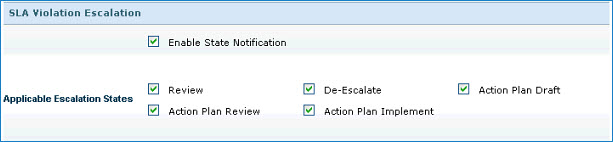
2. SLA Violation Escalation : On SLA breach, selected roles and users can be notified
1. Enable State Notification: Select this flag to enable notifications whenever there is an escalation state change
2. Applicable Escalation States: Select the check box for one or more escalation states. These states are available for state change for a technician in 'Hierarchical Management' > 'SLA Escalation' tab (this tab is visible in Hierarchical Escalation tab)
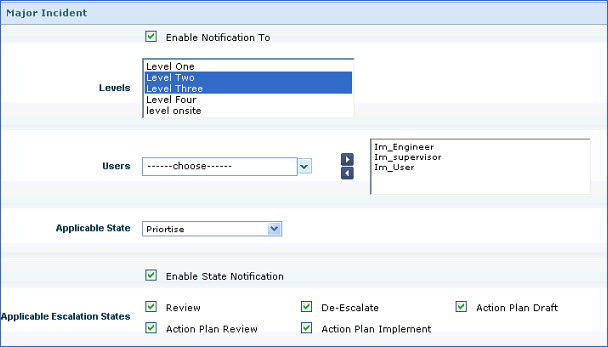
3. Major Incident
1. Enable Notification To: When a major incident is submitted, you can enable notifications to multiple levels of managers and users as per the selection made in 'Levels' and 'Users' list box respectively.
2. Enable State Notification: Select this flag to enable notifications whenever there is an escalation state change
3. Applicable Escalation States: Select the check box for one or more escalation states. These states will be available for state change for a technician in 'Hierarchical Management' > 'Major Incident Escalation' tab (this tab is visible in Hierarchical Escalation tab)
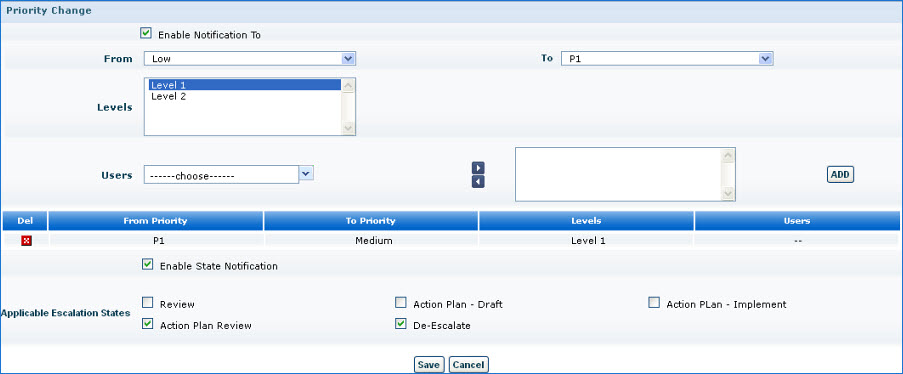
4. Priority Change
1. Enable Notification To: Select this check box to enable 'From' and 'To' drop down list box.
'From' and 'To' drop down list boxes display the priority levels.
For example notifications can be sent to the level 1 technicians and users when priority is changed from 'Low' to 'High'
2. Enable State Notification: Select this flag to enable notifications whenever there is an escalation state change
3. Applicable Escalation States: Select the check box for one or more escalation states. These states will be available for state change for a technician in 'Hierarchical Management' > 'Priority Escalation' tab (this tab is visible in Hierarchical Escalation tab)
4. Save the configurations