
User Roles: Problem Support Engineer
SapphireIMS allows to create change records from within problem management. Multiple problem records can be associated with a change record making it easier to track the number of changes occurring for the same problems.
To Open a change request - CR from Problems
1. Select the 'Problem'/'Problems' from 'Problem' > 'My Problems' tab or 'Problems' > 'All Problems' tab or search for the problem.
2. Click the 'Actions' tab and select 'Create CR'
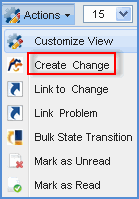
3. In the 'Create CR' form, type necessary details that are marked red and click 'Submit'.
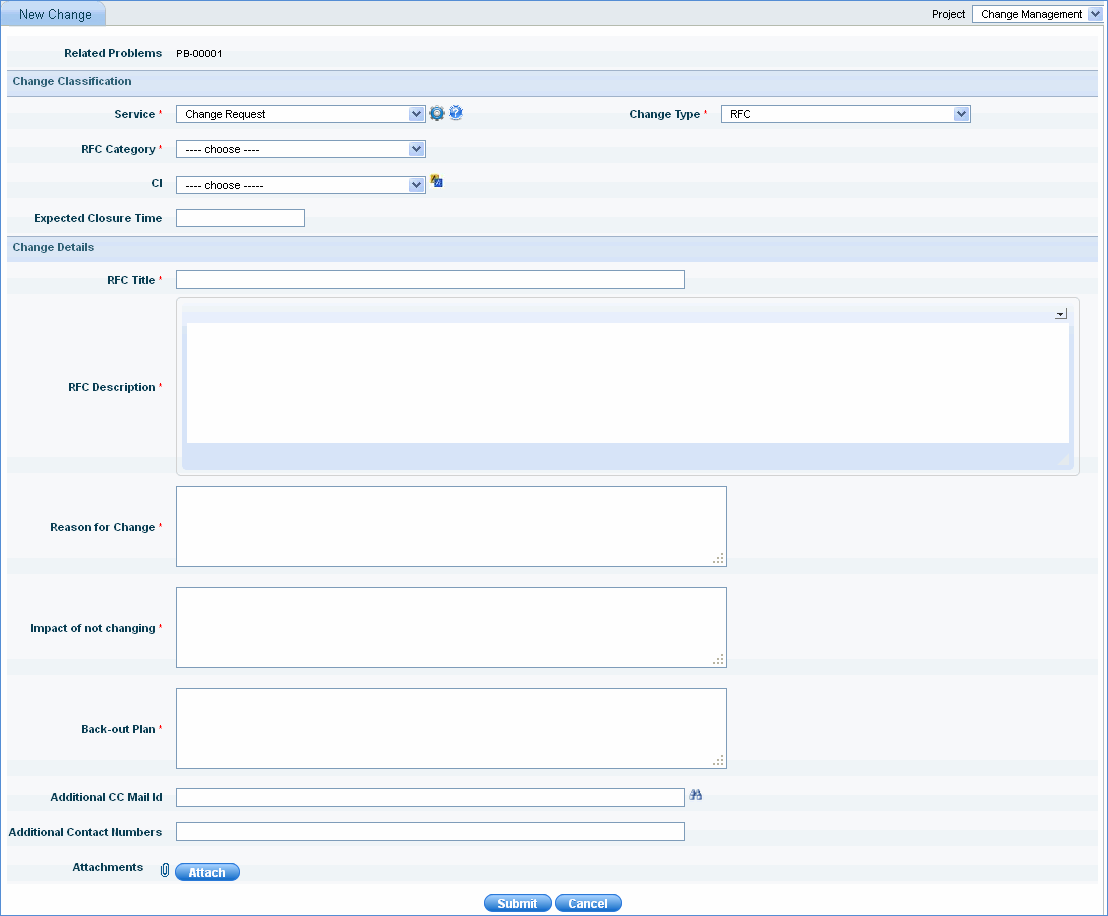
4. Change record is submitted successfully. You will receive a confirmation message.
Once problem has been diagnosed and analyzed a 'Request for Change' can be submitted into 'Change Management' right from 'Problem Management'.
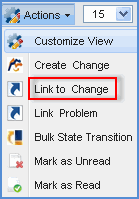
This section shows you how to link problem with the change once it has been analyzed. Problem can be linked to the existing change if problem of similar nature is recurring. To do this, follow the steps below:
1. In the ‘Problem Management’ project select one or more problem ID
2. From the ‘Actions’ drop down select ‘Create CR’
3. Enter the details and click ‘Submit’
If problems of similar nature occurs to the ones that has already been linked to the change, then it can be added to the existing ‘Change ID’ by following the steps below:
1. Select problem/problems ID. From the ‘Actions’ drop down select ‘Link to CR’
2. Select the ‘ID’ and click Link
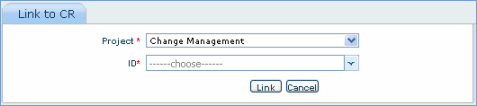
Note: Problems that has already been linked to a change cannot be linked with any other change ID